It's not a mild insult.
It's a distributed version control system. 😕
That is.. a system that lets you save changes to a file or set of files over time, so that you can recall specific versions later.
That is, a powerful way of backing up your projects and collaborating efficiently with other people.

Because you only realise it's wise to back up your project when one of the following happens:
- Your computer breaks, gets stolen, is eaten by the cat...
- You accidentally delete a file. Permanently. For ever.
- You save a document with the same name of another document. Bye bye previous document.
- You run out of
cmd-Z. End of history.

Tools like Dropbox automatically back up files as you save them. Every new save overwrites the previous.
This system could be ok if you work on your own, but it breaks apart if you want/need to work on a project with someone else (which is more often than you think).
The question is: how do you back up? Specifically
- Do you back up only the latest version of your files/project? Or do you keep separate versions?
- How much do you save? Only the changed files or the complete project?
- How do you name versions? How about
project-ABC-final-v2-signed-off-13-07-2023-the-finalest-really? - How do you know what exactly is different in these versions?
Git allows you to
- revert files back to a previous state
- revert an entire project back to a previous state
- compare changes over time
- see who last modified something that might be causing a problem and when
- recover files if someone (you?) screws things up
- merge all changes to a project into a shared repository
- solve conflicts between file versions
- branch out a project to try something without affecting other versions

Using Git, many people can work on the same documents at the same time, without overwriting any part of them.
Git is more than a back-up tool. It's a collaboration enabler.

There are two ways of working with Git:
-
Using a Command Line Interface (CLI). You can learn more about the Git CLI with this interactive tutorial.

- Using a Graphic User Interface (GUI) application.
Using a CLI is very cool, in a Matrix-like way. However it's easier to have a visual interface sometimes. Most of the times. For that, you can use the SourceTree app (it's free).
For the rest of this guide, we'll take the GUI approach and use SourceTree.

First, you edit your files on your computer (aka Working Copy).
Any changes you make to the Working Copy will appear on Source Tree.
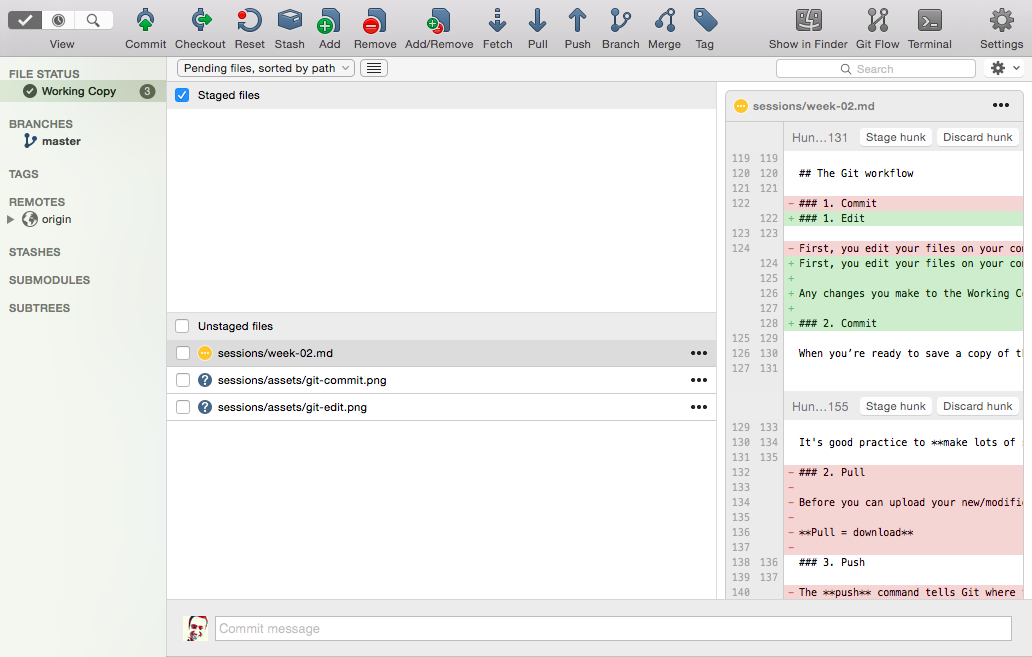
- New files will appear with a question mark (?) next to them.
- Changed files will appear with an ellipsis (...) next to them.
When you’re ready to save a copy of the current state of the project, you stage changes and commit them to the project history.
Whenever you commit a bunch of changes to your files, you will need to add a commit message. It can be anything, however it helps if you write something meaningful and descriptive of the changes you've made.
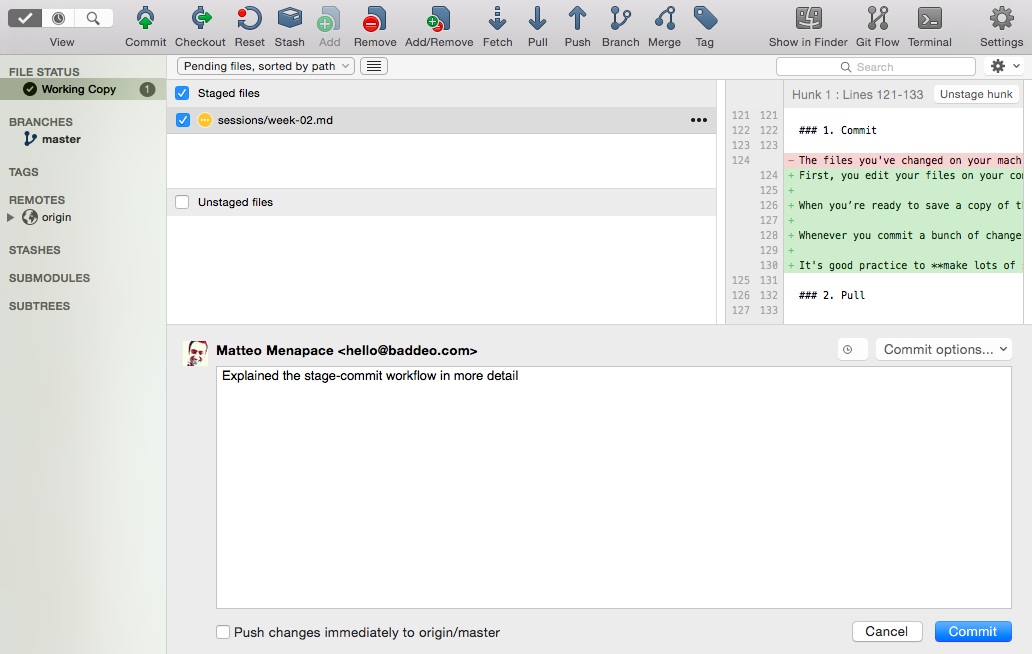
It's good practice to make lots of small commits rather than one massive push at the end of the day.
After you've commited some changes, a number icon will pop up over the Push button.
This means that your commits are ready to be uploaded to the mothership (aka origin repository).

The name of our remote is origin and the default local branch name is master.
Push = upload
If there are no conflicts between your files and those on the mothership, you're done!
Pull = download
If other people are working at the same project, before you can upload your changes to the mothership (aka origin repository), you may need to pull the latest version from the mothership into your working copy.

If there's a number over the Pull button you should pull those remote changes into your Working Copy (and possibly sort out conflicts before you can push your changes).
- Explain how to create a repo, or fork one
- Pull requests
- Check out http://dougbelshaw.com/blog/2015/01/04/github-pages
- Check out GitHub for beginners
- Check out This like a Git, especially the graph theory bit (a Git commit is a node in a graph, and nodes can point to other nodes that came before them.)