Welcome! This guide will walk you through all the features of Testflow. After completing the tutorial, you will know a new way to rapidly build and test skill code.
First, be sure Testflow is installed: see SETUP
We will be testing against the two included Node.JS sample skill code projects in sampleskill and sampleskill2 and the Python project in sampleskill3
Open up the testflow project folder in your favorite code editor or text editor.
We will be modifying testflow.js, and the sequence text files within /dialogs/.
Open up a commmand prompt (black background is recommended), change into the root testflow directory, and type
node testflow
This runs three default test events from the file dialogs/default.txt :
LaunchRequest
AMAZON.HelpIntent
AMAZON.StopIntent
Notice, we are not testing with the full phrase or utterances that a human might say, nor are we typing in questions like a chatbot. Testflow simulates the same Intents and Slots that the Alexa service will send to your code. Assume the Skill and Alexa service have already processed the audio, and selected an Intent (and slot values) according to the language model of your skill.
- Type
node testflow breakfast.txt - Type
node testflow lunch.txtYou will get an error. - Create a new file in /dialogs called lunch.txt with Requests & Intents similar to breakfast.txt
- Run testflow again with your new file.
- Within testflow.js, change the
options.delayto 4 seconds. - Rerun the test. You now have time to read the responses from your Alexa skill.
- Set the following options to true:
  * options.speechOutput
  * options.reprompt
  * options.attributes
  * options.cards
- Run
node testflow breakfast.txt
- Pay close attention to the session attributes in magenta. A design goal of Testflow is to allow you to easily view these memory values as the skill progresses.

- Run
node testflow attraction.txt
You should see a slot, shown as a key:value pair in blue and green.
-
Modify attraction.txt by changing the slot value from 4 to 2, and re-run the test.
AttractionIntent distance=2
You can make Testflow pause and collect a slot value from the user.
-
Modify attraction.txt by adding a question mark before the Intent name:
? AttractionIntent distance=2
-
Re-run the test, and you should be prompted to either accept the default value, or enter a new value. Type in 40 and press enter.
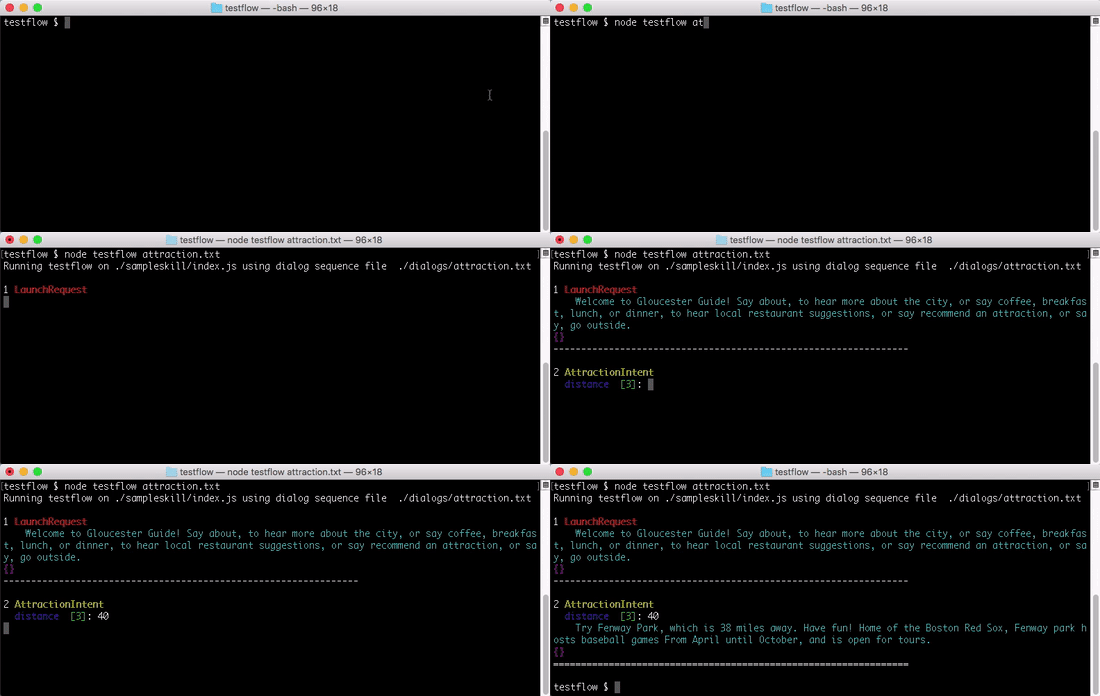
This will cause the script to pause and give you a chance to type in a value.
- Run
node testflow attraction.txtagain. You can type in "40" and the skill will execute with this new value. You may see an attraction a little farther away!
- Assume the skill is listening for the built-in slot type: AMAZON.NUMBER; in this case you would receive either an integer, or empty slot, or "?"
- Run
node testflow outside.txt
- The code within the sample skill attempts a live call to a Yahoo API to get the current weather. As long as your laptop has Internet access, you should be able to execute the test and see the results.
Any messages sent to "stdout", such as those you write to console.log(), will be displayed in Testflow in white. These include debug statuses, warnings, and errors. It is recommended to avoid logging if possible, and add logs when necessary for debugging.
- Run
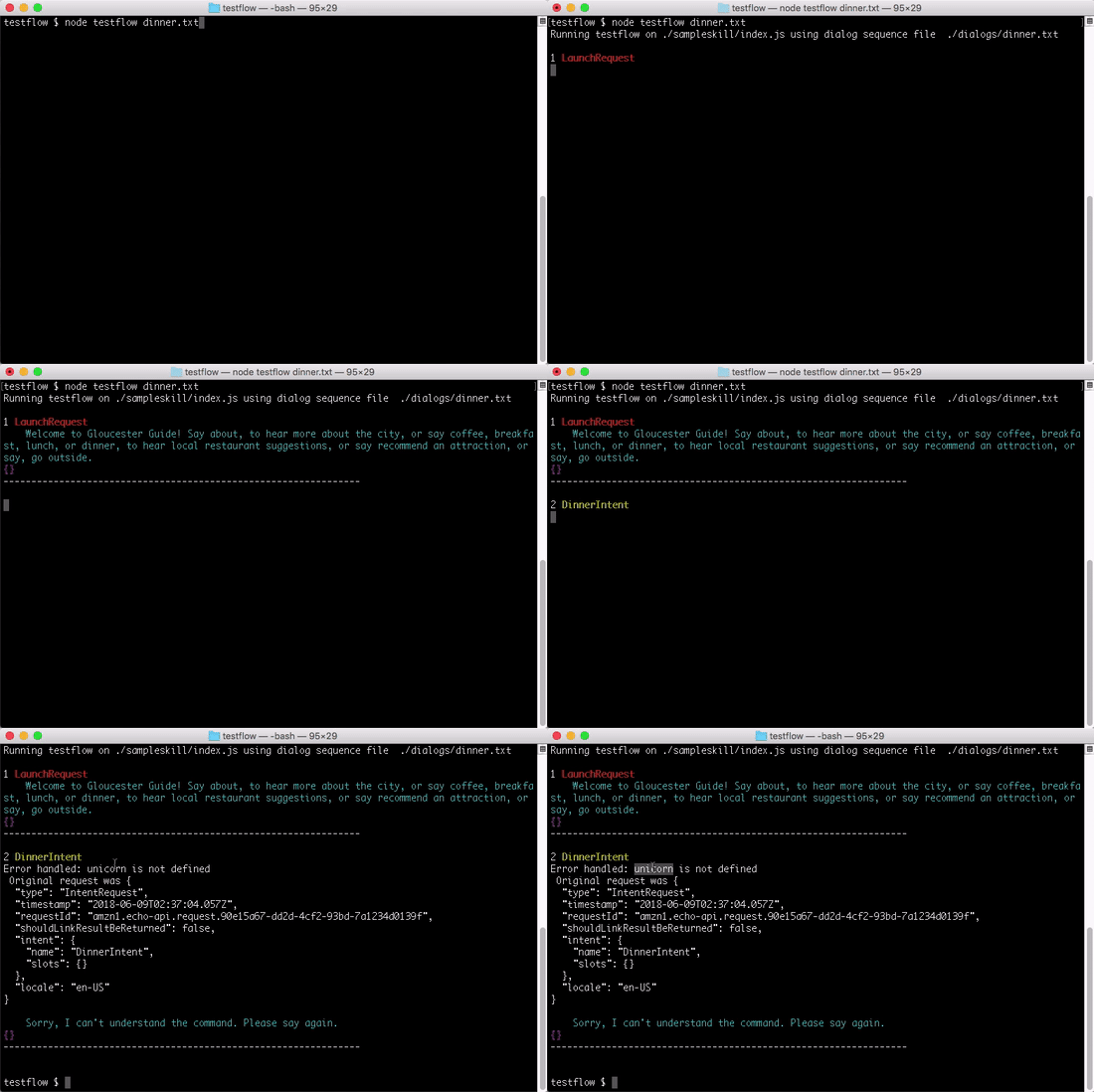
node testflow dinner.txt - The error is caught and displayed in white text.
- Open sampleskill/index.js and find the word "unicorn" and comment it out.
- Re-run the test
- Run
node testflow coffee.txt
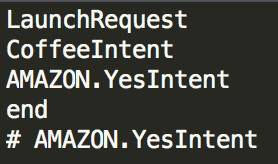
- Notice the final line is an AMAZON.YesIntent, but the skill doesn't understand.
- The skill has ended with the first YES. You can see double-dashed lines (=====) indicating the skill session has ended. The next YES is running under a brand new session.
-
Open coffee.txt and comment out the final line with a pound sign:
# AMAZON.YesIntent -
You could also insert a new line with just the word
endin order to skip any remaining lines.
- Right at the top of testflow.js, update source code reference to point to sample #2:
const MyLambdaFunction = require('./sampleskill2/index.js');
This skill is more complex; be sure you have setup and configured the AWS CLI and AWS SDK (with --global) as recommended in the SETUP steps.

The skill uses a feature of the ask-sdk to auto-create a DynamoDB table for you, called askMemorySkillTable.
This table is used to store persistent attributes so the skill can remember each user even after the session ends.
Run node testflow color.txt
You may get an error the very first time you run a test; check your AWS DynamoDB Console to see if this table is still being created. Once the table is created, it will remain, and the skill will add a new record for each new user.
You may need to visit the IAM Console
to grant your CLI user (and Lambda role) access to DynamoDB, for example by attaching the AmazonDynamoDBFullAccess policy.
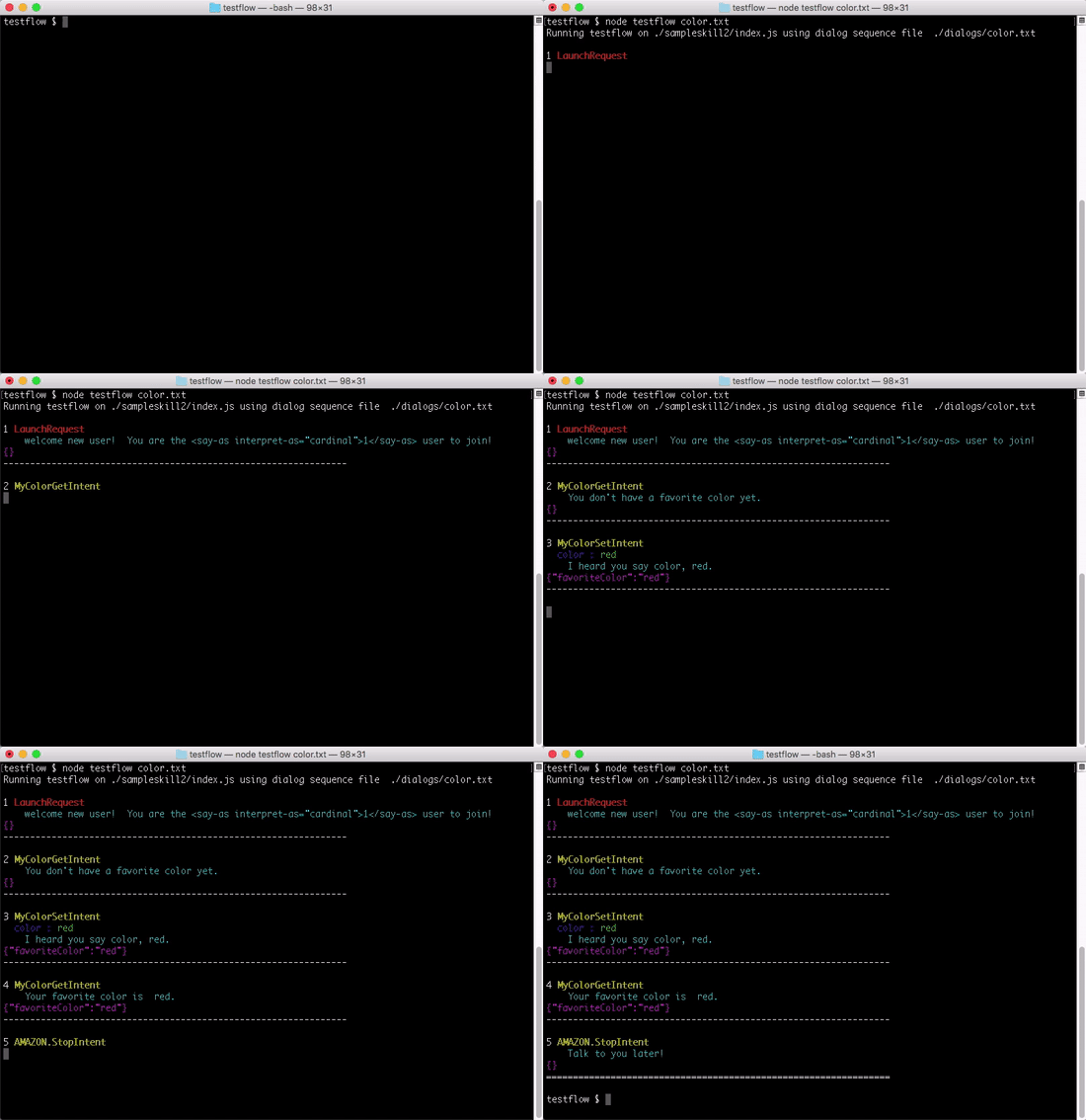
- Set the following options to false:
options.reprompt
options.cards
- Verify the following options are true:
options.slots
options.attributes
-
Run
node testflow color.txt- Wow, there are a lot of attributes being tracked in this sample! One of the attributes is called
favoriteColor. Let's focus in on that attribute only. The options.attributes can be set to more than just a true/false boolean.
- Wow, there are a lot of attributes being tracked in this sample! One of the attributes is called
-
Set options.attributes to the string 'favoriteColor'. Javascript is flexibly typed :)
-
Re-run
node testflow color.txt
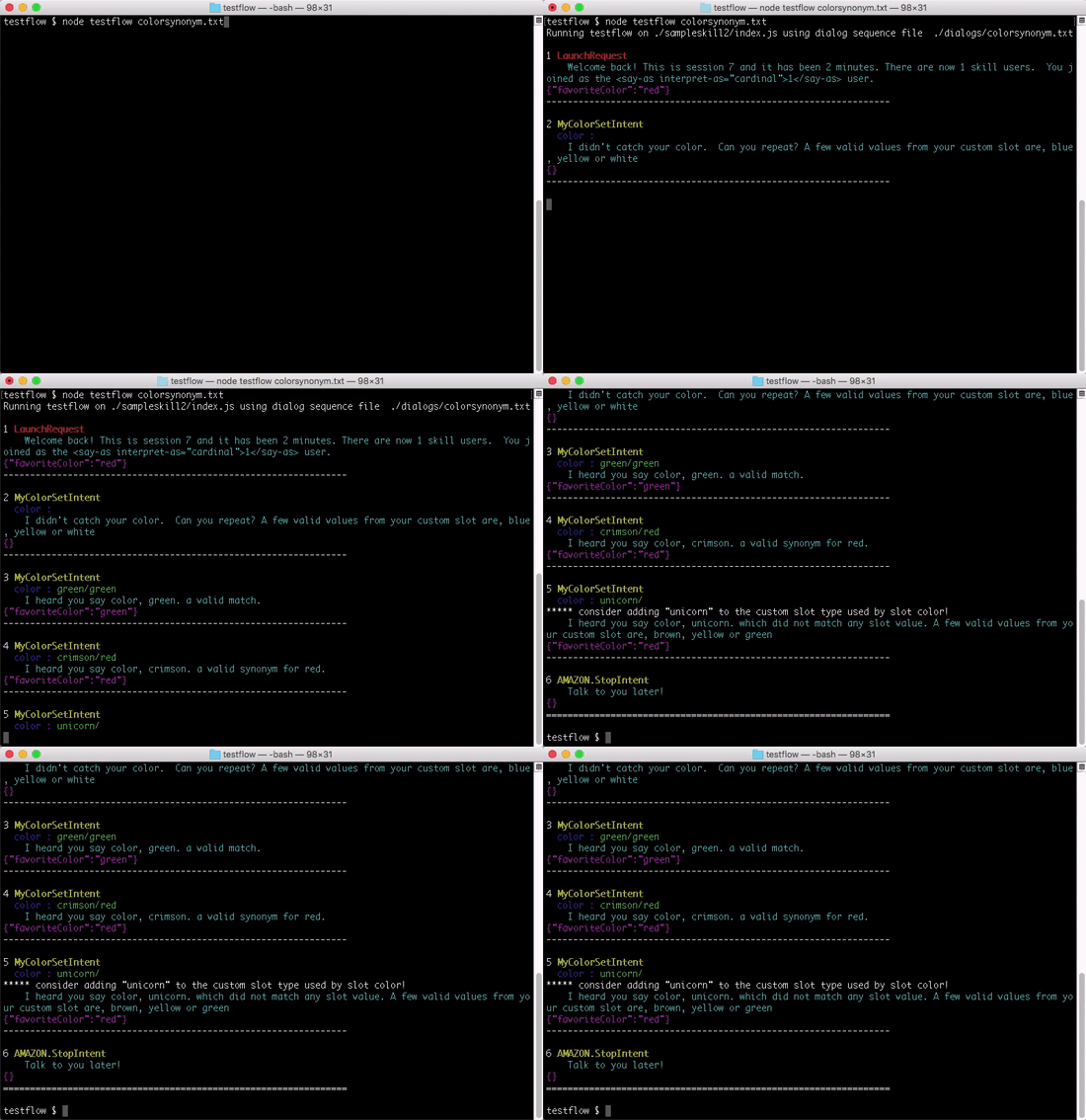
Now try node testflow colorsynonym.txt
In your skill's language model you can define a custom slot with just a list of your own values. In this simple case, your code would receive a slot value (or null) as part of the Intent. Even if the user were to say "unicorn", that value would be returned as the slot value (whether or not it exists in your custom slot values).
If you create a custom slot AND define synonyms, then an Alexa Skills Kit feature called Entity Resolution kicks in.
A user's slot utterance could now either:
- Not be heard at all (an unfilled slot value)
- Match to a slot value directly (with status ER_SUCCESS_MATCH)
- Match to a synonym of a slot value (also ER_SUCCESS_MATCH, but with both values returned)
- Be heard, but fail to match to any value or synonym (ER_SUCCESS_NOMATCH)
We can simulate each of these cases in Testflow.
MyColorSetIntent color=
MyColorSetIntent color=green/green
MyColorSetIntent color=crimson/red
MyColorSetIntent color=unicorn/
Sometimes we want to simulate a history of interactions prior to the current time. Testflow allows you to run your requests in the past (or future) by specifying a time offset.
First, let's watch the timestamp attribute for each session. Modify your options.attributes like so:
attributes : 'lastUseTimestamp',
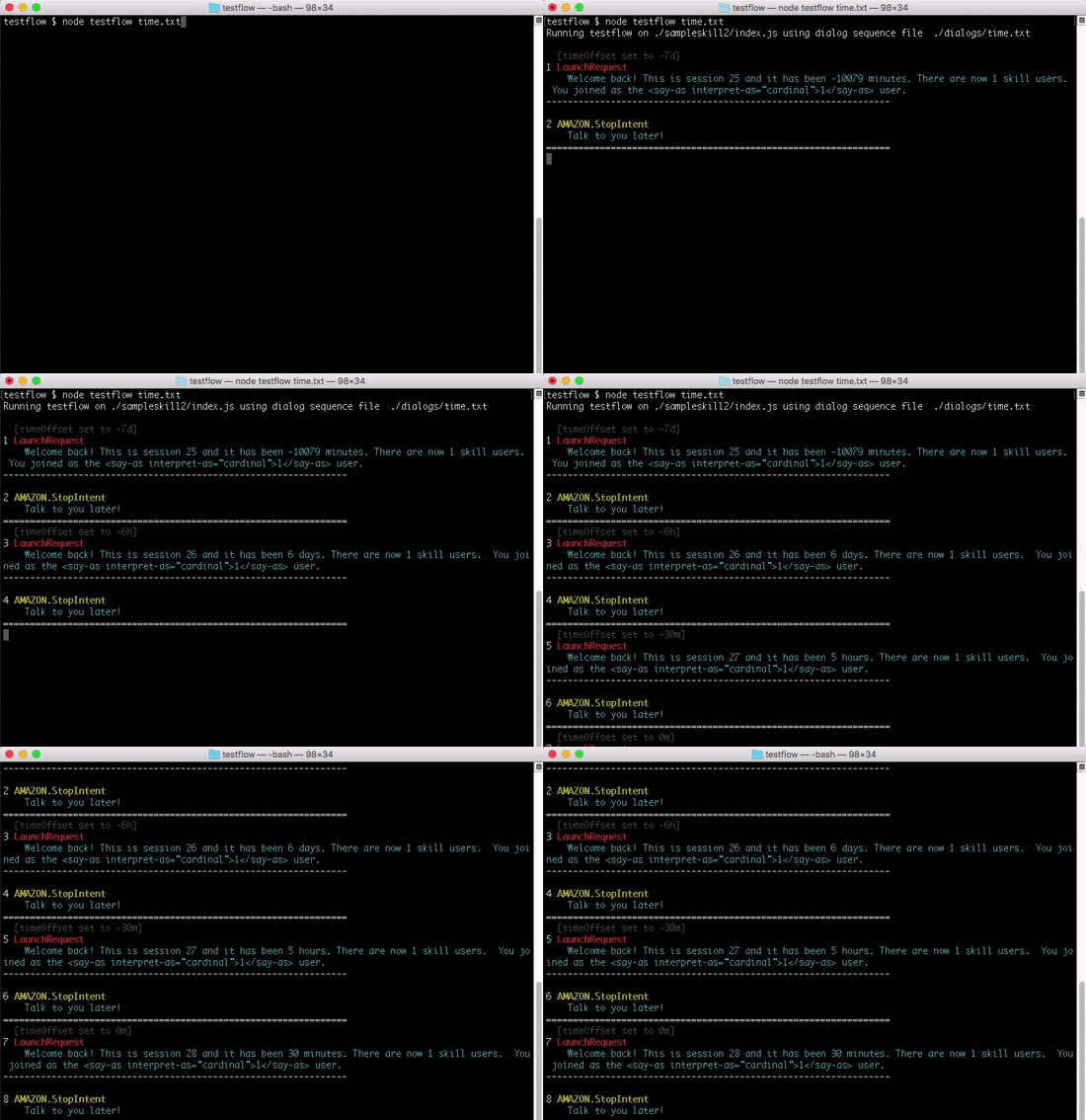
The Alexa service (and AWS Lambda) operate on UTC time. A current timestamp is included with each request to your code.
For example, to specify six hours in the past,
you can add a line to your sequence file with beginning with @ and including a timespan to add to the current time.
Timespans can be defined as minutes, hours, or days.
To execute a request as of a week ago, you can add a line: @ -7d
All subsequent requests will operate from this time.
Be sure your session ends with an AMAZON.StopIntent (or ensure your code returns a .withShouldEndSession(true)) in order for the timestamp to be set as the skill ends the session.
Now try node testflow time.txt
@ -7d
LaunchRequest
AMAZON.StopIntent
@ -6h
LaunchRequest
AMAZON.StopIntent
@ -30m
LaunchRequest
AMAZON.StopIntent
@ 0m
LaunchRequest
AMAZON.StopIntent
Now try node testflow users.txt
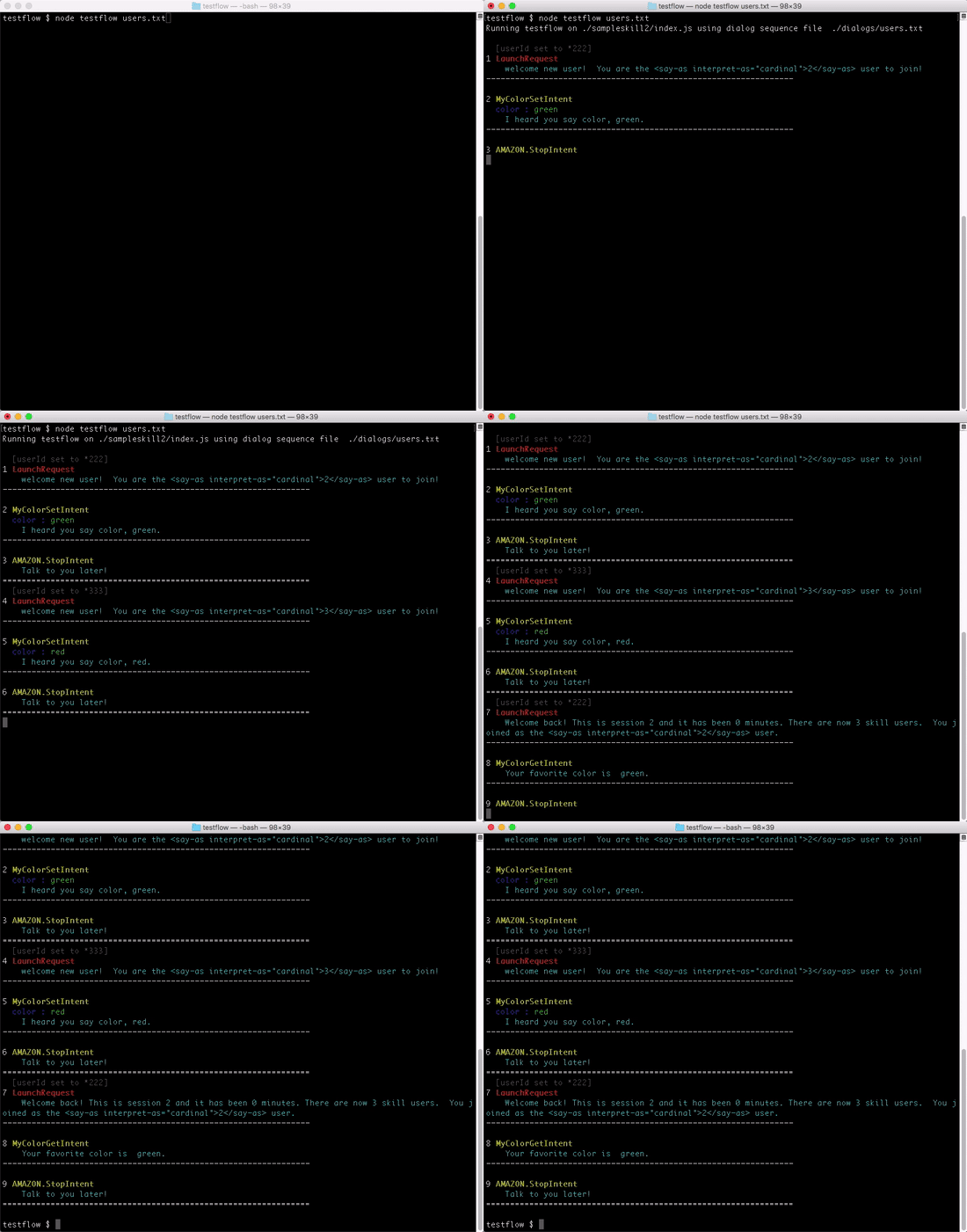
Your published skill will be used by multiple users, each with a unique userId.
Testflow can vary the userId to simulate different user sessions. The userId is a very long, random, anonymous string.
The userId will remain the same for each user, allowing you to remember attributes about the user's past interactions with the skill.
The options.userId defines a default userId ending in '123'.
The field's last three characters can be set and changed via a directive in the dialog sequence file.
Simply add ~ 222 for example.
You can also review user records and attributes directly from the DynamoDB console.
~ 222
LaunchRequest
MyColorSetIntent color=green
AMAZON.StopIntent
~ 333
LaunchRequest
MyColorSetIntent color=red
AMAZON.StopIntent
~ 222
LaunchRequest
MyColorGetIntent
AMAZON.StopIntent
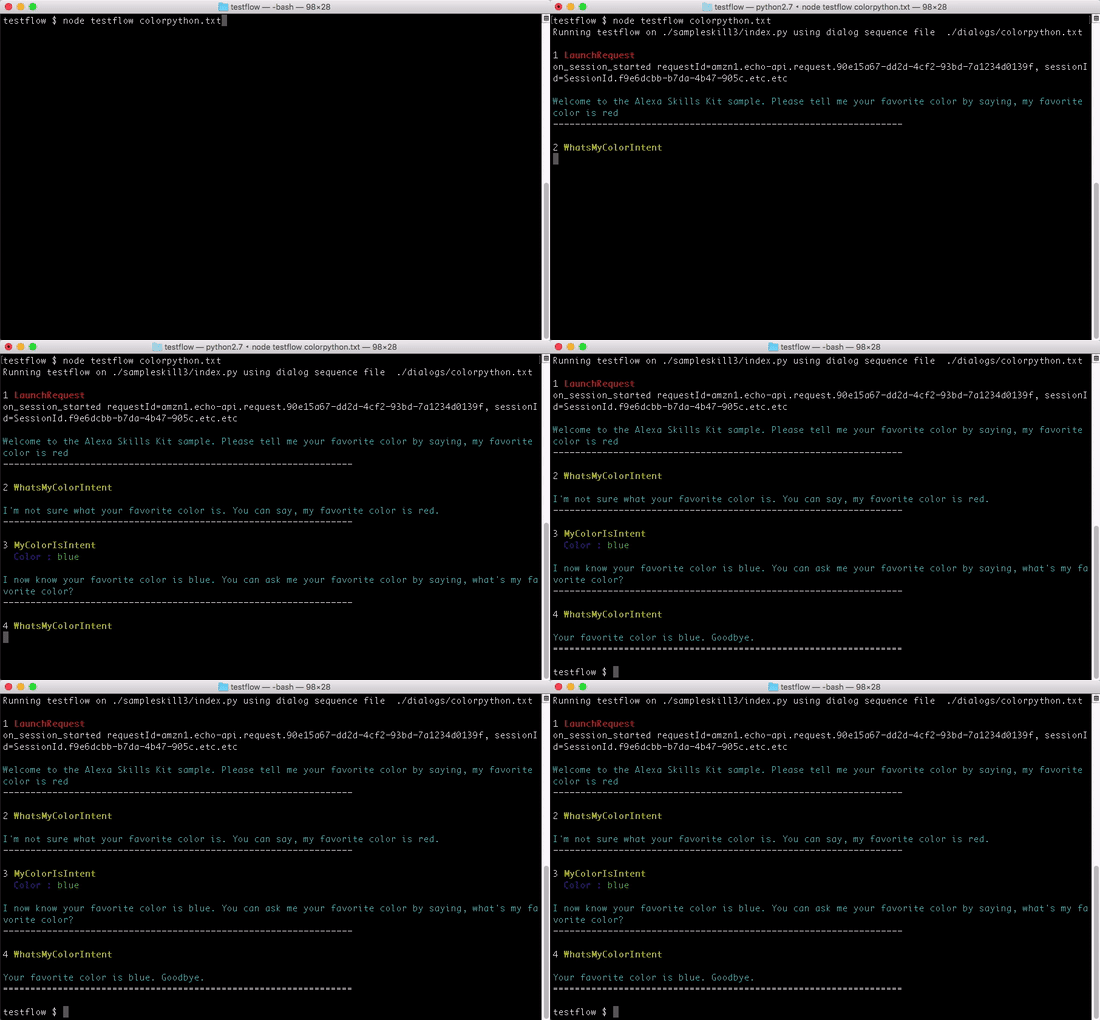
Testflow supports testing Python code as well as Node.JS.
The tool checks the extension of your source file, either .js or .py.
For Python projects, a child process is spawned that executes the tests via Python.exe -c commands.
This feature was tested with Python 2.7.
Within testflow.js, search for // PYTHON to see the this code.
Open up testflow.js and modify the location of your path, file, and handler exactly as shown here:
const SourceCodeFile = './sampleskill3/index.py';
const handlerName =  'lambda_handler';
Now try node testflow colorpython.txt
Testflow is designed to support offline development. If your skill uses Persistent attributes and DynamoDB, you would need to have Internet access to AWS for Testflow to run your skill properly.
However, you could setup a local instance of DynamoDB, for enabling offline testing (like when traveling).
Then, modify your skill code to define a new local DynamoDB client and specify it in your skill handler:
const localDynamoClient = new AWS.DynamoDB({apiVersion : 'latest', endpoint : 'http://localhost:8000'});
...
exports.handler = skillBuilder
    .addRequestHandlers(
    ...
    )
.withTableName(DYNAMODB_TABLE)
.withDynamoDbClient(localDynamoClient)
That's all! Happy skillbuilding!
Back HOME