SC2 Interactive Inject Timer is a tool intended for Zerg players to help hit their macro/inject cycles on time for the (arguably) most widely-used method Queen box injects. It is completely within Blizzard's ToS, as it's not violating any rules, it's only listening for Keyboard inputs and that's how it tracks the inject cycles, but use at your own risk (don't blame me if something went wrong!)
YouTube video link (the video presentation is a bit outdated, many features and improvements have been added since the upload of the video, e.g. the annoying Inject Ready sound is not spamming every second, added pre-timer alert, config.ini, improved tracking of injects, even for delayed injects, etc.):
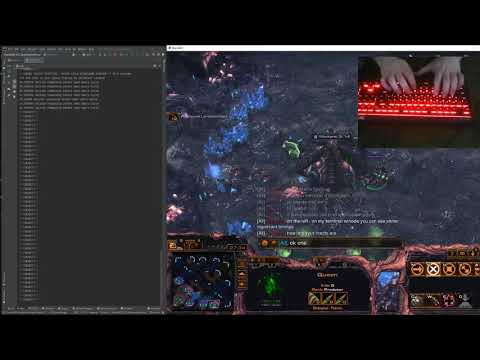
Features:
- Voice alerts
- Pre-Inject alert (Off by default - see confing.ini)
- Light indicators on your peripherals RGB Lighting (Keyboard, Mouse or other software controllable devices with RGB lighting, Off by default - see confing.ini)
- Logs inject timings, to check how late you are on your injects (to be implemented as a text file, currently only available in the terminal output)
- Automatic start of timers from the time of your first inject
- Automatic adjustment of the timers for delayed inject
- Reset timers with a Hotkey if you messed up your inject cycle somehow
- Adjustable Hotkeys and timer settings
Installation ( Windows):
- Clone the master repo (rename the folder to something short like "sc2inject", -one user reported sound was not playing if the name was too long)
- Check the config.ini and set up your hotkeys and desired settings (by default RGB Lighting is off, you can turn it On from there)
- Install OpenRGB (Only if you plan to use RGB Lighting - for me v0.61 more stable, even though it's experimental) from https://openrgb.org/ and check that your devices are recognized in OpenRGB (if they aren't, refer to OpenRGB documentation and F.A.Q. page)
- Install Python 3.7.x from here: https://www.python.org/downloads/
- Install pip, follow this guide: https://phoenixnap.com/kb/install-pip-windows (or google yourself how to install pip)
- After you have installed pip run the following commands in terminal, one by one to install the needed libraries (the openrgb-python library is needed if you only use RGB Lighting):
- pip install configparser==5.2.0
- pip install keyboard==0.13.5
- pip install playsound==1.2.2
- pip install pynput==1.7.5
- pip install openrgb-python
- Now run the main.py in terminal with Python 3.7.x:
- with a command line, navigate to the folder where the main.py is located, using the "cd.." command to go up one folder and cd folder_name to enter the next folder
- once you are in the folder where the main.py is, run "python main.py" - this should start the script and you can start playing (Next time, you only run this command to start the script)
tip: If you mess up the config.ini, just delete it and re-run the script, it will create it with default values
Submit an issue if you find a bug please and your feedback is welcomed.
Say Hi if you get matched against me on ladder, in-game name is Abaddon and playing with Zerg as always! :)