This function can be used to import the contents of an import file into a Betty Blocks application.
You can map column names from the import file to properties in your data model.
You can specify different import file columns to database property mappings for new or updated records.
With the deduplication option, you can prevent duplicate records based on a column name of your import file with the unique value of the records.

Here you need to specify a URL to your import file. This can be a static public reachable URL or a text variable from a file property of a record (you can use the expression step to retrieve the URL of a file property).

Enter the type of the import file. In general, the size of a CSV file can be larger than an XLS(X) file because an Excel spreadsheet also stores additional meta-data.
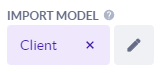
Specify the data model in which the records will be imported.
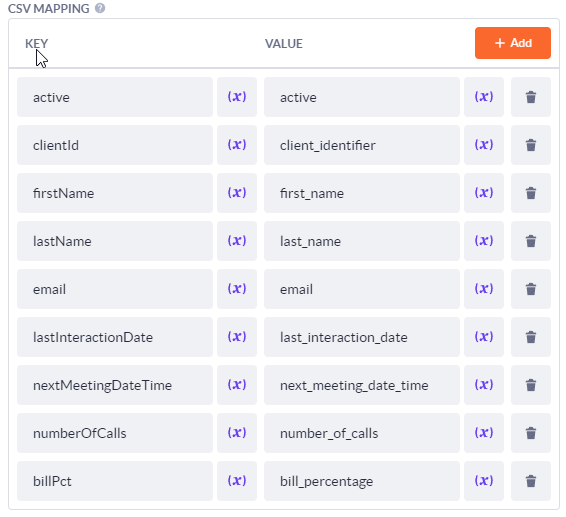
A key/value combination that allows you to map your import file column names to the properties of the selected model.
The key column contains the (exact) column name of your import file.
The value column contains the database name of your property (in snake_case).
For belongs-to relations, you can use the notation: "modelname.property_name" (in snake_case) combination.

A key/value combination to allow you to specify if a column is a checkbox, decimal, number, or a specific date format.
Text fields will all work out of the box and should not be included here.
The key column specifies the CSV column name.
The value column specifies either the word "checkbox", "decimal", "number", "Date", "Time", or "Datetime".
For the date, time, and datetime options, you will need to specify how the item is formatted in your file. The notation is as follows:
Date, date-fns format or Time, date-fns format, or Datetime, date-fns format.
For example: "Date, dd-MM-yyyy" or "Date, MM/dd/yyyy".
We use the formats defined by the date-fns package and the specifications can be found here: https://date-fns.org/v2.16.1/docs/format
Make sure a mapping exists for each of your date columns in the import file, otherwise the column will not be imported correctly.
See the limitations below for the supported patterns.

This toggle will determine if the import records will be matched to records inside your Betty Blocks application.
If selected, make sure you enter the UNIQUE RECORD IDENTIFIER option.

Specify the column name (from your import file) that uniquely identifies your records.
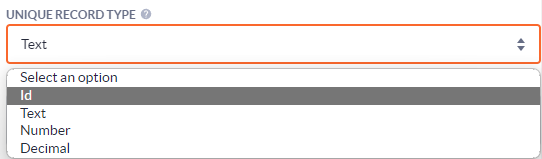
Specify the property type of the unique record property type. Current supported types are Id, Text, Number, or Decimal property types. Please make sure you enter this when selecting deduplication.

Same principle as the IMPORT MAPPING, but these mappings will only be used for existing records. For new records, the IMPORT MAPPING options will be used.
This should be left empty if you do not want to distinguish the columns to import between creates and updates.

When on, the system will use multiple calls (batches) for processing the import and store the progress in the model/properties selected below. This can be useful if you have huge amounts of data and the import can't finish in a single run.



When selected, debug information will be logged into the logs.
When set to true, add a * after the name in the KEY fields of the Import Mapping to the columns that you would like to validate as required (for example firstName*).

This is the (Text) output of the function and will contain the number of records that have been created and the number of records updated in the following format:
records created: 1, records updated: 1
The output of this action function could be used by other action functions or as the final result of your action.
This action function uses the following packages:
- https://www.npmjs.com/package/papaparse in v2.2 papaparse has been replaced by our internal helper function parseData.
The versions of the used packages can be found in the package.json file.
- Limited support for relational data (belongs to relations only).
- At the time of this writing Betty Blocks NextGen actions have a maximum runtime of 60 seconds.
This function (and any other functions in your action) needs to complete within 60 seconds.
If the import does not exceed this 60-second time limit, turn on batched processed, so that you run the same action multiple times and the step will continue processing from the moment the action timed out previously. - Time properties have not been tested and are currently not supported.
- The date-fns format patterns that have been tested include yyyy (year), dd (day in 2 digits), MM (month in 2 digits), HH (hours), mm (minutes), ss (seconds).
- AM/PM times in date time properties are currently NOT supported.