English
Interview Assistant is a program that helps during online interviews by providing suggestions based on the interviewer's questions using ChatGPT (OpenAI API).
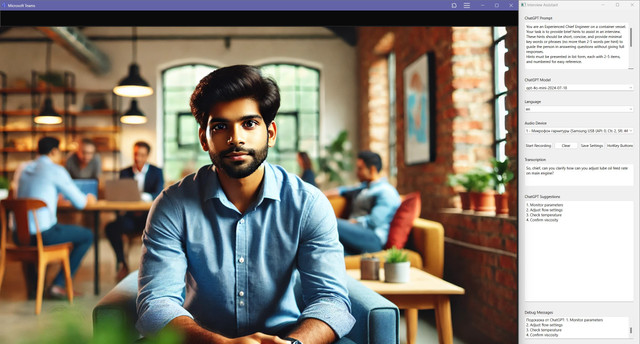
- Installation
- Configuration
- Using the Program
- Important Notes
- Troubleshooting
- Support
- Obtaining OpenAI API Key
- License
- Download and extract the program archive. Release 1.0.0 ver
- Run
setup.batby double-clicking it. - Follow the on-screen instructions. The script will install Python 3.10 (if not already installed), create a virtual environment, and install the necessary dependencies.
- After installation, a browser window will open with the VB-Audio Virtual Cable website. Download and install the program.
- Download and extract the program archive.
- Open a terminal in the program folder.
- Run the command (macOS):
Run the command (Linux):
chmod +x setup_macos.sh && ./setup_macos.shchmod +x setup_linux.sh && ./setup_linux.sh - Follow the on-screen instructions. The script will install Python 3.10 (if not already installed), create a virtual environment, and install the necessary dependencies.
- After installation, a browser window will open with the VB-Audio Virtual Cable website. Download and install the program.
- Open the
.envfile in a text editor. - Replace
your_api_key_herewith your OpenAI API key.
Windows Setup Instructions
-
Install Virtual Audio Device:
- Download and install VB-Audio Virtual Cable.
- Restart your computer.
- Check for new audio devices: "CABLE Input" and "CABLE Output".
-
Zoom Setup:
- Open Zoom settings.
- In the "Audio" section, select "CABLE Input (VB-Audio Virtual Cable)" as the speaker.
- Keep your regular microphone selected.
-
Windows Audio Settings:
Check proper installation of VB-Audio Virtual Cable:
- Open Windows Sound settings (right click on speaker icon -> Sound settings)
- Under "Output" you should see "CABLE Input" (It means program is installed successfully). Now select your regular Output device.
- Under "Input" you should see "CABLE Output" (It means program is installed successfully). Now select your regular Input device.
Sharing the Output signal:
- Open Windows Sound settings (right-click on the speaker icon -> Sound settings).
- Scroll down to the "Advanced sound settings" section and click on "Sound control panel".
- Go to the "Recording" tab.
- Find "CABLE Output" in the list and double-click on it.
- Go to the "Listen" tab.
- Check the "Listen to this device" box.
- In the "Play through this device" drop-down list, select your headphones or speakers through which you want to hear the sound (Your usual way of listening to sound).
- Click "Apply", then "OK".
- Test in Zoom:
- In Zoom audio settings, test the speaker.
- You should hear the test sound through your headphones or speakers.
macOS Setup Instructions
-
Install Virtual Audio Device:
- Download and install VB-Audio Virtual Cable for macOS.
- Restart your computer.
-
Zoom Setup:
- In Zoom settings, select "CABLE Input (VB-Audio Virtual Cable)" as the speaker.
- Keep your regular microphone selected.
-
macOS Audio Settings:
Check proper installation of vb-audio cable:
- Open "System Preferences" -> "Sound."
- In the "Output" tab, select your regular output device (headphones or speakers).
- In the "Input" tab, make sure your regular microphone is selected.
Sharing the Output signal:
- Open the "Audio MIDI Setup" app (located in Applications -> Utilities).
- In the menu, select "Show Audio Devices."
- Find "CABLE Output" in the list of devices and select it.
- Click the gear icon at the bottom left of the window.
- Choose "Use This Device for Sound Output."
- In the popup, select your regular sound output device.
- Test in Zoom:
- In Zoom settings, test the speaker and microphone.
- You should hear the test sound through your headphones or speakers.
-
Start the program:
- Windows: Double-click
interview_helper.bat - macOS: Run
interview_helper_macos.sh(./interview_helper_macos.sh) - Linux: Run
interview_helper_linux.sh(./interview_helper_linux.sh)
- Windows: Double-click
-
In the program window:
- Select the appropriate audio device (usually "CABLE Output").
- Choose the ChatGPT model.
- Write a detailed prompt in the prompt window.
- Select the language (Russian or English).
- Click "Save Settings".
-
During the interview:
- Press "Start Recording" when the interviewer starts asking a question.
- Press "Stop Recording" when the interviewer finishes.
- Wait for the suggestion in the "ChatGPT Suggestions" window.
- Ensure you can access https://openai.com/ in your country, if not, then you cannot send/receive requests from OpenAI API. You need to find solution
- Verify that virtual audio outputs are correctly configured.
- Check that the correct OpenAI API key is specified in the
.envfile. - If audio issues occur, check your system and Zoom audio settings.
- Be aware of the ethical considerations when using this program during interviews.
- If the program doesn't start, ensure all installation steps were followed correctly.
- For audio capture issues, check virtual audio output settings.
- If ChatGPT suggestions are irrelevant, try changing the model or modifying the prompt.
If you encounter any problems or have questions, please create an issue in the project repository on GitHub.
Instructions for obtaining an OpenAI API key
- Go to the OpenAI website.
- Sign up or log in to your account.
- Navigate to the API keys section.
- Create a new key and save it securely.
- Paste the key into the
.envfile in the program directory.
Important: To use the API, you need to add a payment method to your OpenAI account.
This project is licensed under the MIT License.
- Interview Assistant uses the OpenAI API, which is subject to the OpenAI API Terms of Use.
- The program recommends the use of VB-Audio Virtual Cable, which is subject to its own license terms.
- For a full list of dependencies and their respective licenses, please refer to the
requirements.txtfile in this project.
Русский
Interview Assistant - это программа, которая помогает во время онлайн-интервью, предоставляя подсказки на основе вопросов интервьюера с использованием ChatGPT.
- Установка
- Настройка
- Использование программы
- Важные замечания
- Устранение неполадок
- Поддержка
- Получение API ключа OpenAI
- Лицензия
- Скачайте и распакуйте архив с программой. Release 1.0.0 ver
- Запустите
setup.bat, дважды кликнув на него. - Следуйте инструкциям на экране. Скрипт установит Python 3.10 (если его нет), создаст виртуальное окружение и установит необходимые зависимости.
- После завершения установки откроется браузер с сайтом VB-Audio Virtual Cable. Скачайте и установите эту программу.
- Скачайте и распакуйте архив с программой.
- Откройте терминал в папке с программой.
- Выполните команду (macOS):
Выполните команду (Linux):
chmod +x setup_macos.sh && ./setup_macos.shchmod +x setup_linux.sh && ./setup_linux.sh - Следуйте инструкциям на экране. Скрипт установит Python 3.10 (если его нет), создаст виртуальное окружение и установит необходимые зависимости.
- После завершения установки откроется браузер с сайтом VB-Audio Virtual Cable. Скачайте и установите эту программу.
- Откройте файл
.envв текстовом редакторе. - Замените
your_api_key_hereна ваш API ключ OpenAI.
Инструкции для Windows
-
Установка виртуального аудиоустройства:
- Скачайте и установите VB-Audio Virtual Cable.
- Перезагрузите компьютер.
- Проверьте установку в настройках звука Windows.
-
Настройка Zoom:
- Откройте настройки Zoom.
- В разделе "Звук" выберите "CABLE Input (VB-Audio Virtual Cable)" как динамик.
- Оставьте ваш обычный микрофон в настройках микрофона.
-
Настройка Windows для прослушивания:
Проверьте правильность установки VB-Audio Virtual Cable:
- Откройте настройки звука Windows (щелкните правой кнопкой мыши по значку динамика -> Настройки звука)
- В разделе «Вывод» вы должны увидеть «CABLE Input» (это означает, что программа успешно установлена). Теперь выберите свое обычное устройство вывода.
- В разделе «Ввод» вы должны увидеть «CABLE Output» (это означает, что программа успешно установлена). Теперь выберите свое обычное устройство ввода.
Обмен сигналом Вывода:
- Откройте настройки звука Windows (щелкните правой кнопкой мыши по значку динамика -> Настройки звука).
- Прокрутите вниз до раздела «Дополнительные параметры звука» и нажмите «Дополнительные параметры звука».
- Перейдите на вкладку «Запись».
- Найдите в списке «CABLE Output» и дважды щелкните по нему.
- Перейдите на вкладку «Прослушивать».
- Установите флажок «Прослушивать с данного устройства».
- В раскрывающемся списке «Воспроизводить с данного устройства» выберите наушники или динамики, через которые вы хотите слышать звук(Ваш обычный способ прослушивания звука).
- Нажмите «Применить», затем «ОК».
- Проверка в Zoom:
- В настройках звука Zoom проверьте динамик.
- Вы должны услышать тестовый звук через ваши наушники или динамики.
Инструкции для macOS
-
Установка виртуального аудиоустройства:
- Скачайте и установите VB-Audio Virtual Cable для macOS.
- Перезагрузите компьютер.
-
Настройка Zoom:
- В настройках Zoom выберите "CABLE Input (VB-Audio Virtual Cable)" как динамик.
- Оставьте ваш обычный микрофон в настройках микрофона.
-
Настройка macOS для прослушивания:
Проверьте правильность установки кабеля vb-audio:
- Откройте "Системные настройки" -> "Звук".
- Перейдите на вкладку "Выход" и выберите ваше обычное устройство вывода звука (наушники или динамики).
- Перейдите на вкладку "Вход".
- Убедитесь, что выбран ваш обычный микрофон.
Обмен сигналом Вывода:
- Откройте приложение "Аудио MIDI Setup" (находится в папке "Программы" -> "Утилиты").
- В меню "Окно" выберите "Показать окно аудиоустройств".
- Найдите в списке устройств "CABLE Output" и выберите его.
- Нажмите на кнопку с изображением шестеренки в нижнем левом углу окна.
- Выберите "Использовать это устройство для вывода звука".
- В появившемся диалоговом окне выберите ваше обычное устройство вывода звука.
- Проверка в Zoom:
- В настройках Zoom проверьте динамик и микрофон.
- Вы должны услышать тестовый звук через ваши наушники или динамики.
-
Запустите программу:
- Windows: Дважды кликните на
interview_helper.bat - macOS: Запустите
interview_helper_macos.sh(./interview_helper_macos.sh) - Linux: Запустите
interview_helper_linux.sh(./interview_helper_linux.sh)
- Windows: Дважды кликните на
-
В открывшемся окне программы:
- Выберите нужное аудиоустройство (обычно "CABLE Output").
- Выберите модель ChatGPT.
- Напишите промпт в окне промпта.
- Выберите язык (русский или английский).
- Нажмите "Save Settings".
-
Во время интервью:
- Нажмите "Start Recording", когда интервьюер начнет задавать вопрос.
- Нажмите "Stop Recording", когда интервьюер закончит вопрос.
- Ожидайте подсказку в окне "ChatGPT Suggestions".
- Убедитесь, что вы можете открыть https://openai.com/ в вашей стране, если нет, то вы не cможете отправлять/получать запросы от OpenAI API. Вам нужно найти решение
- Проверьте правильность настройки виртуальных аудио выходов.
- Убедитесь, что в файле
.envуказан правильный API ключ OpenAI. - Проверьте настройки звука в системе и в Zoom при проблемах с аудио.
- Помните об этических аспектах использования такой программы во время интервью.
- Если программа не запускается, проверьте правильность установки.
- При проблемах с захватом звука, проверьте настройки виртуальных аудио выходов.
- Если ChatGPT дает нерелевантные подсказки, попробуйте изменить модель или промпт.
Если у вас возникли проблемы или вопросы, пожалуйста, создайте issue в репозитории проекта на GitHub.
Инструкции по получению API ключа OpenAI
- Перейдите на сайт OpenAI.
- Зарегистрируйтесь или войдите в аккаунт.
- Перейдите в раздел API keys.
- Создайте новый ключ и сохраните его.
- Вставьте ключ в файл
.envв директории программы.
Важно: Для использования API необходимо привязать способ оплаты к вашему аккаунту OpenAI.
Этот проект лицензирован по лицензии MIT.
- Interview Assistant использует API OpenAI, который подчиняется Условиям использования API OpenAI.
- Программа рекомендует использовать VB-Audio Virtual Cable, который подчиняется собственным условиям лицензии.
- Полный список зависимостей и соответствующих им лицензий см. в файле
requirements.txtв этом проекте.