Configuration Test Data
If this is your first time using openXDA and you don't have any data or devices to configure it to, there is test data available to use to get a feel for how the programs works.
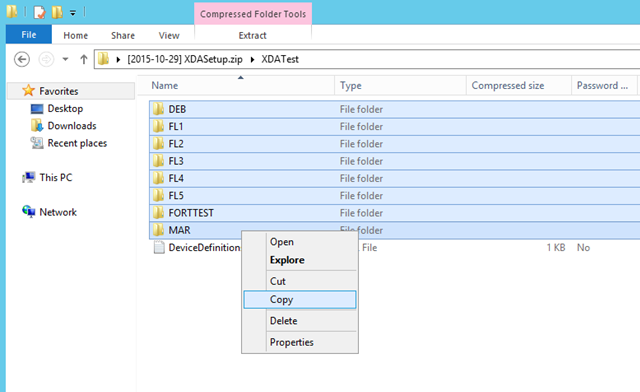
- Download and extract the XDATestData.zip file from the openXDA releases page.
- Copy the file "DeviceDefinitions.xml" from the XDATestData folder to the openXDA install folder. This is typically
C:\Program Files\openXDA.
- If prompted for administrator permissions click Continue.
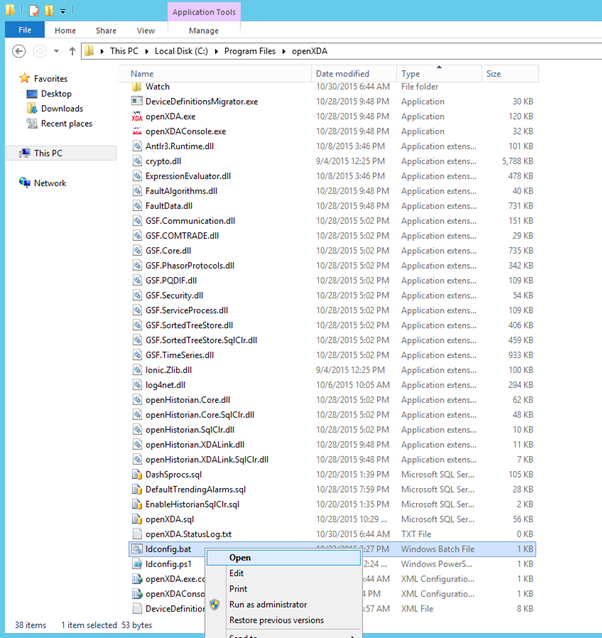
- In the openXDA install folder, open the file "ldconfig.bat"
The "ldconfig.bat" script will load configuration data for the test data.



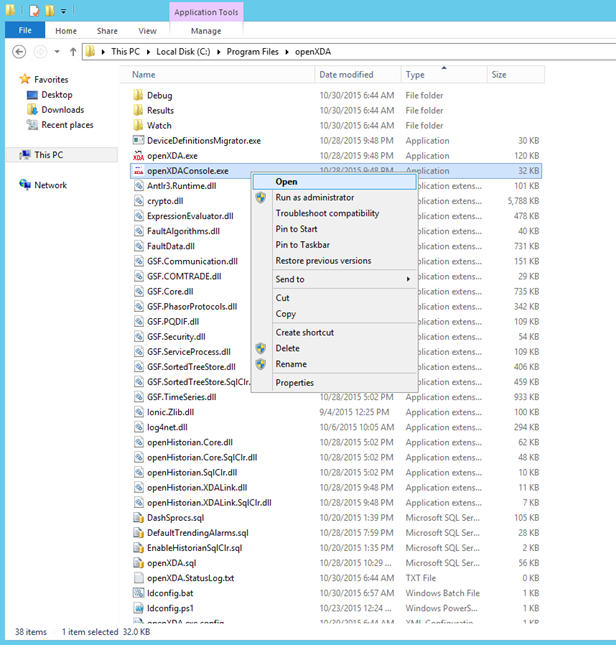
- Start the openXDA console. This can be done from the start menu or by opening "openXDAConsole.exe" in the installation directory.
The openXDA Console looks like this:

- Copy all the folders in the XDATestData folder to the Watch folder in the openXDA Install directory.
- If prompted for administrator permission click Continue.
The openXDA Console will display the status of the loading process.