

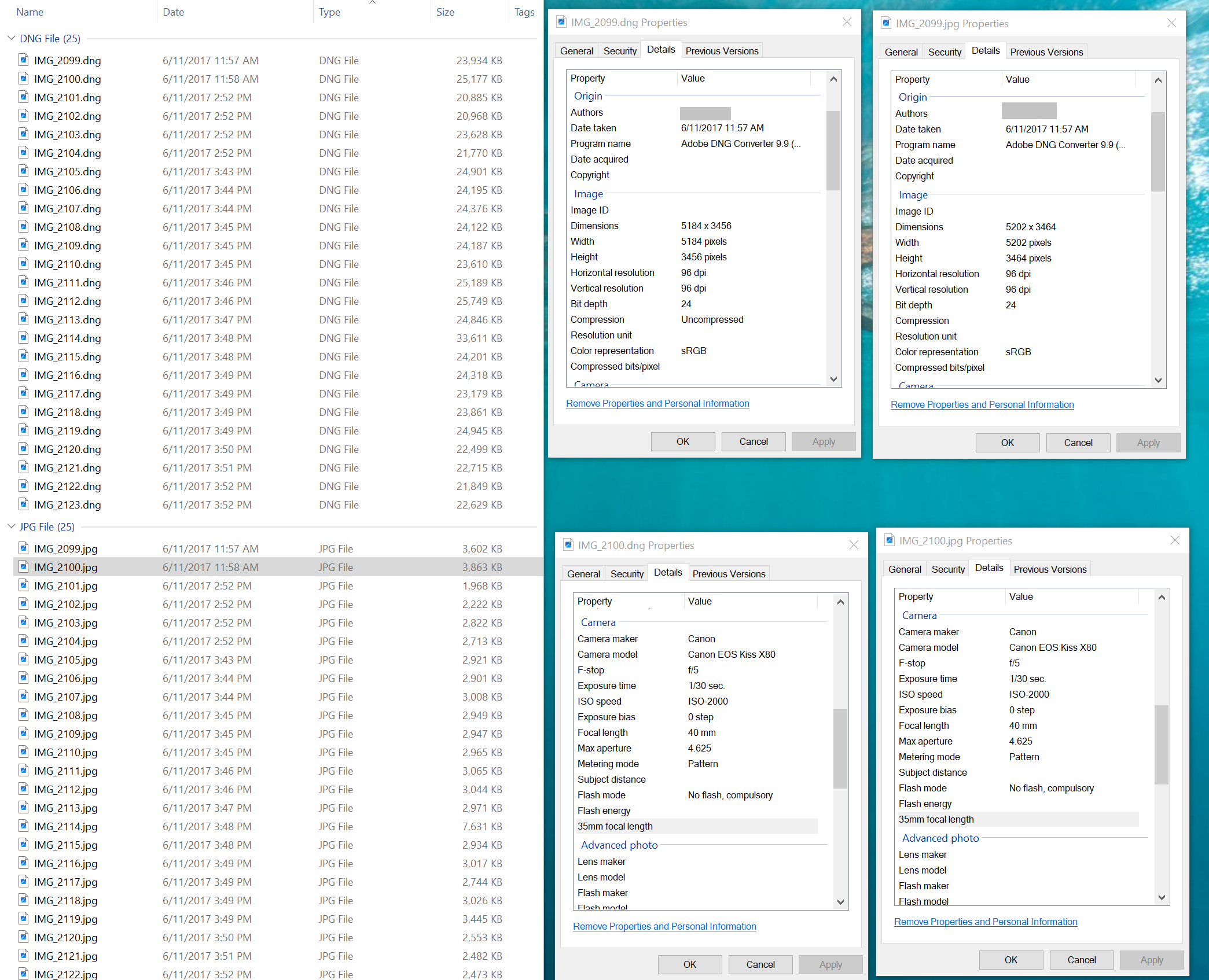
A simple and user-friendly Python GUI application to convert DNG raw image files to JPG, offering options to resize to specific Megapixel (MPX) dimensions and adjust JPG quality. It also copies all EXIF metadata from the original DNG file to the new JPG.
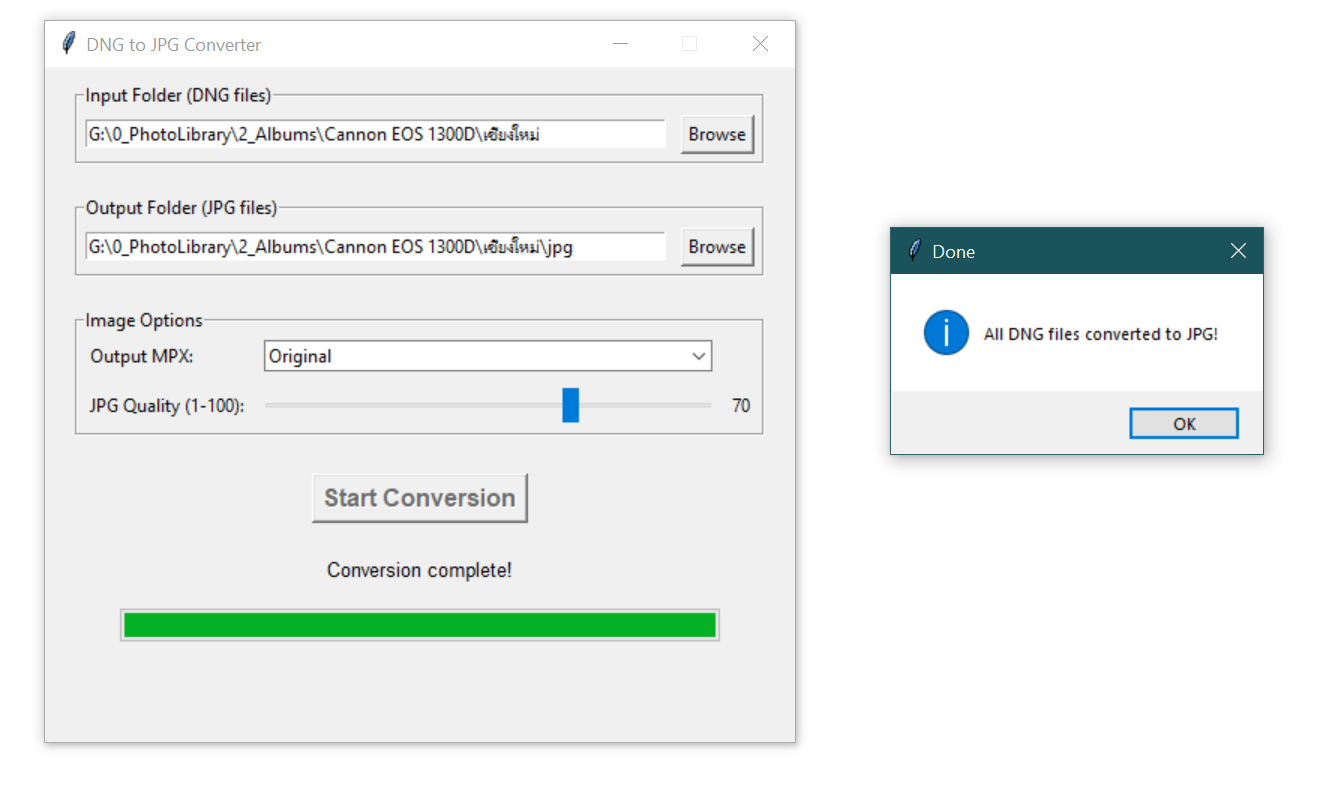
- Batch Conversion: Convert multiple
.dngfiles from an input folder to.jpgfiles in an output folder. - Selectable Output MPX: Choose to resize images to common Megapixel dimensions (2M, 4M, 6M, 8M, 10M, 12M, 14M, 16M) or retain the original size.
- Adjustable JPG Quality: Control the output JPG compression quality from 1 to 100 via a slider.
- EXIF Metadata Preservation: All EXIF data from the original DNG file is copied to the converted JPG, maintaining important image information.
- Progress Bar: A real-time progress bar shows the conversion status (Processed/Total files).
- User-Friendly GUI: Built with Tkinter for an intuitive graphical interface.
Windows.exe | Paรรw0รd : dng_converter_gui.zip
Before running the application, make sure you have Python installed (Python 3.x is recommended). You'll also need the following Python libraries:
rawpy: For reading and processing DNG (and other raw) files.Pillow(PIL): For image manipulation, resizing, and saving as JPG, and EXIF handling.tkinter: Python's standard GUI library (usually comes pre-installed with Python).
You can install these libraries using pip:
pip install rawpy Pillow-
Clone the Repository (or download the script):
git clone https://github.com/YOUR_USERNAME/dng-to-jpg-converter.git
cd dng-to-jpg-converter
(Replace
YOUR_USERNAMEwith your actual GitHub username, or just download thedng_converter_gui.pyfile directly). -
Run the application:
python dng_converter_gui.py
-
Using the GUI:
- Input Folder (DNG files): Click "Browse" to select the folder containing your
.dngimage files. - Output Folder (JPG files): Click "Browse" to choose the destination folder where the converted
.jpgfiles will be saved. - Output MPX: Select your desired output Megapixel resolution from the dropdown menu (e.g., "8 MPX" for 8 million pixels, or "Original" to keep the native resolution).
- JPG Quality (1-100): Use the slider to set the desired quality for the output JPG images (100 is highest quality, least compression).
- Start Conversion: Click this button to begin the conversion process. The progress bar and status message will update as files are processed.
- Input Folder (DNG files): Click "Browse" to select the folder containing your
You can convert this Python script into a standalone executable (.exe) for Windows using PyInstaller. This allows users to run the application without having Python installed.
-
Install PyInstaller:
pip install pyinstaller
-
Navigate to the script directory in your Command Prompt or PowerShell.
-
Build the executable: For a single executable file without a console window:
pyinstaller --onefile --windowed dng_converter_gui.py
-
Find the executable: The generated
.exefile will be located in thedist/folder within your project directory.
Feel free to fork this repository, open issues, or submit pull requests if you have suggestions for improvements or bug fixes.
This project is open-source and available under the MIT License.