

Painterro is JavaScript paint widget which allows editing images directly in a browser. It can be easily integrated into your website or blog by including only one js file and calling initialization code.
With Painterro you can:
- Paste image from clipboard with Ctrl+V (e.g. PtnScr screenshot), drag and drop it into widget, or load with open dialog
- Crop image by defined area
- Paint primitives (alpha color can be used)
- Add text
- Rotate / Resize (Scale) image
- Pixelize some area to hide sensitive data
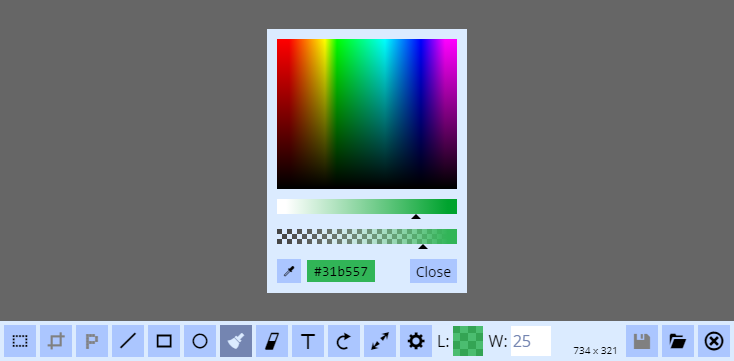
Originally Painterro was designed for quick screenshots processing: You make screenshot by pressing PrtSc button,
then open Painterro on your website, paste an image with Ctrl+V,
crop it to interested area, highlight something with line/rectangle tool and/or add some text
to the image and save on server with custom save handler (plain XHR request to your backend).
In addition, you can use it for processing any kind of raster images. Please try a demo.
Also painterro has Wordpress Plugin.
If you want to see some feature in Painterro, please leave (or vote for) an issue with your proposal here. There is no promise that it will be implemented soon or ever, but it is interesting to know what features users want to have.
Painterro is written with vanilla JS, without any additional frameworks to stay lightweight and minimalistic. Code written on ES6 which transplited by Babel and packed to single file using webpack.
If you are using npm you can run:
npm install painterro --saveThen in your code
import Painterro from 'painterro'
...
Painterro().show()You can download latest painterro-*.min.js here https://github.com/ivictbor/painterro/releases/
or build it by yourself.
Then insert <script> e.g:
<script src="/xxx/painterro-x.x.x.min.js"></script>Then in your code:
<script>
  Painterro().show()
</script>
See fiddle example
To be able save your images on server see Saving image. For configurations see Configuration
Ctrl + Z |
Cancel last operation |
Ctrl + V |
Paste image from clipboard |
Ctrl + C |
Copy selected aria to clipboard (*internal keyboard) |
Shift when drawing rect/ellipse |
Draw square/circle |
Shift when drawing line |
draw at angles of 0, 45, 90, 135 etc degrees |
Alt when using pipette |
Hide zoom helper (colored grid) |
Ctrl + Wheel mouse up/down |
Zoom image to 100% and back. Works only if image doesn't fit in the draw area (e.g. area 800x600 and you draw 1920x1080 image) |
Ctrl + S |
Save image |
You can pass parameters dict to Painterro constructor:
Painterro({
  activeColor: '#00ff00', // default brush color is green
  // ... other params here
})| Param | Description | Default |
|---|---|---|
id |
If provided, then Painterro will be placed to some holder on page with this id, in other case holder-element will be created (fullscreen with margins) |
undefined |
activeColor |
Line/Text color that selected by default | '#ff0000' |
activeColorAlpha |
Transparancy of activeColor from 0.0 to 1.0, 0.0 = transparent |
1 |
activeFillColor |
Fill color that selected by default | '#000000' |
activeFillColorAlpha |
Transparancy of activeColor from 0.0 to 1.0 |
0 |
defaultLineWidth |
Line width in px that selected by default |
5 |
defaultEraserWidth |
Eraser width in px that selected by default |
5 |
backgroundFillColor |
Default background color when image created/erased | "#ffffff" |
backgroundFillColorAlpha |
Transparancy of backgroundFillColor from 0.0 to 1.0 |
1.0 |
defaultFontSize |
Default font size in pixels | 24 |
defaultSize |
default image size, should be string in format <width>x<height> in pixel, e.g. '200x100'. If value is 'fill'(default) than all container size will be used |
'fill' |
defaultTool |
Tool selected by default | 'select' |
hiddenTools |
List of tools that you wish to exclude from toolbar e.g. something from this list ['crop', 'line', 'rect', 'ellipse', 'brush', 'text', 'rotate', 'resize', 'save', 'open', 'close'], You can't hide default tool |
[] |
initText |
Display some centered text before painting. If null, no text will be shown | null |
initTextColor |
Color of init text | '#808080' |
initTextStyle |
Style of init text | "26px 'Open Sans', sans-serif" |
pixelizePixelSize |
Default pixel size of pixelize tool. Can accept values - x - x pixels, x% - means percents of minimal area rectangle side |
20% |
changeHandler |
Function that will be called if something will be changed (painted, erased, resized, etc) | undefined |
Next group of params used to configure painterro user interface.
They should be placed under colorScheme group, for example:
Painterro({
  colorScheme: {
    main: '#fdf6b8', // make panels light-yellow
    control: '#FECF67' // change controls color
  }
}).show()| Param | Description | Default |
|---|---|---|
main |
Color of panels, take most of UI space | '#dbebff' |
control |
Color of controls background (e.g. button background) | "#abc6ff" |
controlContent |
Content of controls (e.g. button text) | '#000000' |
activeControl |
Color for control when it active (e.g. button pressed) | '#7485B1' |
activeControlContent |
Color for activated control content | main |
inputBorderColor |
You can add border to inputs, by default color is same as main so borders will not be seen |
main |
inputBackground |
Background of inputs | '#ffffff' |
inputText |
Color of text in input | activeControl |
backgroundColor |
Background color of component area which left outside of image due to it size/ratio | '#999999' |
dragOverBarColor |
Color of bar when dropping file to painterro | '#899dff' |
hoverControl |
Controls color when mouse hovered | control |
hoverControlContent |
Controls background color when mouse hovered | '#1a3d67' |
.show(openImage) - Show painterro instance. openImage can have next values:
false- will open image that already was drawn before last closesome string value, e.g.'http://placehold.it/120x120&text=image1'- will try to load image from url- all another values - will clear content before open
.hide() - hide instance
.save() - call save (same save as on buttons bar). Can be used if save button is hidden (hiddenTools: ['save'])
Want to translate Painterro into your language? Just open file js/translation.js, copy this.translations dict to text editor and
translate all 'Strings' from. Then create issue
with translated strings and specify what language is it. Also you can submit a pull request.
Your translation will be added and your username will be submitted to contributors list.
If you want to translate or change strings without contributing you can do this by passing
translation parameter, for example:
Painterro({
  translation: {
    name: 'ua',
    strings: {
      apply: 'Застосувати'
      // other strings
    }
  }
}).show()
For all strings that can be translated see js/translation.js
You should provide your save handler, which will post/update image on server or will pass image to another frontend components.
Next example shows how to save base64 via POST json call. Example use raw XMLHttpRequest. Of course,
instead you can use fetch, jQuery, etc insead.
var ptro = Painterro({
    saveHandler: function (image, done) {
      // of course, instead of raw XHR you can use fetch, jQuery, etc
      var xhr = new XMLHttpRequest();
      xhr.open("POST", "http://127.0.0.1:5000/save-as-base64/");
      xhr.setRequestHeader("Content-Type", "application/json");
      xhr.send(JSON.stringify({
        image: image.asDataURL()
      }));
      xhr.onload = function (e) {
        // after saving is done, call done callback
        done(true); //done(true) will hide painterro, done(false) will leave opened
      }
    },
    activeColor: '#00b400'  // change active color to green
});
ptro.show();
Backend should convert base64 to binary and save file, here is python flask example (of course same can be implemented using any technology):
@app.route("/save-as-base64/", methods=['POST'])
def base64_saver():
    filename = '{:10d}.png'.format(int(time()))  # generate some filename
    filepath = os.path.join(get_tmp_dir(), filename)
    with open(filepath, "wb") as fh:
        base64_data = request.json['image'].replace('data:image/png;base64,', '')
        fh.write(base64.b64decode(base64_data))
    return jsonify({})
See full example in example directory. You can run it with python3 with installed Flask.
You can also post data with binary multipart/form-data request which is more efficient. For example some 1920 x 1080 image took 402398 bytes for base64 upload.
The same image took 301949 bytes with multipart/form-data.
var ptro = Painterro({
  saveHandler: function (image, done) {
    var formData = new FormData();
    formData.append('image', image.asBlob());
    // you can also pass suggested filename
    // formData.append('image', image.asBlob(), image.suggestedFileName());
    var xhr = new XMLHttpRequest();
    xhr.open('POST', 'http://127.0.0.1:5000/save-as-binary/', true);
    xhr.onload = xhr.onerror = function () {
      done(true);
    };
    xhr.send(formData);
  }
})
ptro.show();
Backend example:
@app.route("/save-as-binary/", methods=['POST'])
def binary_saver():
    filename = '{:10d}.png'.format(int(time()))  # generate some filename
    filepath = os.path.join(get_tmp_dir(), filename)
    request.files['image'].save(filepath)
return jsonify({})You can just insert image as data url to any WYSIWYG editor, e.g. TinyMCE. Image that for example can be saved
    tinymce.init({ selector:'textarea', });
    var ptro = Painterro({
      saveHandler: function (image, done) {
        tinymce.activeEditor.execCommand('mceInsertContent', false, '<img src="' + image.asDataURL() + '" />');
        done(true)
      }
})When you call image.asDataURL() or image.asBlob(), you can also specify image format, e.g.
image.asDataURL('image/jpeg'). Default format is 'image/png'.
If type is image/jpeg or image/webp, you can also define image quality from 0.0 to 1.0, default is 0.92,
example: image.asDataURL('image/jpeg', 0.5)
After pulling repo install node modules:
cd painterro
npm installnpm run buildResult file is build/painterro.js
To start hot-reload dev server for reloading code "on the fly":
npm run devThen open http://localhost:8080 with demo page
Add/edit icons in res folder. Then run
npm run buildfontPull-requests are welcome. Please add yourself to CONTRIBUTORS.md
- Add recent colors pallete
- Add recent image sizes in resize tool
- Ability to save loacaly
- line arrows
- Edit button on page
tags (provide selector)