[13. April 2026] Updated with Linux (KDE) support in v1.3!
- Screenshots can be taken using the "Take screenshots" button
- You can also manually add your own screenshots to the image folder.
- Currently no GUI mode for editing settings.
- Exceptions are when you're controlling applications that run with administrator privileges.
- Windows 10 22H2
- Windows 11 23H2 / 24H2
- Fedora KDE Plasma Desktop 43
-
Windows:
-
Windows 10/11 LTSC.
- Should work without issue, but not tested.
-
Windows 7/8
- Most features may work as the basic Windows API functions used should be the same.
- Not tested on Windows 7 or 8
-
-
Linux:
-
Should work on any recent distro using KDE 6 Plasma.
-
KDE 5 should work as well, but a few dependencies may have to be resolved.
- KDE 5 is not tested.
- KDE 5 support may break if kdotool is updated as recent versions have removed support.
- qdbus calls might have to be changed to be KDE 5 compatible.
-
Window detection and management (essential) is dependent on:
- kdotool v2.2+ (included in src/bin)
- qdbus-qt6 calls
-
Screenshots (optional) are dependent on:
- spectacle
-
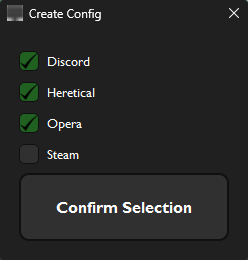
- Click the "Create config" button while your applications are running
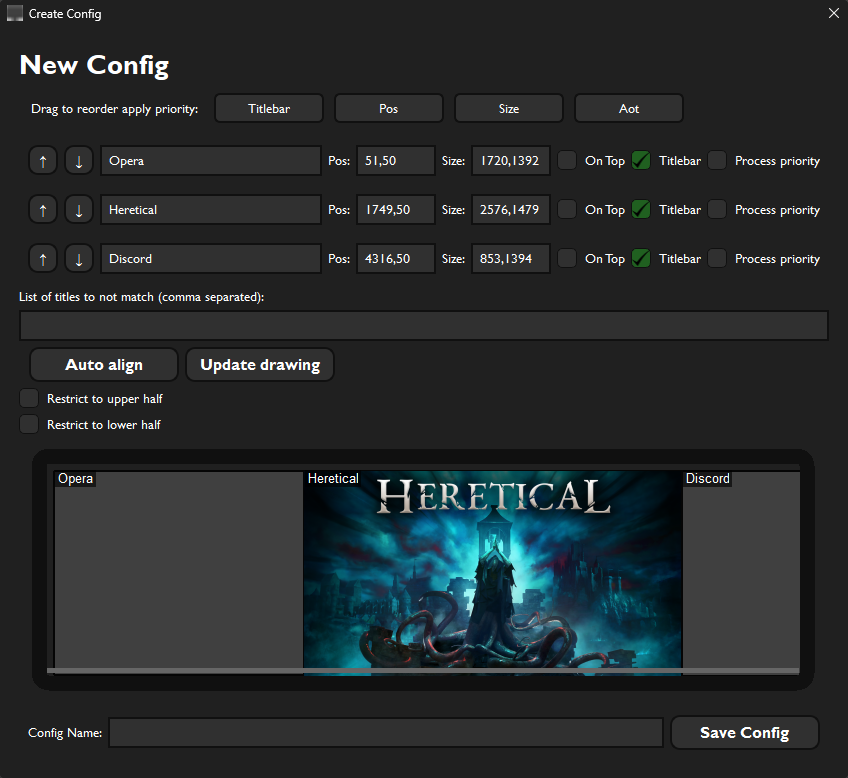
- Select the application windows you would like to manage in the list and click "Confirm selection"
- The application order is based on the current left to right positions. Click the arrows to swap places.
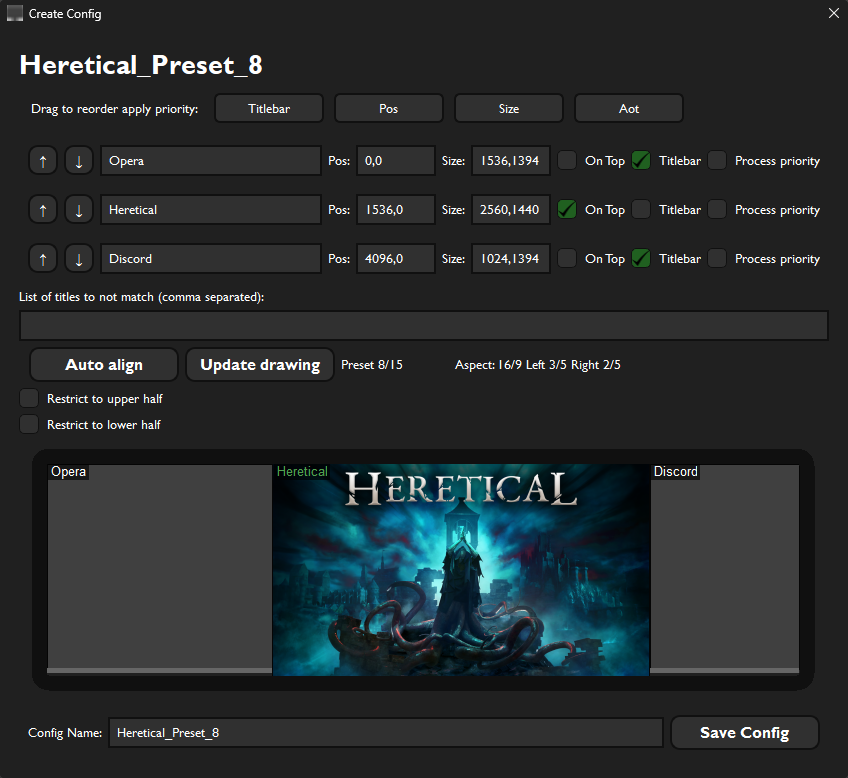
- Choose the settings you want, type a config name and click "Save config"
- Choosing an existing file name will overwrite the previous config
-
Auto align
- Click "Auto align" to go through the predefined layouts for the number of windows selected.
- Custom presets can be configured in
settings.json
-
Update drawing
- Will update the screen layout drawing with the current settings
-
Restrict to upper half / restrict to lower half
- For use with multi-monitor or very large screens. Useful for 2 stacked ultrawide monitors.
- Toggle these on or off to use one the upper or lower half of the screen for layout calculations.
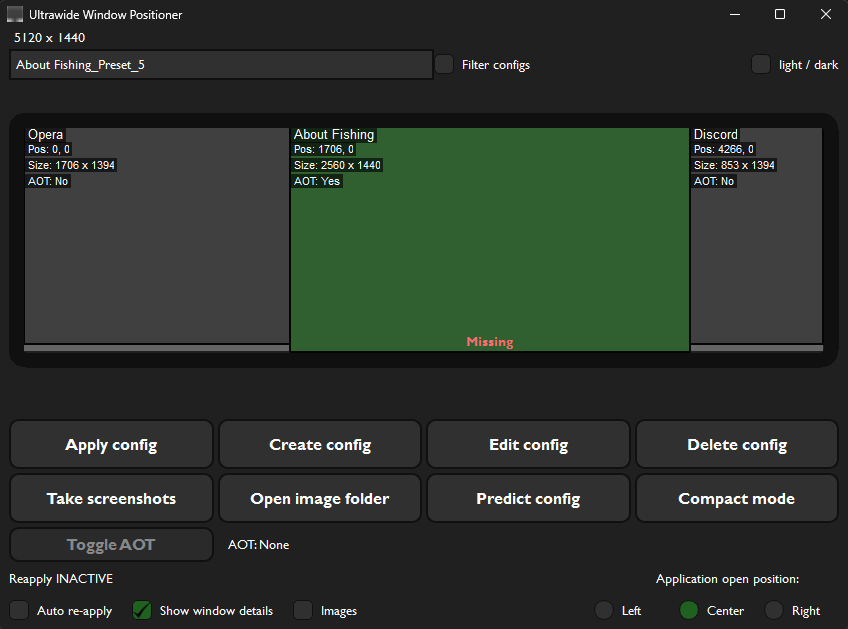
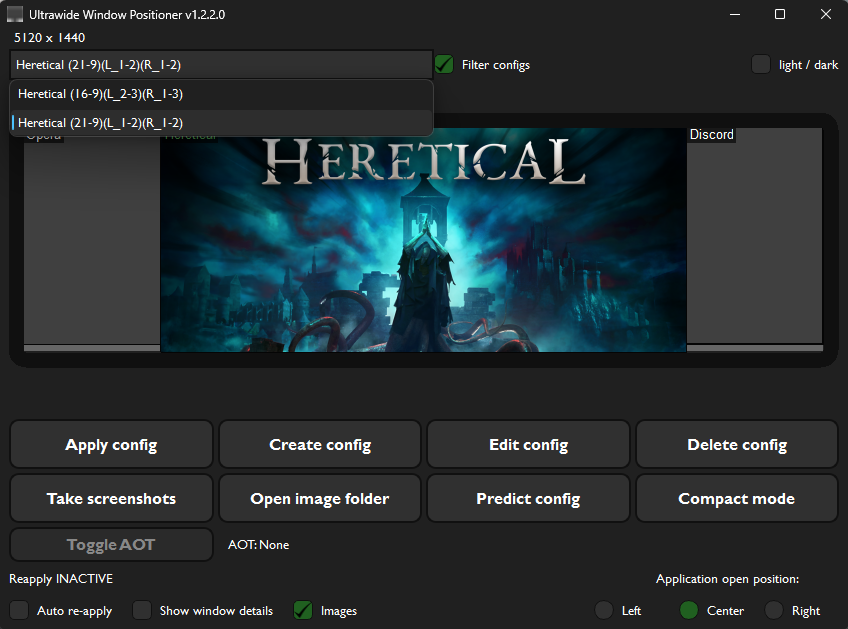
- Select a configuration from the dropdown menu to preview its layout.
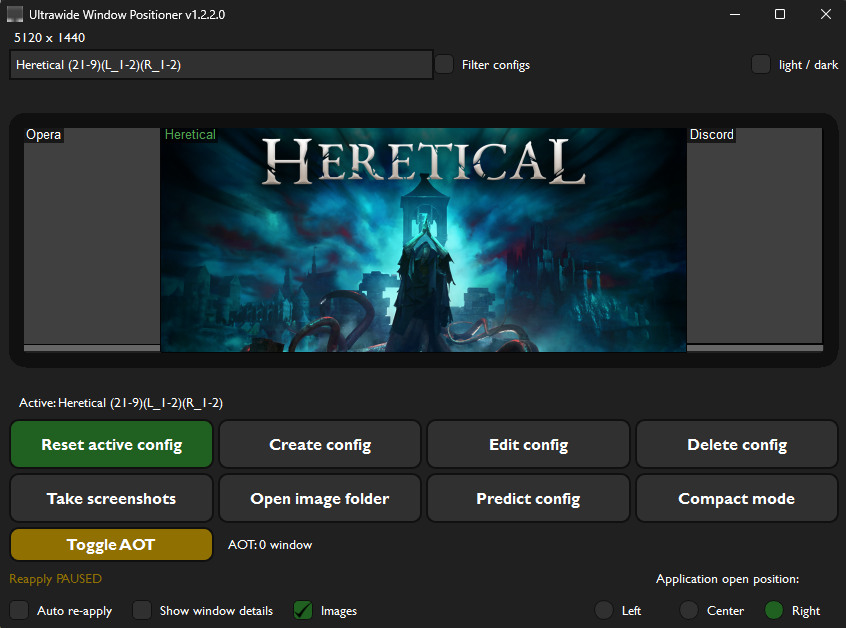
- Click 'Apply config' to activate the window layout defined in the selected config file.
- The button changes color and swaps to reset mode.
- Resets currently loaded configuration.
- This button is only available when a config is loaded (the apply button changes mode).
-
Change the state of windows managed by the currently applied config.
-
Useful for temporary access to the start menu or taskbar if it is covered by an application/game.
-
When active it will pause auto-reapply.
-
Will also put the application window on top when clicked.
- Mostly useful with the hotkey. Will also work when no config is applied or no AOT windows exist.
-
Configurable hotkey in
settings.json -
Default hotkey: alt + home
-
NOTE: Hotkey is not available in Linux, only the button will work.
- Select the config from the dropdown
- Click "Delete config"
- Click "Yes" in the confirmation window
- You can also manually delete the files from the config folder
- Click the "Edit Config" button
- Change the settings as you would when creating a new config
- Save the config
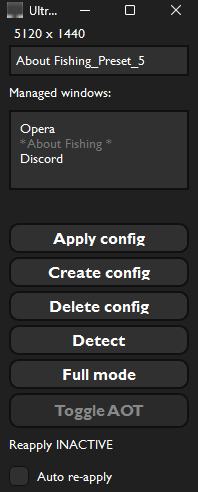
- Click the "Toggle compact" to switch between full and compact mode
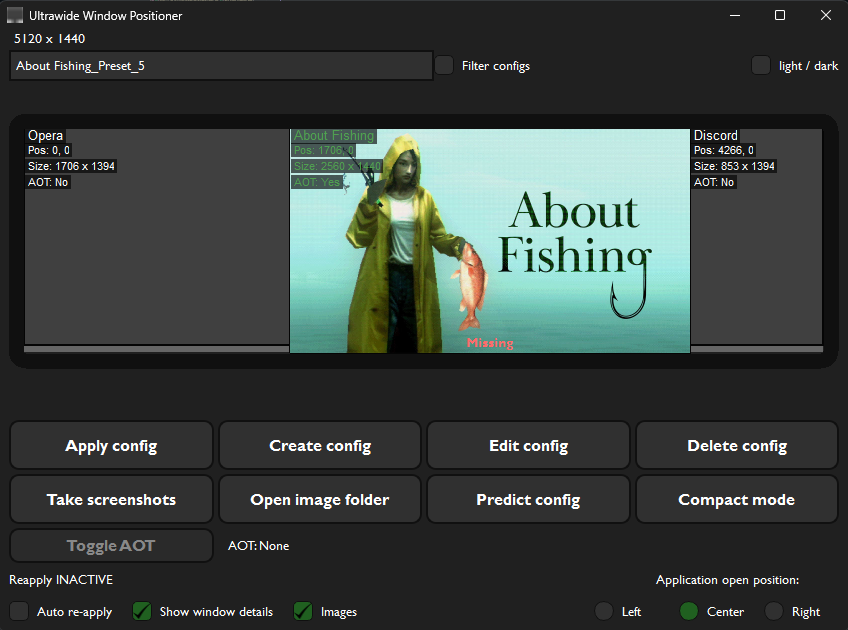
- This button will take a screenshot of all detected windows from the currently selected configuration and use them for the GUI
- Opens the folder with the images and screenshots.
- Clicking this will attempt to find the best matching config based on the existing open applications.
- Always-on-top windows in configs are given priority for the matching.
- Will filter the list to only show configs with an always-on-top application currently open.
- Switch between basic and screenshot layout
- You can set the application to open snapped to either edge of the screen instead of centered.
- This can be used to avoid opening the application behind an always-on-top window.
- Setting this will automatically reapply the current window settings if a change is detected.
- Will also apply the settings to new windows that match as they appear.
- Useful for games that has a lobby and launches a new game window per match, for example League of Legends.
The files can be found in the "configs" folder in the same folder as the executable.
[Window Title]
apply_order = Titlebar,Pos,Size,Aot # Set the order for applying settings
ignore_list = name, name, name      # Windows to ignore, comma separated list
position = x,y                      # Window position
size = width,height                 # Window size
always_on_top = true/false          # Set always-on-top state
titlebar = true/false               # Enable to keep title bar, disable to remove titlebar
exe = filename                      # File name of the application executable
[DEFAULT]
apply_order =
ignore_list =

[Opera]
apply_order =
ignore_list =
position = 0,0
size = 1706,1394
always_on_top = false
titlebar = true
exe = opera.exe

[About Fishing]
apply_order =
ignore_list =
position = 1706,0
size = 2560,1440
always_on_top = true
titlebar = false
exe = about fishing.exe

[Discord]
apply_order =
ignore_list =
position = 4266,0
size = 853,1394
always_on_top = false
titlebar = true
exe = discord.exe
- Window titles in config are matched partially and case-insensitively against open windows.
- If the exe file name is included it must also match to apply the config.