I am using Node-RED's WorldMap to locate the International Space Station & Chinese Space Station—Tiangong via N2YO.com API!

- Create a free account with N2YO.COM to access the APIs for the International Space Station & Chinese Space Station—Tiangong.
- Have access to Node-Red Terminal.
- Install Node-Red Worldmap.
- Willingness to shoot for the Stars~ 🚀
- NY2O Account Setup
- Building Out the Node-RED Canvas
- Deploying the ISS & CSS Tracker flow
- Start by accessing N2YO.com.
- Click register for a new account.
N2YO.com.Account.Setup-I.C.T.GIF.mp4
- Create an account with your username & password. We will need them in the upcoming section.
- Click 'Submit' when done.
N2YO.com.Account.Creation-I.C.T.GIF.mp4
- Relogin to N2YO.com, and enter the username & password you created.
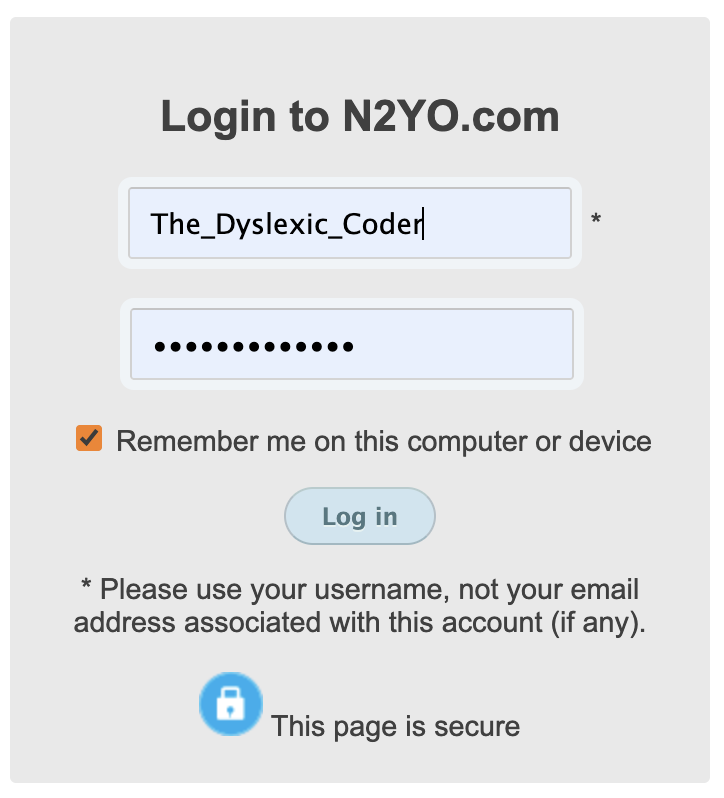
- To check our profile, look towards the lower right corner of the screen labeled 'Your Current Location.' Click 'Change your location.'
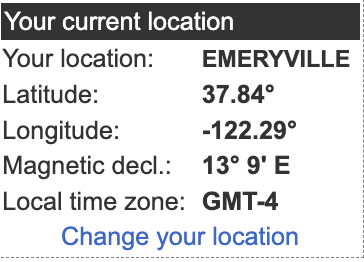
- On our Profile Screen, locate our observer coordinates.
N2YO.COM.OBSERVING.LOCATION-I.C.T.GIF.mp4
- Next, generate our API key by clicking the 'Generate your API license key' button.
N2YO.COM.API.Key-I.C.T.GIF.mp4
- Great! Let's compile the two API Request URLs for the International Space Station & Tiangong Space Station with our observable values.
Click to view my observable values from NY2O.com
| NY2O.com Variables | My observable values |
|---|---|
| NORAD ID for ISS | 25544 |
| NORAD ID for CSS | 25544 |
| Latitude | 37.84 |
| Longitude | -122.29 |
| API License Key | W2P49E-CYAT4A-PL4YAB-4TSZ |
- Below copy the Sample URL & substitute the variables inside the Sample URL for your values from N2YO.com:
Click to view the sample API URL for the International Space Station & the Chinese Space Station—Tiangong
SAMPLE URL: https://api.n2yo.com/rest/v1/satellite/positions/NORADID/Lat/Lon/0/2/&apiKey={yourAPIKey}
-
- Translate your code to:
Click to view the final API URL for the International Space Station & the Chinese Space Station—Tiangong
International Space Station API URL: https://api.n2yo.com/rest/v1/satellite/positions/25544/37.84/-122.29/0/2/&apiKey=W2P49E-CYAT4A-PL4YAB-4TSZ
Chinese Space Station—Tiangong API URL: https://api.n2yo.com/rest/v1/satellite/positions/48274/37.84/-122.29/0/2/&apiKey=W2P49E-CYAT4A-PL4YAB-4TSZ
- Open Node-RED on the Raspberry Pi terminal.
Click to view the steps for launching Node-RED on the Raspberry Pi terminal.
node-red start
- Access Node-RED through the server URL and navigate the Installation Palette in the User Settings to install the WorldMap node.
Downloading.the.WorldMap.Node.on.Node-Red.-.I.C.T.GIF.mp4
Click to view the steps for installing the WorldMap in the Installation Palette.
Menu > Manage Palette > Install > Type in WorldMap
- If needed, click install and follow the steps to complete the installation process.
- Now that we have installed the Worldmap node, we can start building the flow!
- We will begin by renaming the canvas from Flow 1 to ISS & CSS Tracker.
Renaming.Tab.to.ISS.CSS.Tracker.-.I.C.T.GIF.mp4
- Next, drag the Inject node into our canvas and adjust the following configurations:
Creating.the.Inject.Node.-.I.C.T.GIF.mp4
Click to view the steps for configuring the Inject node.
Inject node > Properties > Select Inject Once after 0.1
seconds, then > Repeat Interval every 32 seconds > Done
- Perfect! Remember the two custom URLs you made for the ISS & CSS? It’s time to grab them, as we will use them in our HTTP request node!
- To create the International Space Station HTTP Request node, drag an HTTP request node into our canvas and follow configurations steps:
Pasting.the.ISS.API.Key.in.HTTP.Request.Node.-.I.C.T.GIF.mp4
Click to view the steps for configuring the International Space Station HTTP Request node.
http request node > Properties >
URL: https://api.n2yo.com/rest/v1/satellite/positions/25544/37.84/-122.29/0/2/&apiKey=W2P49E-CYAT4A-PL4YAB-4TSZ
> Return: a parsed JSON object > Name: N2YO Rest API (ISS) > Done
- We will add another HTTP request node for the Chinese Space Station and follow the configurations steps:
Pasting.CSS.API.Key.in.HTTP.Request.Node.-.I.C.T.GIF.mp4
Click to view the steps for configuring the Chinese Space Station HTTP Request node.
http request node > Properties >
URL: https://api.n2yo.com/rest/v1/satellite/positions/25544/37.84/-122.29/0/2/&apiKey=W2P49E-CYAT4A-PL4YAB-4TSZ
> Return: a parsed JSON object > Name: N2YO Rest API (ISS) > Done
- Next, we will drag the Function node to the International Space Station's path. Double-click the Function node, and type in the following JavaScript code, which will extract the JSON data from the HTTP Request node.
Pasting.Detailed.ISS.Position.in.Function.Node.-.I.C.T.GIF.mp4
Click to view the JavaScript code for ISS Position.
var iss = "International Space Station";
var lat = msg.payload.positions[0].satlatitude;
var lon = msg.payload.positions[0].satlongitude;
msg.payload = {
"name": iss,
"lat" : lat,
"lon": lon,
};
return msg;
- We’ll repeat the step for the CSS.
Pasting.Detailed.CSS.Position.in.Function.Node.-.I.C.T.GIF.mp4
Click to view the JavaScript code for CSS Position.
var css = "Chinese Space Station";
var lat = msg.payload.positions[0].satlatitude;
var lon = msg.payload.positions[0].satlongitude;
msg.payload = {
"name": css,
"lat" : lat,
"lon": lon,
};
return msg;
- Excellent, we are almost done! We’ll create the attributes to show the ISS on the WorldMap with the code below:
Pasting.JavaScript.for.ISS.Attributes.in.Function.Node.-.I.C.T.GIF.mp4
Click to view the JavaScript code for ISS Attributes.
var icon = "iss";
msg.payload = {
"name": msg.payload.name,
"lat": msg.payload.lat,
"lon":  msg.payload.lon,
"icon": icon,
"iconColor":"#ebbe56",
};
return msg;
- We’ll recreate the attributes for the CSS with the code below:
Pasting.JavaScript.for.CSS.Attributes.in.Function.Node.-.I.C.T.GIF.mp4
Click to view the JavaScript code for CSS Attributes.
var icon = "iss";
msg.payload = {
"name": msg.payload.name,
"lat": msg.payload.lat,
"lon":  msg.payload.lon,
"icon": icon,
"iconColor":"red",
};
return msg;
- Add a Debug node to the end of each flow path and edit the configurations:
Adding.Debug.Nodes.-.I.C.T.GIF.mp4
Click to view the steps for configuring the Debug node.
debug node > Properties > Output:complete msg object > Done
- Drag the WorldMap node and link the two functions node to it!
Adding.the.WorldMap.Node.-.I.C.T.GIF.mp4
- Finally, click the WorldMap node on the info tab, and right-click “here” to open the map on a new tab.
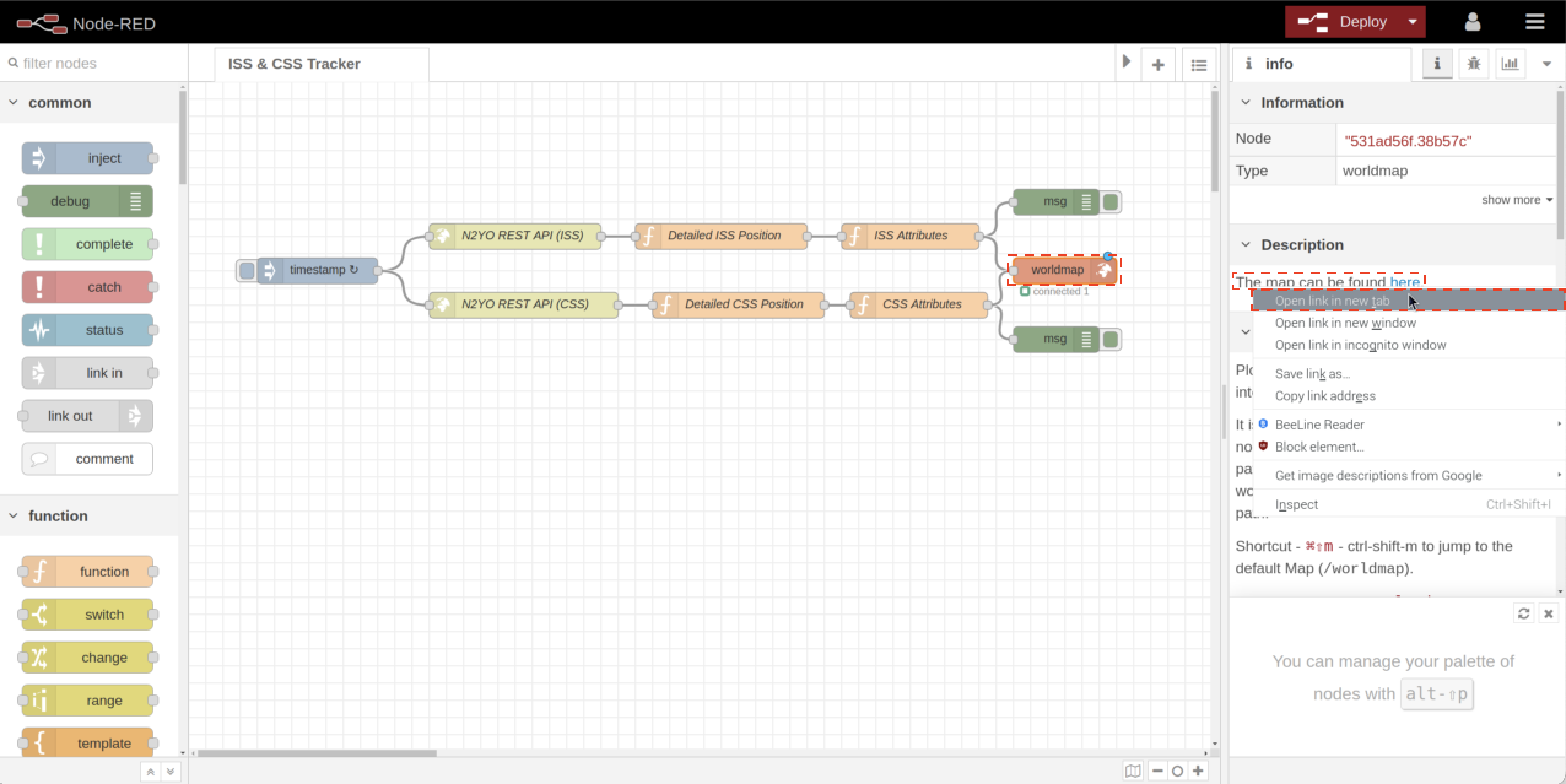
- Click Deploy our flow, and click the inject node to view the Space Stations on Worldmap on the other tab!
Deploying.ISS.CSS.Tracker.in.Node-Red.WorldMaps.-.I.C.T.GIF.mp4
🎉 Way to Go! 🎉 We’ve created a flow to view the relative positions of the International Space Station & Tiangong Space Station in real-time using an open-source API from N2YO.com!
Feel free to copy the full code and add your twist to it! ✨