Post Cell Component for Android
TODO
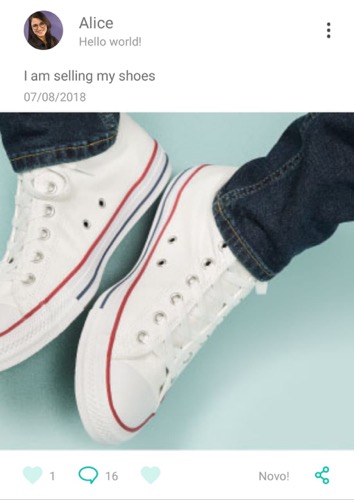
The following picture shows the elements of the post, which are listed and described bellow.

-
Profile Picture: if no image is sent, shows a placeholder. It is clickable.
-
User name: is clickable.
-
Subtitle: is a text that appears under the user name. When it is null, the user name centers in relation to the profile picture. It is not clickable.
-
Settings Icon: it can be shown vertically or horizontally. The property settingsIconIsHorizontal is passed through the adapter. When true, the icon is set horizontally. When clicked, shows the settings menu that has 2 options by default:
- Report: report a specific post, method has to be implemented.
- Remove from list: remove a specific post from the user's feed, method has to be implemented.
-
Post Description: the text of the post. It is selectable, but not clickable.
-
Post Date: text for the date the post was made. It is not clickable.
-
Post Media: in this version, only images are allowed. When double tapped, it shows a heart animation.
-
Interaction bar: can have up to 5 buttons. Ther position is determined by the numbers on the image bellow. They can have 2 images (one for when the button is selected and the other when it is unselected, which is the default one) and text. None of the parameters is mandatory, so the button can have only image or text.

To implement the post cell, you will need to install the component following the steps on the first section of this document. After that, in your feed activity, you will need:
- An array to set the buttons that will appear in every post
- A list of posts, which in this example will be mocked
- A function call to convert your post data into the post model used by the component
- The implementation of all the click methods
The following code results on the interaction buttons of the images seen above. The parameters of an interaction button are:
- buttonPosition: goes from 0 to 4 as seen in the Interaction Bar image.
- buttonOnClickListener: method that will be called when the button is clicked. If set to null, button is not clickable.
- buttonIsSelected: boolean value that determines if the button is selected or not. This changes the button's image accordingly. For example, if a post is liked by me, the heart image on this button can have a different color or filling.
- buttonSelectedImage: image that will show if butonIsSelected is true. Can be null if this behavior is not desired.
- buttonImage: image that shows in the button by default or when buttonIsSelected is true. Can be null, in which case the button will have no image.
- buttonText: is the text that the button shows. It can be, for example, the number of likes that the post has or a generic text button. It can also be null.
Example:
private fun interactionButtons(text: Array<String?>, isSelected: Array<Boolean>): List<InteractionButtonModel> {
        return listOf(
                //LIKE BUTTON - Icon and Counter
                InteractionButtonModel(
                        buttonPosition = 0,
                        buttonOnClickListener = this::onPressButton0,
                        buttonIsSelected = isSelected[0]
                ).apply {
                    buttonSelectedImage = R.drawable.liked
                    buttonImage = R.drawable.like
                    buttonText = text[0]
                },
                //COMMENTS BUTTON - Icon and counter
                InteractionButtonModel(
                        buttonPosition = 1,
                        buttonOnClickListener = this::onPressButton1,
                        buttonIsSelected = isSelected[1]
                ).apply {
                    buttonSelectedImage = null
                    buttonImage = R.drawable.comment
                    buttonText = text[1]
                },
                //Icon only Button
                InteractionButtonModel(
                        buttonPosition = 2,
                        buttonOnClickListener = this::onPressButton2,
                        buttonIsSelected = isSelected[2]
                ).apply {
                    buttonSelectedImage = R.drawable.liked
                    buttonImage = R.drawable.like
                    buttonText = text[2]
                },
                //Text Only Button
                InteractionButtonModel(
                        buttonPosition = 3,
                        buttonOnClickListener = this::onPressButton3,
                        buttonIsSelected = isSelected[3]
                ).apply {
                    buttonSelectedImage = null
                    buttonImage = null
                    buttonText = text[3]
                },
                //SHARE BUTTON - Image Only
                InteractionButtonModel(
                        buttonPosition = 4,
                        buttonOnClickListener = this::onPressButton4,
                        buttonIsSelected = isSelected[4]
                ).apply {
                    buttonSelectedImage = null
                    buttonImage = R.drawable.share
                    buttonText = text[4]
                })
}This list will come from the backend of your project. The PostModelResponse file must be altered to match the model of your post. The following code provides an example of a list that has 3 posts.
private fun mockPostResponse(): List<PostModelResponse> {
    return listOf(
            PostModelResponse(
                    postId = 1,
                    userName = "Alice",
                    postDescription = "Post Without Image",
                    postDate = 1533663563,
                    likesCount = 50,
                    likedByMe = true,
                    commentsCount = 23)
                    .apply {
                        postDetails = null
                        userProfilePicture = "http://cbnjoaopessoa.com.br/wp-content/uploads/userphoto/59.jpg"
                        postMedia = null
                    },
            PostModelResponse(
                    postId = 2,
                    userName = "Alice",
                    postDescription = "I am selling my shoes",
                    postDate = 1533663563,
                    likesCount = 59,
                    likedByMe = false,
                    commentsCount = 45)
                    .apply {
                        postDetails = "Hello World!"
                        userProfilePicture = "http://cbnjoaopessoa.com.br/wp-content/uploads/userphoto/59.jpg"
                        postMedia = "https://www.usc.co.uk/images/categories/mens_viewall_shoes.jpg"
                    },
            PostModelResponse(
                    postId = 3,
                    userName = "Alice",
                    postDescription = "My shoes are beautiful",
                    postDate = 1533663563,
                    likesCount = 20,
                    likedByMe = true,
                    commentsCount = 10)
                    .apply {
                        postDetails = "Hello World!"
                        userProfilePicture = "http://cbnjoaopessoa.com.br/wp-content/uploads/userphoto/59.jpg"
                        postMedia = "https://www.usc.co.uk/images/categories/mens_viewall_shoes.jpg"
                    }
            )
}
The method that makes this conversion is called mapToPostComponent, located in the PostModelResponse file. The following code shows an implementation example of this method.
private fun postsList(responseList: List<PostModelResponse>): MutableList<PostModel> {
        val postModelList: MutableList<PostModel> = mutableListOf()

        responseList.forEach { response ->
            postModelList.add(
                    response.mapToPostComponent(
                            { id -> onPressMedia(id) },
                            { id -> onPressReportPost(id) },
                            { id -> onPressRemovePost(id) },
                            { id -> onPressProfilePicture(id) },
                            { id -> onPressUserName(id) },
                            interactionButtons(
                                    text = arrayOf(response.likesCount.toString(), response.commentsCount.toString(), null, "Novo!", null),
                                    isSelected = arrayOf(response.likedByMe, false, false, false, false)))
            )
        }
        return postModelList
}There are 10 methods that should be implemented for all the clickable buttons to work. They receive the post id as a parameter.
- onPressProfilePicture
- onPressUserName
- onPressMedia (by double tapping it)
- onPressReportPost
- onPressRemovePost
- onPressButton0
- onPressButton1
- onPressButton2
- onPressButton3
- onPressButton4
Currently, when a clickable item is clicked, a short message shows on the screen. The code of one of the buttons is as follows:
private fun onPressProfilePicture(id: Int) {
        //TODO: implement
        Toast.makeText(this, "onPressProfilePicture called, id: $id", Toast.LENGTH_LONG).show()
}The complete example showing all of the code presented above is in the PostActivity.kt file. You can use this as a starting point to implement the post cells in your android app.
The component uses some of the default colors of the project:
- colorPrimary
- colorSecondary
- colorPrimaryText
- colorSecondaryText
- colorPrimaryBackground
