Home
Formbar is a classroom management tool that allows students rich and automated interaction. The core of the Formbar is access to a LED light bar or online virtual bar where information about the class can be displayed. This is normally the answer to a teacher prompt, be it Good/Bad/Neutral, one of four selections, or a short essay.
Login and Logout:
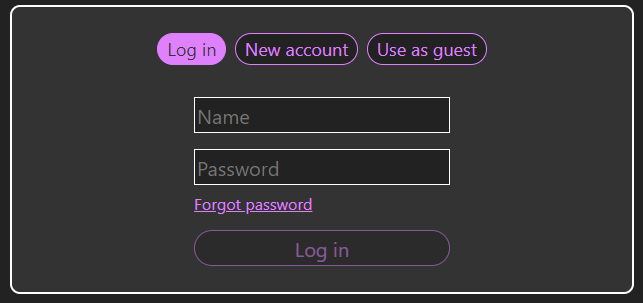
When logging in to the Formbar, the user will be sent to a screen with three different options. Log In, New Account, and Use as Guest.
- Log In and Change Password
This option shows two boxes to input you username and password to log into the Formbar. If you have forgotten your password, you can request a password change which can be seen and confirmed by a teacher in the Teacher Control Panel.
- New Account
Like the Log In page, the New Account page has two text boxes where you can input your username and password. After you have chosen them, you can click "Create Account" and be registered onto the Formbar.
- Use as Guest
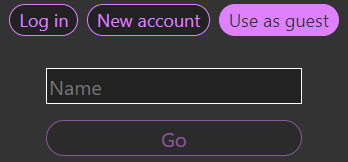
Unlike normal users, guests do not require a password. All you need to do is enter a name and press the "Go" button underneath the text box to enter the Formbar as a guest account.
- Log Out
To log out of the Formbar, click the URL bar and type "/logout" in front of the IP address. You will be sent back to the Log In page once you have logged out.
Students:
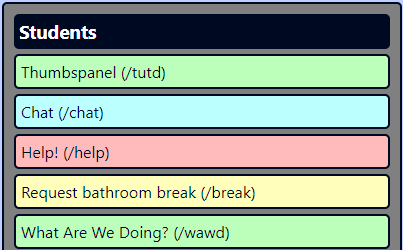
- Thumbspanel (/tutd)
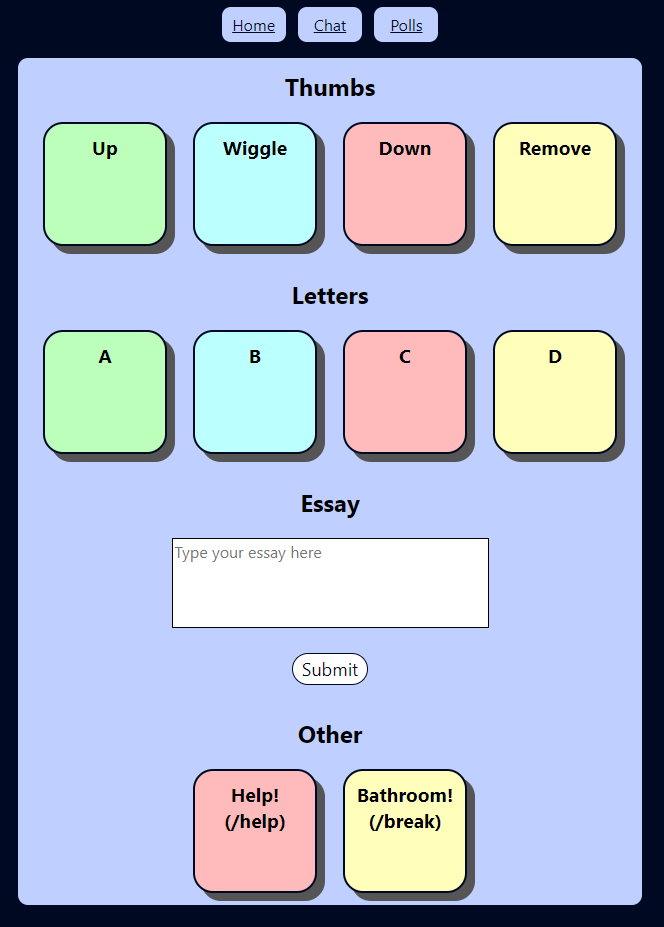
The Thumbspanel, as stated above, accesses a LED light bar or online virtual bar to display a set of multiple selections. Depending of which mode the teacher sets the Thumbspanel to, the students can submit three different types of responses.
Thumbs:
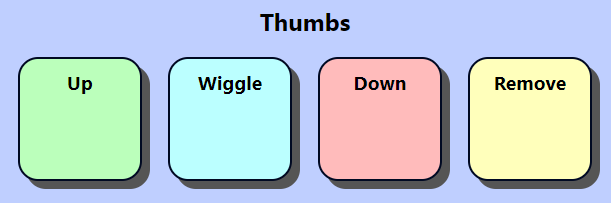
The Thumbs option gives students three different responses to the teacher's question, Up, Down and Wiggle. Students are able to change or remove their choice at any time. (This option only works if Thumbs mode is selected in the Teacher Control Panel.)
Letters:
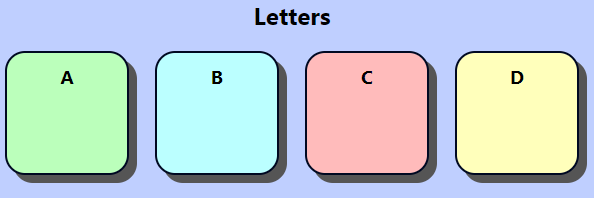
Similar to Thumbs, students can submit up to four different responses to a teacher's question using different letters, A, B, C and D. The different colors are represented by their respective colors in order, red, blue, yellow and green. (This option only works if Letters mode is selected in the Teacher Control Panel.)
Essay:
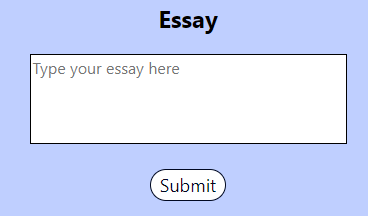
Using the Thumbspanel, students can submit a written respose to the teacher in a small textbox. After submitting, the teacher can view the responses made by students in the Teacher Control Panel. (This option only works if Essay mode is selected in the Teacher Control Panel.)
- Chat (/chat)
The Chat feature allows students to interact with each other through messages. The chat also logs whenever a student joins or leaves the chat, notifies others to join a Fighter match, and shows if a message has been deleted. Users can also hover over others' names and view their profiles. The teacher can remove permissions to talk in the chatroom or delete all sent messages through the Control Panel.
- Help! and Request Bathroom Break (/help and /break)
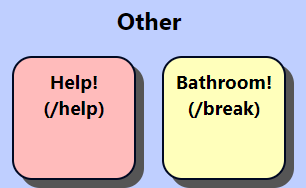
If students are having a problem with work, or they need assistance with something, they can write a response to the teacher and submit it through the "Help" option. Once they have submitted their ticket, a sound will notify the teacher, and they can view the message through the Teacher Control Panel. This option can also be accessed through the Thumbspanel.
If students need to take a break to go to the bathroom, they can select the "Request Bathroom Break" option and request one from the teacher. After the teacher accepts it, students will be excluded until their break is ended by them or the teacher. While the student is excluded, the student will not be able to participate in surveys or use other features. This option can also be accessed through the Thumbspanel.
- What Are We Doing? (/wawd)
Unavailable
Formbar:
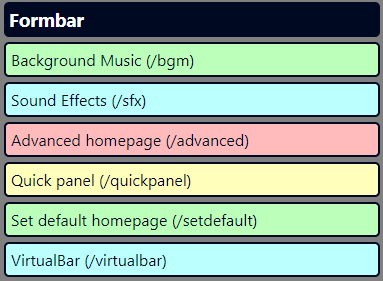
- Background Music (/bgm) and Sound Effects (/sfx)
The Background Music (BGM) and Sound Effects (SFX) page both share the same functions. Users can open the pages and go through a list of music or sounds to play. The song or sound selected by a user will play once until it has ended. In the BGM page, you can see which song is being played or stop the current track from playing. Teachers can enable or disable permissions for both BGM and SFX use from the Control Panel at any time.
- Advanced Homepage (/advanced)
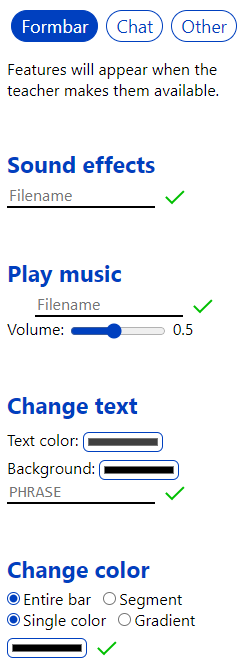
The Advanced Homepage is a compact version of the standard Formbar menu that includes all features. There are separate versions for students and teachers. The teacher version has access to features like SFX, BGM, and changing the text and color of the Virtual Bar. Students have access to Thumbs options, and the chat. Both have access to pinning the Virtual Bar on top of the page they are on. Both users can also navigate the homepage with multiple dropdown menus that include other features like Help Tickets, Bathroom Pass and games. There is also a dropdown menu for teachers only. This can be set as a user's default homepage.
- Quick Panel (/quickpanel)
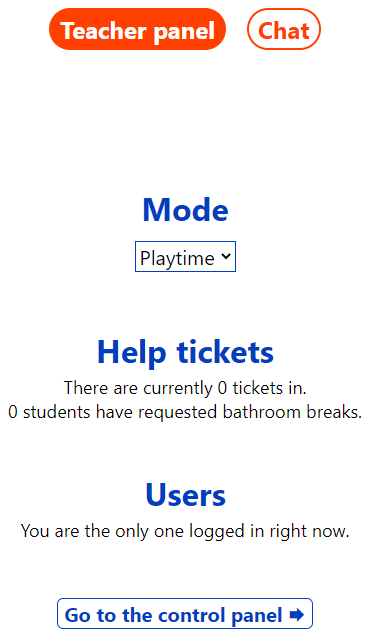
The Quick Panel is a page where you can easily access the most-used features. There are separate versions for students and teachers. The teacher version shows small lists of Thumbspanel modes, help tickets, and users. The student version shows the Thumbspanel poll mode and its options, along with the help and bathroom requests. Both versions also have access to the chat. This can be set as a user's default homepage.
- Set Default Homepage (/setdefault)
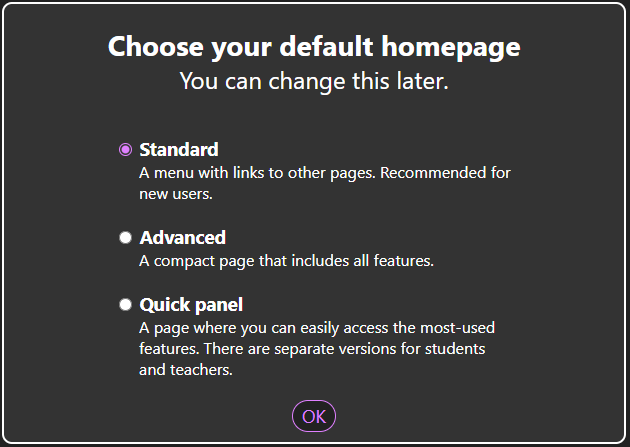
This page takes you to three different options for the default Formbar homepage. Users can set it as Standard, Advanced, or Quick Panel.
- VirtualBar (/virtualbar)

The Virtual Bar page shows a virtual on-screen version of the LED light bar. It matches the LED light bar set up to the Formbar and shows the same Thumbspanel answers submitted by students.
Games:
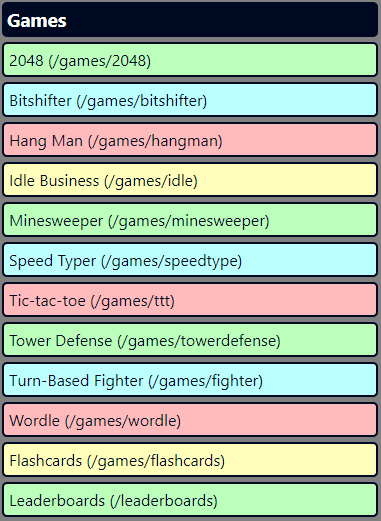
The games section of the Formbar contains 11 different games for the students to play, like Tower Defense, 2048, Speed Typer, and Flashcards. This section also includes a leaderboard to see the top players of the classroom. Teachers can remove permissions to play games at any time.
Teacher:
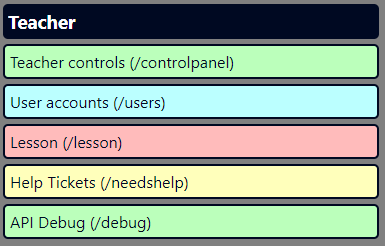
- Teacher Controls (/controlpanel)
The Teacher Control Panel is used with multiple features on the Formbar, like Thumbspanel essays, help tickets, or bathroom passes. This section will highlight important features of the Control Panel and provide simple and easy to understand instructions on how to navigate and operate it.
Users:
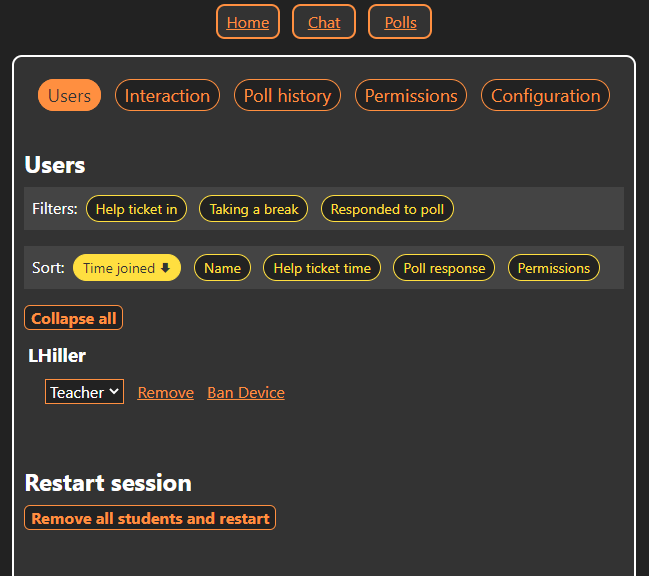
The Users section of the panel shows everyone who has been registered onto the Formbar. Teachers are able to change the user's role (Teacher, Mod, Student, or Guest), remove the user from the Formbar, or ban them. Teachers can use filters to find help tickets, break requests, and poll responses, and can also filter users by the time joined, name, help ticket time, poll response, or permissions. All sorting options can be set to ascending or descending orders. Below the users is an option to restart a session. If you press the button below, you can remove all students and restart it.
Interaction:
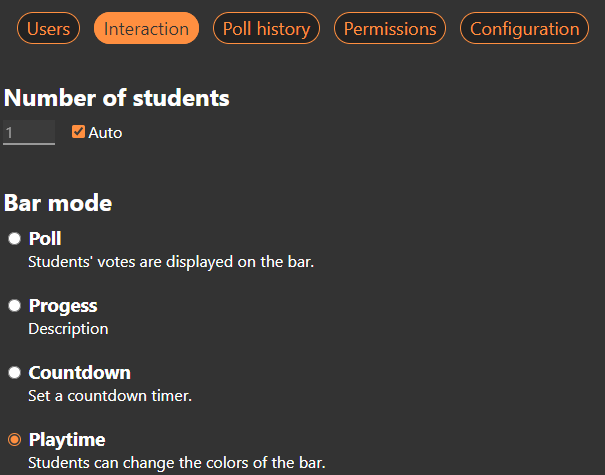
The Interaction section of the panel allows Teachers to input a set number of students and select the Thumbspanel bar mode. The number of students can be set automatically or manually. The bar modes featured in this section are Poll, Progress, Countdown, and Playtime. The Poll mode can be changed to three separate modes (see above for more details). The Countdown option sets a timer to the Formbar. The Playtime mode allows the students to change the colors of the Formbar. (Progress has not been given a description, and Countdown is unavailable to use)
Poll History:
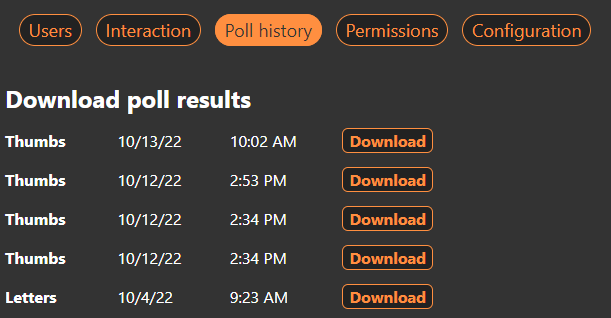
The Poll History section provides teachers with the polls students have submitted through the Thumbspanel. You can see the date and time of the submission and download it onto your desktop.
Permissions:
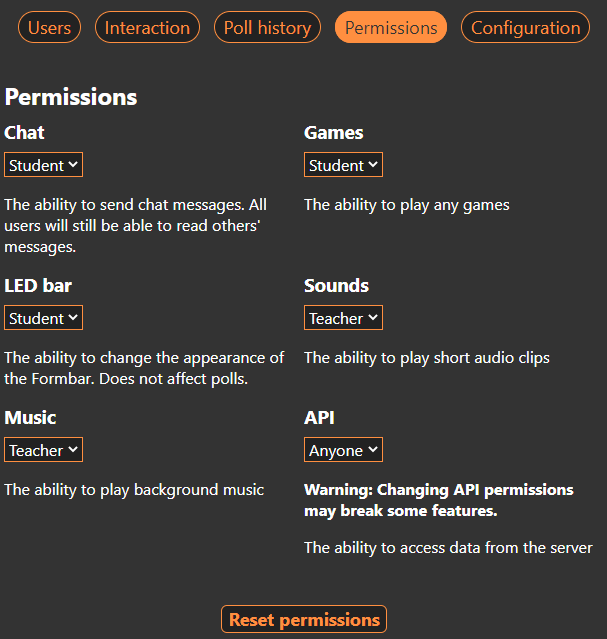
The Permissions section allows teachers to set who can use certain features on the Formbar. The available permissions that can be changed are for Chat, LED Bar, Music, Sounds, Games, and API.
Configuration:
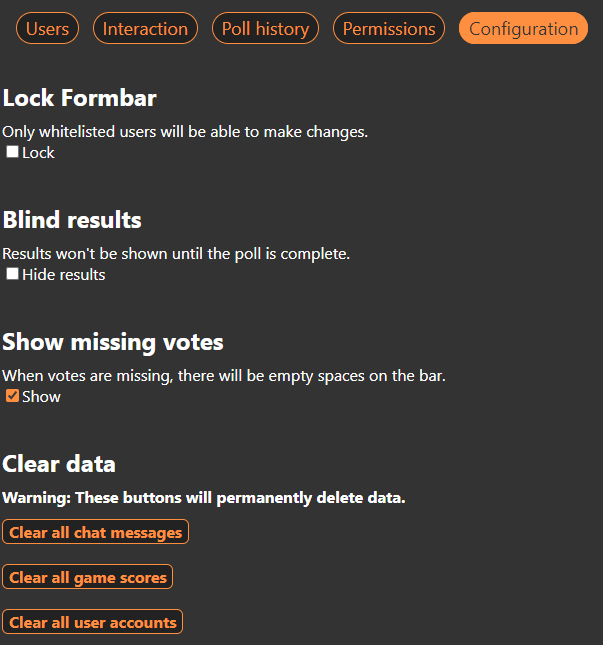
The Configuration section provides teachers with extra options, like locking the Formbar, Blind Results, Showing Missing Votes, and clearing data. Locking the Formbar will remove access for all users exept for ones that are whitelisted. Blind Results hide Formbar submissions until they are shown. Showing Missing Votes will fill the bar with empty spaces. Once all users have submitted their option or essay, the bar will be filled completely. Clearing Data will permanently remove all chat messages, all game scores, or all user accounts.
- User Accounts (/users)
User Accounts is similar to the Users section in the Control Panel, but you are able to change passwords and create new accounts.
- Lesson (/lesson)
Unavailable
- Help Tickets (/needshelp)
Unavailable
- API Debug (/debug)
The API Debug page shows the code of a handfull of other pages in real time. A red bar extends across the screen which updates the code whenever it reaches the other side or the timer at the bottom right counts down to 0.
Windows How to setup and run on windows-
-
start formbarSetup_windows.bat.
-
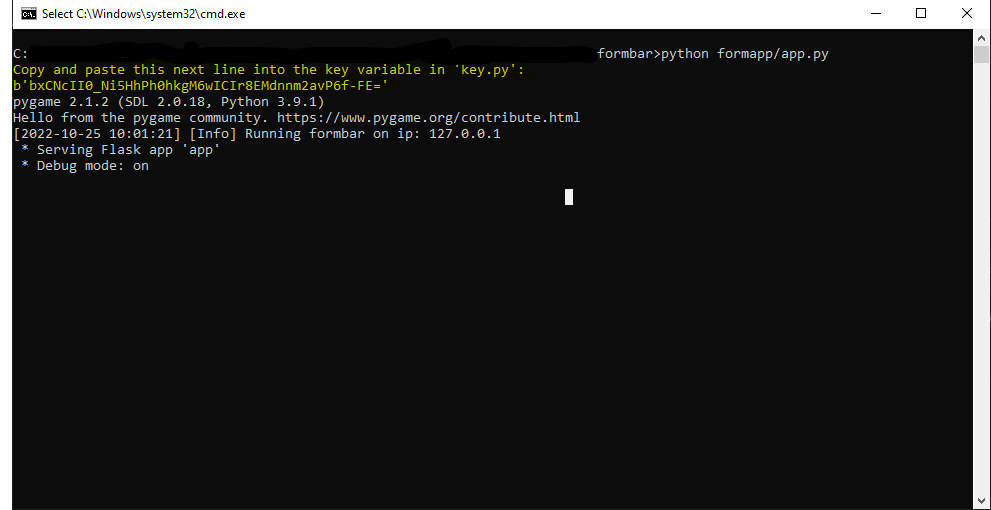
once completed run formbarStart_Windows.bat. copy the long string of random letters using CTRL+SHIFT+C
-
close that file and go to formapp>key.py. right click and hit edit with notepad++ or hit Edit
-
in key = '', paste the string of random letters and hit CTRL+S. this saves the string of random letters as the key. You have successfully set up the formbar.
-
run formbarStart_Windows.bat again
-
Wait to hear a sound play, letting you know it is working
-
Open your localhost and create an account (any name and password works) for a teacher account
-
Using a separate computer or raspberry pi, enter the main computer's IP address and make an account for a student account For Pi: Recommended to use an app like VNC in order to use one K&M for both the main computer and the pi without swapping constantly
Linux How to setup and run on linux-
- Open the formbar folder in terminal.
- Type into the terminal "sh formbarSetup_Linux.sh"
- Let the file run its course. then type in the command "sh formbarStart_Linux.sh".
- Copy the long string of letters using CTRL + SHIFT + C
- Next you go to formapp/key.py
- In key.py, go to line 5 and remove the '' to paste in the long string of letters from earlier with CTRL + V
- Save the file and go back to formbar-main in your terminal.
- Now type in "sh formbarStart_Linux.sh" It will take a moment but you will get a prompt saying it is running on "127.0.0.1" you have now successfully set up and run the formbar.
Windows
- Open command prompt and type in "ipconfig" and then hit ENTER
- Wherever it says IPv4 Address, copy the string of numbers that follow it using CTRL+C
- Next open the formbar folder and go to formbar>formapp .
- Left click once on config.py and then right click on it, open with IDLE and select the drop menu
- At the bottom of the new box where it says ip = "127.0.0.1", delete the numbers and paste in the numbers you copied from earlier
- make sure the new number has the parenthesis around it.
EX: What line 22 should look like ip = "192.168.12.89"
Linux
- Open your terminal with CTRL+ALT+T.
- Type in "ifconfig" into the terminal(if net-tools is not installed, type in "sudo apt install net-tools". If it was already installed jump to setp 3)
- Type in password and hit ENTER.
- inet 192.168.10.900. Your IP will not be the same as ours but highlight and hit CTRL+SHIFT+C to copy it.
- Go back to your file explorer formbar>formapp>config.py. Open config.py
- Paste your ip into the quotations marks were "127.0.0.1" is and replace it with your IP with CTRL+V
How to fork and clone the Formbar
This section of the wiki will show how to fork, clone, set up, and test the Formbar code. With this, students can learn how to develop the Formbar without any extra help from the teacher.
- Forking
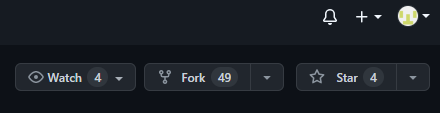
To start, students will need to Fork the Formbar code from the original Repository. Do do this, open the repository and click on the Fork button. After clicking the button, create a name for the fork, add a description for it (optional), and choose if you would like to copy the main branch only, then select "Create Fork".
- Cloning
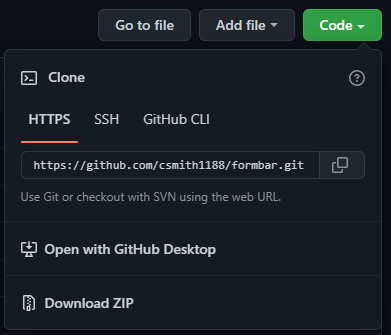
To clone the Formbar, go to the repository and click on the green "Code" button, and then select "Open with Github Desktop". Once it has opened, choose the local path where it will be cloned in (desktop, folders, downloads), and press the blue "Clone" button. The Formbar clone will be stored and accessed wherever you put it.

- Setting Up and Testing the Formbar
Instructions on how to set up the Formbar for Windows and Linux are shown above.
If you have made any changes to your Formbar clone and want to test them, you can run it on a localhost and check them on the website. Make sure you have saved your work before running the Formbar.
Using the Formbar with API
The features that are found on the Formbar can be used directly in their own categories, but you can also use the API by typing in URLs into the search bar that runs the command or view the API Debug page in the Teacher category. Each command works with the section it's located in, like the Thumbspanel or BGM/SFX. This section of the wiki will go over each API command and how it works.
- /api/bgm
This part of the API Debug page shows the code of the BGM player. The player should look like this upon opening it:
{"bgm": "", "paused": "False", "volume": "0.5"}
The code shows which song is selected, if it's playing, and the volume of it. If you selected a song, it should look like this:
{"bgm": "shrek", "paused": "True", "volume": "0.5"}
The title of the file is shown, and the paused value is set to true.
- /api/fightermatches
When first opening this page, you will see two curly braces with nothing inside them ({}). Since nobody is participating in the Turn-Based Fighter game, it will be empty. Once someone has made a match, the code will change to this:
{"123456": {"creator": "Username", "public": "true"}}
The code includes the match code, the creator of the match, and shows if it is public or not, determined by "True" or "False".
- /api/ip
This shows the IP adress used to connect to the Formbar.
- /api/me
This section shows your user information, like Thumbspannel Selections, Essay Submissions and permissions. An example of the code is shown below.
{"name": "(Your Username)", "thumb": "", "letter": "", "essay": "", "perms": 0, "oldPerms": 3, "progress": [], "complete": false, "tttGames": [], "quizRes": [], "essayRes": "", "bot": false, "help": {"type": "", "time": null, "message": ""}, "excluded": false, "preferredHomepage": null}
- /api/mode
This shows the mode that the Thumbspannel is set to (Thumbs, Letters, Essay).
{"mode": "playtime"}
- /api/newpasswords
This shows any new password requests that students have submitted. If there are no new requests, the curly braces containing them will be blank, but if there is a request that needs to be made, it will look like this:
{"Username": "NewPassword"}
The code contains the user who has requested the password change, and the new password that they want.
- /api/permissions
Shows the total number of users with certain permissions.
{"admin": 0, "users": 1, "api": 3, "sfx": 0, "bgm": 0, "say": 2, "bar": 2, "games": 2, "teacher": 0, "mod": 1, "student": 2, "anyone": 3, "banned": 4}
- /api/pix
This page shows the colors of the Formbar in an RGB colored format.
Examples (shortened versions):
{"pixels": "[(64, 64, 64), (64, 64, 64), (64, 64, 64), (64, 64, 64), (64, 64, 64), (64, 64, 64), (64, 64, 64)]"}

The Formbar is blank.
{"pixels"[(255, 0, 255), [0, 0, 0], [0, 1, 0], [0, 2, 0], [0, 3, 0], [0, 4, 0], [0, 5, 0], [0, 5, 0], [0, 6, 0]"}

The Formbar has a thumbs up/letter D or green color.
- /api/students
This part of the API Debug page shows a user's information, like the name, IP address, Thumbspanel choice, essay submission, permissions, and others. And example of the code is shown below:
{"123.4.5.6": {"name": "Username", "thumb": "", "letter": "", "essay": "", "perms": 0, "oldPerms": 3, "progress": [], "complete": false, "tttGames": [], "quizRes": [], "essayRes": "", "bot": false, "help": {"type": "", "time": null, "message": ""}, "excluded": false, "preferredHomepage": "standard", "sid": "ABCDE12345FGHIJ67890"}}
- Note:
If the teacher is not logged in, the code for all /api categories will read:
