Welcome to the ultimate guide to Markdown! This comprehensive guide covers everything from beginner to advanced topics, with plenty of examples to illustrate each concept.
- Introduction to Markdown
- Basic Syntax
- Advanced Syntax
- Extended Syntax
- Markdown Best Practices
- Markdown Tools and Resources
Markdown was created by John Gruber in 2004 to provide an easy-to-read, easy-to-write plain text format that can be converted to HTML. It's widely used for writing documentation, creating websites, authoring books, and much more.
- Simplicity: Easy to learn and use.
- Readability: Plain text files are easy to read without rendering.
- Flexibility: Converts to HTML, PDF, and other formats.
- Portability: Supported by many applications and platforms.
Let's start with the basics. These are the essential elements you'll use most frequently in Markdown.
Headings are created using the # symbol. The number of # symbols indicates the level of the heading.
# Heading 1
## Heading 2
### Heading 3
#### Heading 4
##### Heading 5
###### Heading 6
Output:
Simply write your text without any special syntax. To create a new paragraph, separate lines of text with a blank line.
This is a paragraph.

This is another paragraph.
Output:
This is a paragraph.
This is another paragraph.
You can add emphasis using asterisks * or underscores _.
-
Italic: Wrap the text in single asterisks or underscores.
*italic* or _italic_
Output:
italic or italic
-
Bold: Wrap the text in double asterisks or underscores.
**bold** or __bold__
Output:
bold or bold
-
Bold and Italic: Wrap the text in triple asterisks or underscores.
***bold and italic*** or ___bold and italic___
Output:
bold and italic or bold and italic
Use the > symbol to create blockquotes.
> This is a blockquote.Output:
This is a blockquote.
-
Unordered Lists: Use
-,*, or+followed by a space.- Item 1 - Item 2 - Subitem 1 - Subitem 2
Output:
- Item 1
- Item 2
  - Subitem 1
  - Subitem 2
-
Ordered Lists: Use numbers followed by a period and a space.
1. First item
2. Second item
   1. Subitem 1
   2. Subitem 2
Output:
- First item
- Second item
- Subitem 1
- Subitem 2
For more complex documents, Markdown provides additional syntax.
Create hyperlinks using brackets for the text and parentheses for the URL.
[Link text](http://example.com)Output:
Similar to links, but with an exclamation mark ! before the brackets.
Output:

-
Inline Code: Use backticks
`to wrap inline code.Here is some `inline code`.
Output:
Here is some
inline code. -
Code Blocks: Use triple backticks
def hello_world():
    print("Hello, World!")
Output:
def hello_world(): print("Hello, World!")
Create tables using pipes | and dashes - to separate headers and cells.
| Header 1 | Header 2 |
|----------|----------|
| Cell 1   | Cell 2   |
| Cell 3   | Cell 4   |
Output:
| Header 1 | Header 2 |
|---|---|
| Cell 1 | Cell 2 |
| Cell 3 | Cell 4 |
Markdown also supports extended syntax for more advanced use cases.
Add footnotes using [^1] and define them at the bottom of your document.
This is a sentence with a footnote.[^1]

[^1]: This is the footnote.
Output:
This is a sentence with a footnote.1
Create task lists with - [ ] for unchecked items and - [x] for checked items.
- [ ] Task 1
- [x] Task 2
Output:
- Task 1
- Task 2
Use double tildes ~~ to strike through text.
~~This text is struck through.~~Output:
This text is struck through.
Alerts are a Markdown extension based on the blockquote syntax that you can use to emphasize critical information. On GitHub, they are displayed with distinctive colors and icons to indicate the significance of the content.
Use alerts only when they are crucial for user success and limit them to one or two per article to prevent overloading the reader. Additionally, you should avoid placing alerts consecutively. Alerts cannot be nested within other elements.
To add an alert, use a special blockquote line specifying the alert type, followed by the alert information in a standard blockquote. Five types of alerts are available:
> [!NOTE]
> Useful information that users should know, even when skimming content.

> [!TIP]
> Helpful advice for doing things better or more easily.

> [!IMPORTANT]
> Key information users need to know to achieve their goal.

> [!WARNING]
> Urgent info that needs immediate user attention to avoid problems.

> [!CAUTION]
> Advises about risks or negative outcomes of certain actions.
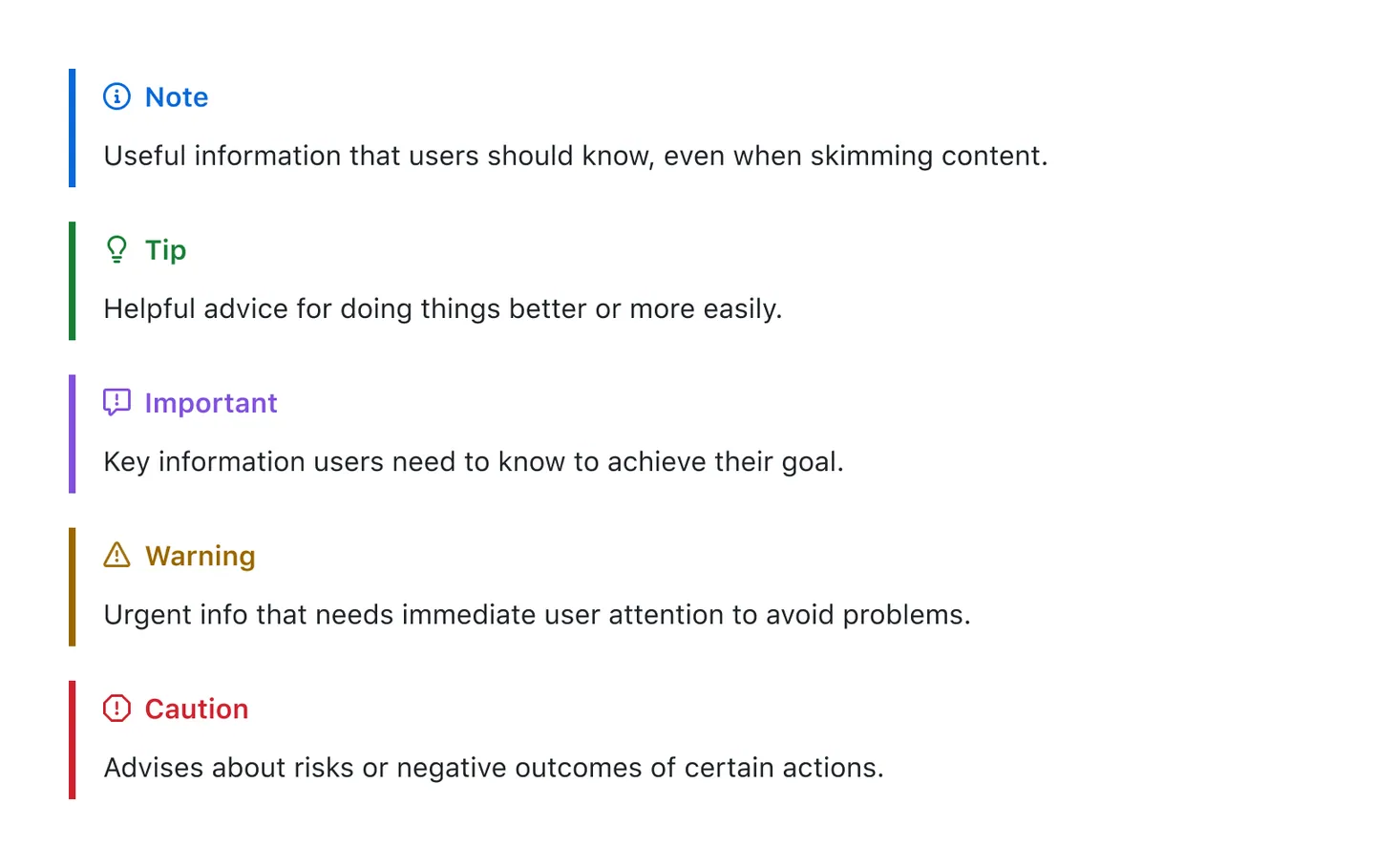
Here are the rendered alerts:
Note
Useful information that users should know, even when skimming content.
Tip
Helpful advice for doing things better or more easily.
Important
Key information users need to know to achieve their goal.
Warning
Urgent info that needs immediate user attention to avoid problems.
Caution
Advises about risks or negative outcomes of certain actions.
- Consistency: Stick to one style for headings, lists, and other elements.
- Readability: Use blank lines to separate blocks of text and elements.
- Descriptive Links: Use meaningful link text rather than generic phrases like "click here."
- File Organization: Keep your Markdown files organized in a clear and logical structure.
Here are some tools and resources to help you get the most out of Markdown:
- Editors: Typora, Visual Studio Code, Atom
- Converters: Pandoc, Markdown to HTML
- Cheat Sheets: Markdown Cheat Sheet
Certainly! Here are some official and widely respected resources to deepen your understanding of Markdown:
-
The original Markdown site by John Gruber:
-
CommonMark:
- CommonMark Specification
- CommonMark aims to provide a standardized, consistent Markdown specification.
-
GitHub Flavored Markdown (GFM):
- GitHub Flavored Markdown Spec
- GitHub has its own slightly extended version of Markdown, which adds features like task lists, tables, and strikethrough.
-
Markdown Guide:
- Markdown Guide
- An excellent resource for both beginners and advanced users, with comprehensive explanations and examples.
-
Markdown Here:
- Markdown Here Cheatsheet
- A quick reference for the most commonly used Markdown syntax.
-
Pandoc:
- Pandoc User’s Guide
- Pandoc is a universal document converter that supports Markdown among many other formats, and its user guide is an invaluable resource.
These resources will help you explore Markdown further and provide you with detailed specifications and examples.
Footnotes
-
This is the footnote. ↩