The goal of this project is to help new CloudStack developers setup development environment based on ready to use VM boxes.
Notes:
- This guide assumes that you're running a latest debian-based GNU/Linux
distro such as Ubuntu. This guide was tested with
Ubuntu 17.10. - Your laptop/platform has at least 16GB RAM and x86_64 Intel-VT or AMD-V enabled CPU so you can run hardware-accelerated nested hypervisors.
- If you've any other hypervisor such as VirtualBox or VMware workstations please uninstall it before proceeding further.
- Due to license issues, pre-built KVM-based monkeyboxes are only published. Watch this space in sometimes, I'll blog about how to DIY XenServer and VMware/ESXi+vCenter (6.5u1) monkeybox.
Pre-built 🐒boxes can be downloaded from:
http://dl.rohityadav.cloud/monkeyboxes/
Clone the monkeybox repo using:
$ git clone https://github.com/rhtyd/monkeybox.git
Build an appliance using:
$ cd <path> && packer build <json fil>
Vagrant boxes are coming soon!
- Blog about creating XenServer and ESXi monkeyboxes
- Brief docs on nfs server and storage setup
- Docs on mysql-server setup
- Additional tips, tricks on development
- IDE/editor setup, several docs improvements
- Boxes for CentOS6, Ubuntu, XenServer, ESXi
- Publish on Vagrant cloud, vagrant based workflow?
- End to end setup and verification
Default password for the root user is password.
These are the default static IPs of the MonkeyBox appliances:
CentOS7 KVM: 172.20.1.10
XenServer 6.5: 172.20.1.15
IP range 172.20.1.50-254 is used by DHCP server for dynamic IP allocation.
Install KVM using following:
# apt-get install qemu-kvm libvirt-bin bridge-utils cpu-checker
# kvm-ok
Install virt-manager, the virtual machine manager graphical tool to manage VMs
on your machine:
# apt-get install virt-manager

Note: you need to install/setup KVM only once.
For our local dev-test environment, we'll create a 172.20.0.0/16 virtual network with NAT so VMs on this network are only accessible from the host/laptop but not by the outside network.
External Network
  .                     +-----------------+
  |              virbr1 | MonkeyBox VM1   |
  |                  +--| IP: 172.20.1.10 |
+-----------------+  |  +-----------------+
| Host x.x.x.x    |--+
| IP: 172.20.0.1  |  |  +-----------------+
+-----------------+  +--| MonkeyBox VM2   |
                        | IP: 172.20.x.y  |
                        +-----------------+
We're choosing here 172.20.0.0/16 as the network range because as per RFC1918 it is allowed to be used for private networks. The 192.168.x.x and 10.x.x.x may be already used by VPN, lab resources and home networks which is why we need to choose this range.
To keep the setup simple all MonkeyBox VMs have a single nic which can be used as a single physical network in CloudStack that has the public, private, management/control and storage networks. A complex setup is possible by adding multiple virtual networks and nics on them.
Run the following to setup monkeynet virtual network as described in above
section:
$ virsh net-define monkeynet.xml
$ virsh net-autostart monkeynet
$ virsh net-start monkeynet
The default network xml definition assumes virbr1 is not already assigned, in
case you get an error change the bridge name to something other than virbr1.
Finally confirm using:
$ virsh net-list
Name                 State      Autostart     Persistent
----------------------------------------------------------
default              active     yes           yes
monkeynet            active     yes           yes

$ ifconfig virbr1
virbr1: flags=4099<UP,BROADCAST,MULTICAST>  mtu 1500
    inet 172.20.0.1  netmask 255.255.0.0  broadcast 172.20.255.255
    ether 52:54:00:c4:5b:40  txqueuelen 1000  (Ethernet)
    RX packets 0  bytes 0 (0.0 B)
    RX errors 0  dropped 0  overruns 0  frame 0
    TX packets 0  bytes 0 (0.0 B)
    TX errors 0  dropped 0 overruns 0  carrier 0  collisions 0
Alternatively, you may open virt-viewer manager and click on:
Edit -> Connection Details -> Virtual Networks
Add a virtual network with NAT in 172.20.0.0/16 like below:

This will create a virtual network with NAT with the CIDR 172.20.0.0/16, your
gateway will be 172.20.0.1 which is also your host's virtual bridge IP. The
virtual network's bridge name virbrXmay be different and it does not matter as long
as you've a NAT-enabled virtual network in 172.20.0.0/16.
Note: you need to setup virtual networking only once.
Build or download pre-built monkey box appliance and import them as VMs using virt-viewer by adding a new VM:

Next, select the qcow2 disk image and configure the import for example 8GBs of
RAM and 2 CPU cores, and make sure to select the private virtual network
created before (monkeynet):

Before starting the imported appliance, select the option to copy host CPU configuration which will choose a CPU configuration similar to your host's CPU, i.e. will allow nested hypervisors:

Your base platform (laptop) will have the gateway IP 172.20.0.1.
Run your favourite IDE/text-editors, your management server, MySQL server, NFS server (secondary and primary storages) on your host where these services will be accessible to VMs, KVM hosts etc. at 172.20.0.1.
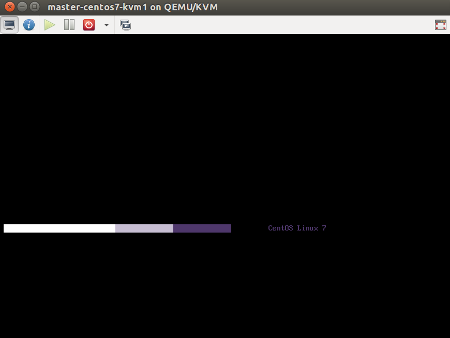
Once your VM has started, try remote login using: (root:password)
$ ssh root@172.20.1.10
If you need multiple hypervisor hosts, you can either clone an existing monkeybox VM or re-import a new monkeybox template image (qcow2 etc). In such cases, do change the new VM's (bridge) IPs, rename their hostname and restart them before you use them as additional hypervisor hosts.
Run this:
$ sudo apt-get install openjdk-8-jdk maven python-mysql.connector libmysql-java mysql-server mysql-client bzip2 nfs-common uuid-runtime python-setuptools ipmitool genisoimage
Setup IntelliJ (or any IDE of your choice), get it from here:
https://www.jetbrains.com/idea/download/#section=linux
Install pyenv, jenv as well.
Setup aliasrc that defines some useful bash aliases, exports and utilities
such as agentscp. Run the following while in the directory root:
$ echo "source $PWD/aliasrc" >> ~/.bashrc
$ echo "source $PWD/aliasrc" >> ~/.zshrc
You may need to source your shell's rc/profile or relaunch shell/terminal
to use agentscp.
TODO
It's assumed that the directory structure is something like:
    folder
    ├── cloudstack
    └── monkeybox
Fork the repository at: github.com/apache/cloudstack, or get the code:
$ git clone https://github.com/apache/cloudstack.git
Noredist CloudStack builds requires additional jars that may be installed from:
https://github.com/rhtyd/cloudstack-nonoss
Clone the above repository and run the install.sh script, you'll need to do this only once or whenver the noredist jar dependencies are updated in above repository.
Build using:
$ mvn clean install -Dnoredist -P developer,systemvm
Deploy database using:
$ mvn -q -Pdeveloper -pl developer -Ddeploydb
Run management server using:
$ mvn -pl :cloud-client-ui jetty:run -Dnoredist -Djava.net.preferIPv4Stack=true
Install marvin:
$ sudo pip install --upgrade tools/marvin/dist/Marvin*.tar.gz
While in CloudStack's repo's root/top directory, run the folllowing to copy agent scripts, jars, configs to your KVM host:
$ cd /path/to/git-repo/root
$ agentscp 172.20.1.10  # Use the appropriate box IP
Deploy datacenter using:
$ python tools/marvin/marvin/deployDataCenter.py -i ../monkeybox/adv-kvm.cfg
Example, to run a marvin test:
$ nosetests --with-xunit --xunit-file=results.xml --with-marvin --marvin-config=../monkeybox/adv-kvm.cfg -s -a tags=advanced --zone=KVM-advzone1 --hypervisor=KVM test/integration/smoke/test_vm_life_cycle.py
When you fix an issue, rebuild cloudstack and push new changes to your KVM host
using agentscp and if necessary restart the agent using:
$ agentscp 172.20.1.10
$ systemctl restart cloudstack-agent
Rohit Yadav, rohit@yadav.cloud
Send a pull request on https://github.com/rhtyd/monkeybox