
Encrypted, project-local notes for your terminal.
pwdnote keeps encrypted project notes — deployment notes, reminders,
troubleshooting notes, architecture notes, customer context, TODOs, session
information, feature flags, and infrastructure reminders — on disk, right next
to your code, without exposing plaintext inside the repository.
It is intended for notes about systems and project work. It is not a password manager, and it is not a replacement for enterprise secrets-management systems.
It is local-first, encrypted-by-default, Git-friendly, and
terminal-native. The single encrypted file (.pwdnote.enc) is safe to
commit; without your key it is just ciphertext.
pwdnote started as a simple way to keep personal project notes close to my code, without worrying about accidentally committing plaintext notes or overcomplicating the workflow.
The GIF below shows how to initialize pwdnote and add text to an encrypted project note from the terminal.
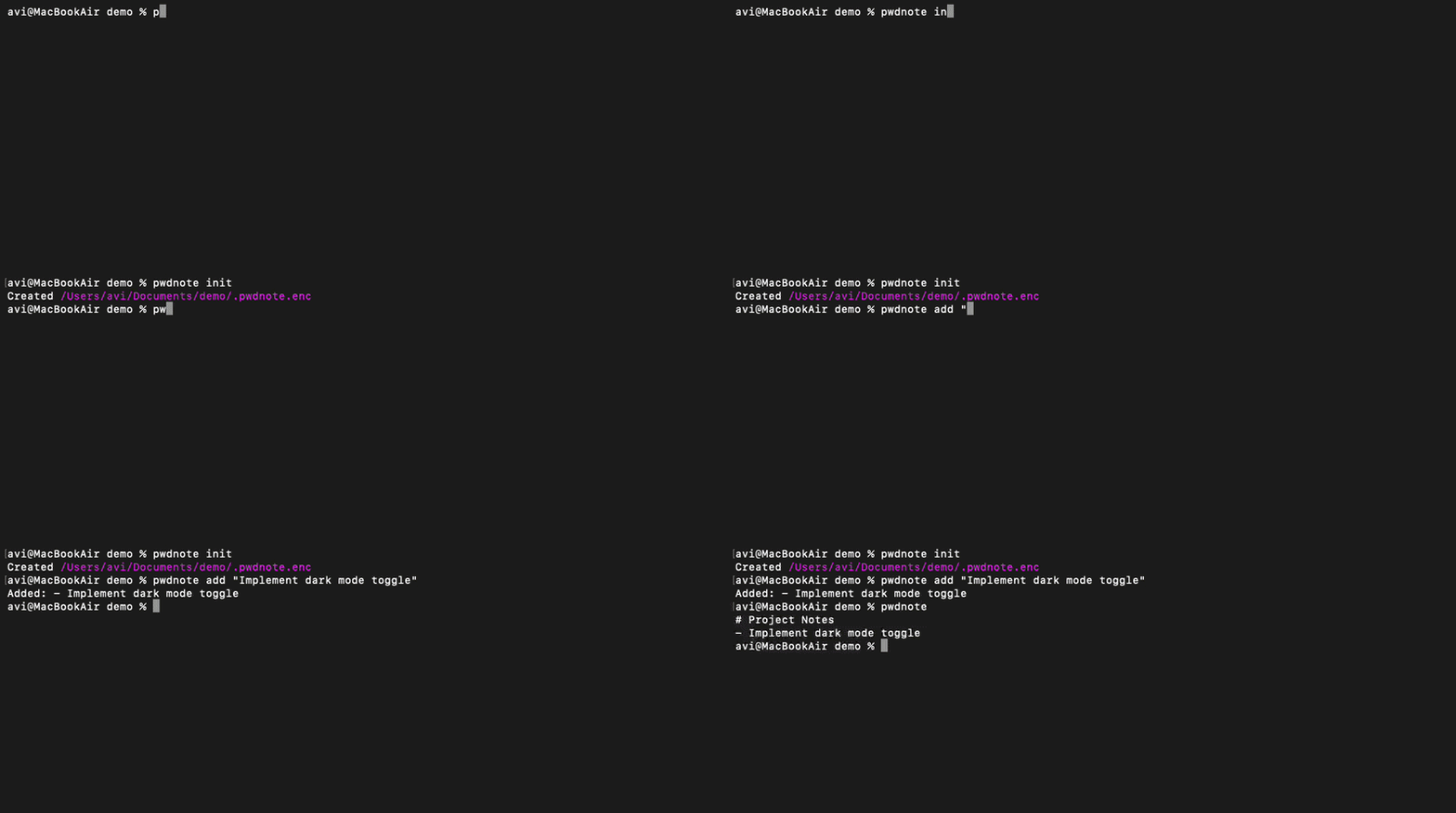
You can revise the note later using pwdnote’s edit mode. Alternatively, the companion VS Code extension lets you edit it directly in VS Code.
The note is stored in .pwdnote.enc as encrypted data. If this file is committed to a repository, anyone without the corresponding local key sees only ciphertext—not the readable note:

The encryption key is stored locally and is not committed to the repository. pwdnote is intended for private project notes, not for storing passwords or other credentials.
A companion VS Code extension is also available.
uv tool install pwdnoteThat's it — no further setup. The encryption key is generated automatically on first use.
The official pwdnote VS Code extension provides a graphical interface for the CLI. It lets you:
- open project notes directly from VS Code
- edit encrypted notes without leaving the editor
- initialize new project notes
- add quick notes
- view project status
The extension uses the pwdnote CLI for all encryption and decryption, so the
same encrypted files work seamlessly from both the terminal and VS Code.
- Marketplace: https://marketplace.visualstudio.com/items?itemName=inspiringsource.pwdnote-vscode
- Source: https://github.com/inspiringsource/pwdnote-vscode
cd my-project
pwdnote init                                  # create .pwdnote.enc
pwdnote edit                                  # open it in your editor
pwdnote                                        # print the decrypted note
pwdnote add "Restart the worker after deployment" # appends a new line| Command | Description |
|---|---|
pwdnote |
Show the decrypted project note. |
pwdnote init |
Create an encrypted note (# Project Notes). |
pwdnote edit |
Decrypt, open in $VISUAL/$EDITOR, re-encrypt on save. |
pwdnote add "text" |
Append - text to the note without opening an editor. |
pwdnote head |
Print the first 10 lines of the decrypted note. |
pwdnote head -n 5 |
Print the first 5 lines of the decrypted note. |
pwdnote tail |
Print the last 10 lines of the decrypted note. |
pwdnote tail -n 5 |
Print the last 5 lines of the decrypted note. |
pwdnote cat 1 |
Print the first Markdown list item without its - marker. |
pwdnote copy 1 |
Copy the first Markdown list item to the system clipboard. |
pwdnote paste 1 |
Insert the first Markdown list item into the Zsh command line. |
pwdnote shell install zsh |
Install the optional Zsh integration used by paste. |
pwdnote shell support |
Show direct-paste support by shell. |
pwdnote log |
Show commits where .pwdnote.enc changed. |
pwdnote show HEAD~1 |
Decrypt and print the note from a Git revision. |
pwdnote diff HEAD~1 HEAD |
Show a readable diff between two encrypted note revisions. |
pwdnote diff |
Compare the committed note with the working tree note. |
pwdnote status |
Show the project root, note file, and encryption status. |
pwdnote stats |
Summarize note content, storage, security, and Git history. |
pwdnote gitignore |
Add recommended ignore entries (.pwdnote.tmp, .pwdnote.cache). |
pwdnote key path |
Print the key file path. |
pwdnote key export |
Print the key to stdout for backup or transfer. |
pwdnote key import |
Import a key from stdin. |
pwdnote config path |
Print the config file path. |
pwdnote config show |
Print the effective configuration. |
pwdnote config init |
Create config.toml with defaults. |
Short built-in aliases are available for the most common commands:
| Alias | Command |
|---|---|
pwdnote i |
pwdnote init |
pwdnote e |
pwdnote edit |
pwdnote a |
pwdnote add |
pwdnote s |
pwdnote status |
pwdnote c |
pwdnote cat |
pwdnote y |
pwdnote copy |
pwdnote p |
pwdnote paste |
Use head and tail to preview only part of a decrypted project note:
pwdnote head
pwdnote head --lines 5
pwdnote tail
pwdnote tail -n 5
These commands print plaintext note content to stdout without extra formatting.
Notes added with pwdnote add are stored as Markdown list items.
Preview an item:
pwdnote cat 2Copy it to the system clipboard:
pwdnote copy 2Short aliases are also available:
pwdnote c 2
pwdnote y 2
pwdnote p 2
Numbering is 1-based; one and first select the first item. Clipboard copying
remains cross-platform. None of these commands execute the stored content.
pwdnote paste currently requires Zsh. It works on macOS and Linux systems
where Zsh is being used.
Install the integration explicitly:
pwdnote shell install zsh
source ~/.zshrc
Then:
pwdnote paste 2places item 2 into the next Zsh command line without executing it. Bash, Fish, and PowerShell do not currently support direct insertion. Users of those shells can still preview or copy items:
pwdnote cat 2
pwdnote copy 2| Shell | Direct paste |
cat |
copy |
|---|---|---|---|
| Zsh on macOS | Yes | Yes | Yes |
| Zsh on Linux | Yes | Yes | Yes |
| Bash | No | Yes | Yes |
| Fish | No | Yes | Yes |
| PowerShell | No | Yes | Yes |
The shell integration is optional. cat and copy work without it on every
supported shell. pwdnote shell install can detect $SHELL conservatively,
but explicit pwdnote shell install zsh is preferred.
The installer writes the generated integration to
~/.config/pwdnote/shell/pwdnote.zsh (honouring XDG_CONFIG_HOME) and adds one
managed source block to ~/.zshrc. Inspect or remove it with:
pwdnote shell support
pwdnote shell status zsh
pwdnote shell print zsh
pwdnote shell uninstall zsh
shell status exits with status 1 when either installation piece is missing or
out of date. Shells without direct-paste support can continue using cat and
copy; pwdnote does not install Bash, Fish, or PowerShell integration files.
pwdnote stats reports the project and note paths, plaintext line, word, and
character counts, encrypted file size, and the active encryption and key
backends. It also includes the revision count and first/latest commit dates for
.pwdnote.enc when Git history is available.
pwdnote statsGitHub and normal Git diffs show .pwdnote.enc as ciphertext. Because
pwdnote has access to your local key, it can decrypt historical versions
locally and show readable history without writing plaintext to disk.
pwdnote log
pwdnote show HEAD~1
pwdnote diff HEAD~1 HEAD
pwdnote diff
pwdnote diff compares the HEAD version of .pwdnote.enc with the working
tree version. pwdnote diff HEAD~1 HEAD compares two committed versions.
The file key backend stores your encryption key at ~/.config/pwdnote/key,
honouring XDG_CONFIG_HOME. The key file is created with 0600 permissions
inside a 0700 config directory.
Show the current key path:
pwdnote key pathExport the key for backup or another trusted device:
pwdnote key export > pwdnote-key.backupHandle exported keys like passwords. Anyone with the exported key can decrypt the associated notes.
Import the key on another trusted device:
cat pwdnote-key.backup | pwdnote key importReplace an existing key only when you intend to:
cat pwdnote-key.backup | pwdnote key import --forceLosing the key means losing access to encrypted notes. Anyone with the key can decrypt your notes, so store backups in a trusted password manager or another secure location.
Configuration is optional. With no config file the defaults apply and behaviour is unchanged.
The config file lives at ~/.config/pwdnote/config.toml (honouring
XDG_CONFIG_HOME). Run pwdnote config init to create it with the defaults:
[notes]
initial_content = "# Project Notes\n"
auto_gitignore_note_file = false

[editor]
command = ""

[security]
key_backend = "file"notes.initial_content— content used bypwdnote initfor a new note.notes.auto_gitignore_note_file— whentrue,pwdnote initadds.pwdnote.encto.gitignore.editor.command— when set, overrides$VISUAL/$EDITOR.security.key_backend— onlyfileis supported today. Other values fail with a clear error; advanced key backends may come later.
pwdnote does not operate only on the current directory. Starting from your
working directory it searches upward:
- If
.pwdnote.encexists, that location is used. - Otherwise, if
.gitexists, that location is treated as the project root. - The search stops at the filesystem root.
So from project/backend/api, running pwdnote finds
project/.pwdnote.enc.
pwdnote exposes a few non-interactive commands for tools such as a VS Code
extension:
| Command | Purpose |
|---|---|
pwdnote read |
Print the decrypted note to stdout (no formatting). |
pwdnote write --stdin |
Replace the note with content from stdin (add --create to create it). |
pwdnote root |
Print the detected project root. |
pwdnote note-path |
Print the resolved .pwdnote.enc path. |
These write machine-readable output to stdout and errors to stderr. Encryption is always handled by the CLI, so integrations never touch the key or the file format. These are the commands that power the official VS Code extension.
This repository intentionally includes a .pwdnote.enc file.
The file contains real project note data encrypted by pwdnote. It is included to demonstrate one of the core design goals of the tool: project notes can be stored alongside source code and committed to Git while remaining encrypted on disk.
The repository stores only ciphertext. Without the corresponding encryption key, the contents cannot be read.
By default, .pwdnote.enc is designed to be commit-safe. If you prefer not to commit your project notes, you can manually add .pwdnote.enc to your .gitignore or use pwdnote gitignore to add it automatically.
pwdnote encrypts notes on disk. The encrypted .pwdnote.enc file is designed
to be safely committed to Git, but anyone with both that file and the
corresponding key can decrypt it. The primary goal is protecting project notes
when repositories are shared or stored remotely; pwdnote is not designed to
replace dedicated secrets-management tools.
- Authenticated encryption. Notes are encrypted with
Fernet (AES-128-CBC with an
HMAC-SHA256 authentication tag) from the well-maintained
cryptographylibrary. We do not implement custom cryptography. - Integrity protection. Tampered or corrupted files fail to decrypt rather than returning garbage.
- Key storage. A single key is generated on first use and stored at
~/.config/pwdnote/key(honouringXDG_CONFIG_HOME) with0600permissions inside a0700directory. - No plaintext on disk.
pwdnote editwrites to a temporary file with restrictive permissions and always deletes it afterwards. - Commit-safe.
.pwdnote.encis meant to be committed; it is ciphertext. Do not ignore it. (The temporary/cache artifacts are ignored instead.)
The crypto backend lives behind a small abstraction (encrypt_text /
decrypt_text), so it can be replaced later — and future versions may add
macOS Keychain, 1Password, age, or GPG key backends.
By default, pwdnote uses one local encryption key. Multiple projects have
separate encrypted note files, but they share the same local key. This keeps
the tool simple and makes backup straightforward; future releases may support
additional key backends.
Yes. .pwdnote.enc is designed to be committed because it contains encrypted
data, not plaintext notes. Keep the corresponding key private.
No. pwdnote is intended for encrypted project notes, not for managing
passwords or production secrets.
- The key lives on your machine. If you lose
~/.config/pwdnote/key, encrypted notes cannot be recovered. Back the key up somewhere safe. - There is no built-in sync. Sharing a note across machines means sharing the same key through a trusted backup or transfer method.
- One note per project root.
pwdnoteis intentionally simple — no databases, no cloud, no plugins, no AI features. - The VS Code extension is simply another frontend for the CLI. It shares the same encryption key and note format, so it adds no separate storage or security model.
git clone https://github.com/inspiringsource/pwdnote
cd pwdnote
uv sync                 # install deps + dev tools
uv run pytest           # run the test suite
uv run pwdnote --help   # try the CLI from source
Issues and pull requests are welcome. Please keep the tool small and reliable — new storage/key backends should slot in behind the existing abstractions.