A command-line interface for Linear designed to enable spec-driven software engineering with AI coding agents.
Originally created by @schpet, this fork extends the CLI with enhanced AI agent capabilities for full-lifecycle development collaboration.
One-command installation (automatically installs Deno if needed):
curl -fsSL https://raw.githubusercontent.com/juanbermudez/linear-agent-cli/main/install.sh | bashThen reload your shell and run the interactive setup:
# Reload shell (or restart terminal)
source ~/.zshrc  # or ~/.bashrc for bash

# Run interactive setup wizard 🚀
linear config setup  # or: linear config init

# The wizard will guide you through:
# • API key (with optional save to shell profile)
# • Workspace and team selection
# • Cache and auto-branch preferences
# • Configuration file generation

# Start using!
linear issue list
linear project create --name "My Project" --with-doc
linear document create --current-project --title "Notes"This CLI is specifically designed to be used by AI coding agents:
- JSON-first output - JSON is the default, use
--humanfor readable format - Consistent error codes for programmatic error handling
- Cross-entity operations for complex workflows in single commands
- VCS-aware to reduce context switching and manual parameter passing
- Composable with standard CLI tools (jq, grep, awk)
A comprehensive Linear CLI Expert plugin for Claude Code is available that includes this CLI, specialized AI agents (research, planning, engineering), and a complete spec-driven development workflow.
Visit the Hyper-Engineering Tools repository for more information.
Note: This plugin is currently a work in progress.
This repository includes example documentation for AI agents using the CLI:
See EXAMPLE_CLAUDE.md for comprehensive guidance on:
- JSON output patterns
- Command success checking
- Non-interactive command examples
- Best practices for automation
- Full workflow examples
See EXAMPLE_AGENTS.md for:
- Quick start examples for ChatGPT, Copilot, Cursor, etc.
- Command patterns and common workflows
- JSON API reference
- Error handling strategies
Tip: You can use these example files as a starting point for your own AI agent configurations. Copy them to your project and customize based on your workflow needs.
| Resource | Create | Update | Delete | Restore | List | View | Search | Relationships | Comments | Attachments |
|---|---|---|---|---|---|---|---|---|---|---|
| Issues | ✅ | ✅ | ✅ | ❌ | ✅ | ✅ | ✅ | ✅ | ✅ | ✅ |
| Projects | ✅ | ✅ | ✅ | ✅ | ✅ | ✅ | ✅ | N/A | ❌ | ❌ |
| Initiatives | ✅ | ✅ | ❌ | ✅ | ✅ | ✅ | ❌ | N/A | ❌ | ❌ |
| Documents | ✅ | ✅ | ✅ | ✅ | ✅ | ✅ | ✅ | N/A | ❌ | ❌ |
| Labels | ✅ | ✅ | ✅ | ❌ | ✅ | ❌ | ❌ | ✅ (Groups) | N/A | N/A |
| Teams | ✅ | ❌ | ❌ | ❌ | ✅ | ❌ | ❌ | N/A | N/A | N/A |
| Users | ❌ | ❌ | ❌ | ❌ | ✅ | ❌ | ✅ | N/A | N/A | N/A |
- 🔗 VCS Integration: Automatic context from git/jj branches
- 🎯 Cross-Entity Operations: Create related resources in one command
- ⚙️ Flexible Configuration: Dot notation for nested config, env variable priority
- 🤖 AI-First Design: JSON output and error codes everywhere
- 🎨 Dual Mode: Interactive prompts or flag-based for automation
- 🔍 Smart Resource Resolution: Accept URLs, IDs, or titles for issues/projects
- 💾 Intelligent Caching: Automatic 24h caching for workflows, statuses, labels, and users
- ⚡ Workflow Management: List and cache issue workflow states
- 📊 Status Management: List and cache project statuses
- 👤 User Management: List and search users for assignments and mentions (cached)
- 🆔 Whoami Command: View current user and configuration status
- 🏷️ Label Groups: Hierarchical label organization with parent/child relationships
- 🔗 Issue Relationships: Create and manage blocks, related, duplicate, and similar relationships
- 🎯 Milestones & Cycles: Attach issues to project milestones and sprint cycles
- 📋 Rich Metadata: Full support for content fields in projects and initiatives
- 📊 Enhanced Views: Issue views display all metadata, relationships, and hierarchy
One command installs everything (Deno + Linear CLI):
curl -fsSL https://raw.githubusercontent.com/juanbermudez/linear-agent-cli/main/install.sh | bashThis script will:
- ✅ Detect your OS and shell (bash/zsh/fish)
- ✅ Install Deno if not present
- ✅ Configure PATH automatically
- ✅ Install Linear CLI
- ✅ Work on macOS, Linux, and Windows (WSL)
After installation, reload your shell:
source ~/.zshrc  # or ~/.bashrc, or restart terminal
linear --versionIf you prefer to install manually:
# 1. Install Deno (if not installed)
curl -fsSL https://deno.land/install.sh | sh

# 2. Clone and install Linear CLI
git clone https://github.com/juanbermudez/linear-agent-cli.git
cd linear-agent-cli
deno task install

# 3. Verify
linear --versionNote: The Deno installer automatically adds
~/.deno/binto your PATH. Iflinear --versiondoesn't work, restart your shell or manually source your shell config (source ~/.bashrcorsource ~/.zshrc).
curl -fsSL https://raw.githubusercontent.com/juanbermudez/linear-agent-cli/main/uninstall.sh | bashAfter installation, configure your Linear API key:
# Interactive setup wizard
linear config setup

# Or set manually
linear config set auth.token "lin_api_..."
linear config set defaults.team "ENG"
Get your API key at: https://linear.app/settings/api
See Installation Guide for detailed instructions and troubleshooting.
To update to the latest version:
linear updateThis will reinstall the CLI from the main branch on GitHub.
# Get help and usage guide
linear usage                         # Display quick usage guide and content formatting

# Issues
linear issue list                    # List your issues
linear issue search "authentication" # Search issues by keyword
linear issue create --title "Bug"    # Create issue
linear issue start ENG-123           # Start working (creates git branch)
linear issue view                    # View current issue

# Projects
linear project list                  # List projects
linear project search "mobile app"   # Search projects by keyword
linear project create --name "API"   # Create project
linear project view PROJ-123         # View details

# Documents (VCS-aware!)
linear document create --current-project --title "Notes"
linear document list --current-project
linear document search "spec"        # Search documents by keyword

# Initiatives
linear initiative create --name "Q1 Goals"
linear initiative list --status active

# Labels
linear label create --name "bug" --color "#FF0000"
linear label list --team ENG

# Label Groups (Hierarchical labels)
linear label create --name "Priority" --is-group --team ENG
linear label create --name "Critical" --parent "Priority" --team ENG

# Issue Relationships
linear issue relate DIV-123 DIV-124 --blocks
linear issue relate DIV-123 DIV-125 --related-to
linear issue unrelate DIV-123 DIV-124
linear issue relations DIV-123

# Workflows (Issue States)
linear workflow list --team ENG         # List workflow states with caching
linear workflow cache --team ENG        # Force refresh cache

# Project Statuses
linear status list                      # List project statuses with caching
linear status cache                     # Force refresh cache

# Configuration
linear config set defaults.project.status "In Progress"
linear config get defaults.project# JSON output by default (pipe to jq for parsing)
linear issue list | jq '.issues[].title'
# Create project with document (cross-entity)
linear project create \
--name "Mobile App" \
--team MOBILE \
--with-doc \
--doc-title "Technical Spec"
# Create project with rich markdown content
linear project create \
--name "API Redesign" \
--description "Modernize API with GraphQL" \
--content "$(cat project-overview.md)" \
--team ENG \
--priority 1 \
--lead @me
# Update project content
linear project update PROJECT-ID --content "$(cat updated-overview.md)"
# Create initiative with content
linear initiative create \
--name "Q1 2025 Goals" \
--content "$(cat q1-initiatives.md)" \
--owner @me
# Create issue with milestones, cycles, and relationships
linear issue create \
--title "Implement OAuth" \
--team ENG \
--project "API Redesign" \
--milestone "Phase 1" \
--cycle "Sprint 5" \
--priority 1 \
--estimate 8 \
--blocks ENG-100 ENG-101 \
--related-to ENG-102 \
--label Backend New-Feature
# VCS-aware document creation
linear document create \
--current-project \
--title "Implementation Notes"
# Chain operations (JSON is default)
PROJECT_ID=$(linear project create --name "API" | jq -r '.project.id')
linear document create --project "$PROJECT_ID" --title "API Design"
# Create label hierarchy and use on issues
linear label create --name "Work-Type" --is-group --team ENG
linear label create --name "Bugfix" --parent "Work-Type" --team ENG
linear issue create --title "Fix bug" --label Bugfix
# Check current configuration (JSON is default)
linear whoami | jq '.configuration'
# List users for assignment (cached)
linear user list | jq '.users[].displayName'
# Search for user by name
linear user search "john" | jq '.users[0].id'
# Find active admins
linear user list --active-only --admins-onlySee Usage Guide for comprehensive examples.
Linear supports rich markdown content with cross-references. Here's what you need to know:
Projects have two separate text fields:
# Description: Short summary (max 255 characters)
--description "Brief project summary"

# Content: Full project body with rich markdown
--content "$(cat overview.md)"
Example:
linear project create \
  --name "Mobile App" \
  --description "iOS and Android mobile applications" \
  --content "# Mobile App Project

## Overview
Full project details with markdown formatting...

## Architecture
\`\`\`mermaid
graph TB
    App --> API
\`\`\`
" \
--team MOBILELinear requires markdown link format with full URLs for all resource cross-references:
| Resource Type | Format | Example |
|---|---|---|
| Issues | [TEAM-NUM](url) |
[ENG-123](https://linear.app/workspace/issue/ENG-123/slug) |
| Documents | [Title](url) |
[Spec](https://linear.app/workspace/document/slug-id) |
| Projects | [Name](url) |
[Project](https://linear.app/workspace/project/slug-id) |
| Milestones | [Name](url#milestone-id) |
[Phase 1](https://linear.app/workspace/project/slug/overview#milestone-abc) |
| Labels | [name](url) |
[bug](https://linear.app/workspace/issue-label/bug) |
| Users | @username |
@john or @alice (username only, not display name) |
What doesn't work:
- ❌ Plain identifiers:
ENG-123 - ❌ @ symbol for issues:
@ENG-123 - ❌ # symbol for issues:
#ENG-123 - ❌ Square brackets alone:
[ENG-123]
Example with cross-references:
## Task Overview

This task ([ENG-123](https://linear.app/workspace/issue/ENG-123)) is assigned to @john.

### Dependencies

- Depends on: [ENG-122](https://linear.app/workspace/issue/ENG-122)
- Part of [API Project](https://linear.app/workspace/project/api-redesign-abc)

### Documentation

See [Technical Spec](https://linear.app/workspace/document/tech-spec-123).

### Milestone

Targeting [Phase 2](https://linear.app/workspace/project/api-redesign-abc/overview#milestone-xyz).

Tagged: [backend](https://linear.app/workspace/issue-label/backend)| Resource | Field | Limit |
|---|---|---|
| Project | description | 255 characters |
| Project | content | ~200KB (estimated) |
| Issue | description | ~200KB |
| Document | content | ~200KB |
| Comment | body | ~200KB (estimated) |
Supported Markdown Features:
- ✅ Headers, bold, italic, code blocks
- ✅ Lists, tables, blockquotes
- ✅ Mermaid diagrams (flowcharts, sequence, state, gantt, ER)
- ✅ Interactive checklists
- ✅ Syntax highlighting in code blocks
- ✅ Cross-references with full URLs
This CLI was built from the ground up for AI coding agents. See the AI Agent Guide for:
- JSON output patterns (JSON is default!)
- Error handling
- VCS context usage
- Bulk operations
- Full workflow automation examples
Note: JSON output is the default. Use
--humanfor human-readable format.
import { execSync } from "child_process"

// Get current issue from VCS (JSON is default)
const result = execSync("linear issue view").toString()
const issue = JSON.parse(result).issue

// Create related document
execSync(`linear document create \
  --current-project \
--title "Notes for ${issue.title}"`)The CLI automatically detects your VCS context:
# Git: reads issue ID from branch name
git checkout feature/ENG-123-login-fix
linear issue view  # Shows ENG-123

# Create document for current issue's project
linear document create --current-project --title "Implementation"

# Jujutsu: reads from commit trailers
jj commit -m "Fix" -m "Linear-Issue: ENG-123"
linear issue view # Shows ENG-123Configuration is stored in .linear.toml files with support for:
- Environment variable priority: CLI args > Env vars > Config file > Defaults
- Nested values with dot notation
- Multiple search paths (local, git root, ~/.config)
- Directory/repo-specific configuration
- Type-aware value parsing
The easiest way to configure the CLI is using the interactive setup wizard:
linear config setup # or: linear config initThe wizard will guide you through:
-
API Key Setup
- Prompts for your Linear API key (masked input)
- Validates the key format
- Optionally saves to your shell profile (~/.zshrc or ~/.bashrc)
-
Workspace & Team Selection
- Automatically fetches your workspace
- Lists all available teams
- Choose between:
- Single team (default)
- Multiple teams
- All teams
-
Preferences Configuration
- Enable 24-hour caching (recommended)
- Auto-create git branches when starting issues
- Default issue sort order
-
Configuration File
- Generates
.linear.tomlin your project root - Detects git repository for proper placement
- Includes helpful comments
- Generates
The CLI follows this precedence order (highest to lowest):
- CLI flags (e.g.,
--team ENG) - Environment variables (e.g.,
LINEAR_TEAM_ID=ENG) - Config file (
.linear.toml) - Built-in defaults
[auth]
token = "lin_api_..."

[defaults]
team_id = "ENG"                # Default team for all commands
workspace = "my-workspace"     # Linear workspace slug

[defaults.project]
status = "In Progress"
color = "#4A90E2"

[vcs]
autoBranch = true             # Auto-create git branches (default: true)

[cache]
enabled = true                # Enable caching (default: true)

[interactive]
enabled = true

[output]
format = "json" # JSON is the default (use --human for readable output)For AI agents and automation, use environment variables:
export LINEAR_API_KEY="lin_api_..."
export LINEAR_TEAM_ID="ENG"
export LINEAR_WORKSPACE="my-workspace"
export LINEAR_AUTO_BRANCH="false"    # Disable auto git branching
export LINEAR_CACHE_ENABLED="true" # Enable caching (default)- Installation Guide - Detailed setup instructions
- Usage Guide - Comprehensive command reference
- AI Agent Guide - AI integration patterns
- Changelog - Version history
- EXAMPLE_CLAUDE.md - Guidance for Claude/Claude Code
- EXAMPLE_AGENTS.md - Guidance for ChatGPT, Copilot, etc.
- CLAUDE.md - Development guide for Claude Code working on source
- AGENTS.md - Development guide for other AI agents working on source
Contributions are welcome! This project extends the excellent foundation laid by @schpet.
# Clone
git clone https://github.com/juanbermudez/linear-agent-cli.git
cd linear-agent-cli

# Install dependencies
deno task install

# Run tests
deno task test

# Check types
deno task check

# Format code
deno fmt# Run all tests
deno task test
# Update snapshots
deno task snapshot
# Run specific test
deno test test/commands/document/MIT License - see LICENSE for details.
- Original Author: @schpet - Created the foundational Linear CLI that this project builds upon
- Inspiration: @dexhorthy and @vaibcode - Their insights on using Linear as a collaboration platform for AI-human teams and spec-driven software engineering have been invaluable. Thank you for sharing your learnings and pioneering this approach to AI-human collaboration.
- AI Enhancements: Extended for AI agent use cases with cross-entity operations, comprehensive JSON output, VCS integration, and the Linear CLI Expert skill for Claude Code
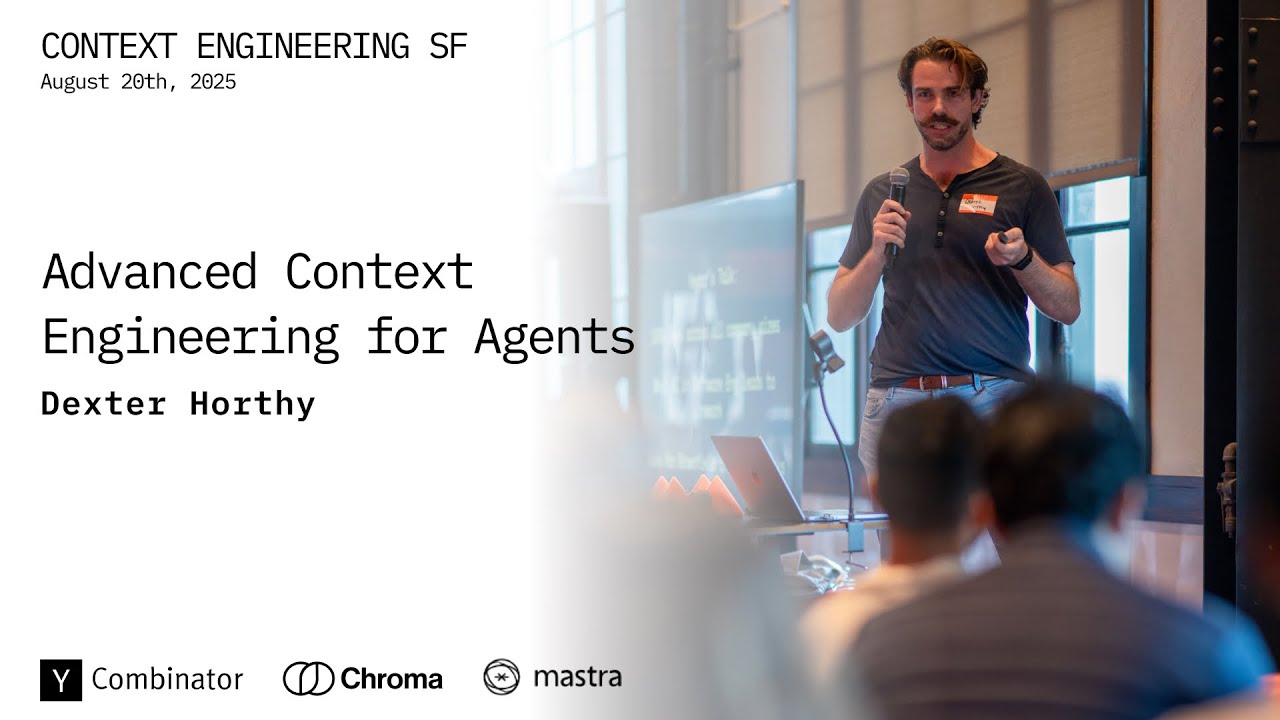
Inspired by @dexhorthy's "Advanced Context Engineering" approach: the specification of what we want from our software is more valuable than the code itself. When AI writes the implementation, well-documented specs become the source of truth—just like source code was for compiled artifacts. This CLI makes Linear the platform for that spec-driven workflow.