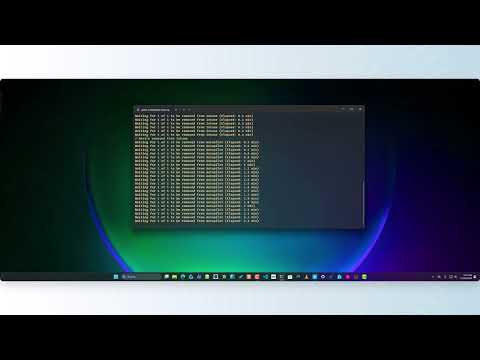
Interactive PowerShell tool for bulk device cleanup across Windows Autopilot, Microsoft Intune, and Microsoft Entra ID. Features automatic module installation, serial number validation, real-time deletion monitoring, and WhatIf mode for safe testing.
| Device Selection Grid | Device Verification | Removal Monitoring | Single Device Removal |
|---|---|---|---|
 |
 |
 |
 |
| WPF grid with search & multi-select | Serial number validation & action menu | Real-time removal progress tracking | Direct serial number targeting |
- 📦 Automatic Module Installation - Checks for required Microsoft Graph modules and prompts to install missing dependencies
- 🖱️ Interactive Device Selection - WPF grid view interface with search and multi-select
- 🔄 Multi-Service Cleanup - Removes devices from all three services (Autopilot, Intune, and Entra ID)
- 🔍 Serial Number Validation - Prevents accidental deletion of devices with duplicate names
- 🎯 Direct Serial Number Targeting - Target specific devices with
-SerialNumberparameter, bypassing the WPF grid - 📊 Real-Time Monitoring - Tracks deletion progress with per-service progress bars and automatic verification
- ⚡ Parallel API Fetching - Concurrent data retrieval on PowerShell 7+ using thread jobs
- 🚀 Fast Bulk Removal Mode - Bulk removal without status checking, with results exported to CSV
- 🔑 Custom App Registration - Configure a custom Entra app registration with persistent environment variables via
Configure-AutopilotCleanup/Clear-AutopilotCleanupConfig - 🔄 Automatic Update Check - Checks PowerShell Gallery for newer versions on launch
- 🏷️ GroupTag Filtering - Filter devices by GroupTag in the selection grid
- 👥 Duplicate Handling - Identifies and processes duplicate device entries
- 🧪 WhatIf Mode - Preview deletions without making actual changes
- ⚙️ Edge Case Management - Handles pending deletions, missing devices, and other scenarios
- 🔔 Sound Notifications - Plays success beeps when cleanup is complete
- PowerShell 7.0 or later
- Required module (auto-installed if missing):
Microsoft.Graph.Authentication
Your account needs the following Microsoft Graph API permissions:
Device.ReadWrite.AllDeviceManagementManagedDevices.ReadWrite.AllDeviceManagementServiceConfig.ReadWrite.All
- Clone or download this repository
- Open PowerShell
- Navigate to the script directory
- Run the script - it will automatically check and install required modules
cd C:\Autopilot-Cleanup
.\Autopilot-CleanUp.ps1
Or import the module and use the Start-AutopilotCleanup command:
Import-Module .\AutopilotCleanup
Start-AutopilotCleanup.\Autopilot-CleanUp.ps1- Script will check for required modules and prompt to install if missing
- Connects to Microsoft Graph (you'll be prompted to sign in)
- Retrieves all Autopilot devices and enriches with Intune/Entra ID data
- Displays interactive grid view with all devices
- Select device(s) using Ctrl+Click for multiple selection, then press OK
- Confirms deletion from all three services
- Monitors removal progress in real-time
Configure a custom app registration for delegated auth (persists across sessions):
Import-Module .\AutopilotCleanup
Configure-AutopilotCleanup
Or pass credentials directly:
.\Autopilot-CleanUp.ps1 -ClientId "your-client-id" -TenantId "your-tenant-id"To clear saved configuration:
Clear-AutopilotCleanupConfigPriority order: command-line parameters > environment variables > default auth flow
Required app registration settings:
- Platform: Mobile and desktop applications
- Redirect URI:
http://localhost - Allow public client flows: Yes
- API Permissions (delegated):
Device.ReadWrite.All,DeviceManagementManagedDevices.ReadWrite.All,DeviceManagementManagedDevices.PrivilegedOperations.All,DeviceManagementServiceConfig.ReadWrite.All
Preview what would be deleted without making actual changes:
.\Autopilot-CleanUp.ps1 -WhatIf| Parameter | Type | Required | Description |
|---|---|---|---|
-WhatIf |
Switch | No | Preview mode - shows what would be deleted without performing actual deletions |
-ClientId |
String | No | Client ID of a custom app registration for delegated auth |
-TenantId |
String | No | Tenant ID to use with the custom app registration |
-SerialNumber |
String[] | No | One or more serial numbers to target directly, bypasses the WPF grid |
- Module Validation - Verifies required PowerShell modules are installed
- Authentication - Connects to Microsoft Graph with required scopes
- Data Retrieval - Fetches all Autopilot devices and enriches with Intune/Entra ID information
- Device Selection - Displays interactive Out-GridView where you select devices to remove
⚠️ Important: Use Ctrl+Click to select multiple devices, then click OK to confirm- Selection works like Windows Explorer (highlight-based, not checkboxes)
- Deletion Process - Removes selected devices in the following order:
- Microsoft Intune (management layer)
- Windows Autopilot (deployment service)
- Microsoft Entra ID (identity source)
- Verification - Monitors and confirms successful removal from all services
The Out-GridView displays the following information:
| Column | Description |
|---|---|
| DisplayName | Device display name |
| SerialNumber | Hardware serial number |
| Model | Device model |
| Manufacturer | Device manufacturer |
| GroupTag | Autopilot group tag |
| DeploymentProfile | Assigned deployment profile |
| IntuneFound | Whether device exists in Intune |
| EntraFound | Whether device exists in Entra ID |
| IntuneName | Device name in Intune |
| EntraName | Device name in Entra ID |
✅ To select devices:
- Single device: Click on the device row, then click OK
- Multiple devices: Hold Ctrl and click on each device you want to select
- Range of devices: Click the first device, hold Shift, and click the last device
- All devices: Press Ctrl+A to select all
- Click OK when finished selecting
Note: Out-GridView uses highlight selection (like Windows Explorer) rather than checkboxes. Use Ctrl+Click to build your multi-selection.
[ A U T O P I L O T   C L E A N U P ]  v2.2.4
    with PowerShell

Auth: Default Microsoft Graph (delegated)

Checking required PowerShell modules...
✓ Module 'Microsoft.Graph.Authentication' is already installed
All required modules are installed.

Connecting to Microsoft Graph...
✓ Successfully connected to Microsoft Graph

Fetching all Autopilot devices...
Found 15 Autopilot devices

Processing: DESKTOP-ABC123 (Serial: 1234-5678-9012)
------------------------------

Step 1: Removing from Intune...
✓ Successfully queued device for removal from Intune

Step 2: Removing from Autopilot...
✓ Successfully queued device for removal from Autopilot

Step 3: Removing from Entra ID...
✓ Successfully queued device for removal from Entra ID

✓ Device successfully removed
  Name:           DESKTOP-ABC123
  Serial Number:  1234-5678-9012
- 🚨 Deletion is permanent - Devices removed from these services cannot be easily restored
- 🔢 Serial number validation - The script validates serial numbers to prevent accidental deletion of duplicate device names
- ⚡ Deletion order matters - Devices are removed in the correct order (Intune → Autopilot → Entra ID) to prevent dependency issues
- ⏱️ Monitoring timeout - The script monitors deletion progress for up to 30 minutes
- 👤 No admin required - Module installation uses CurrentUser scope, avoiding the need for administrator privileges
- 🔔 Success notification - Three ascending beeps play when device cleanup is successfully verified across all services
- Ensure you have internet connectivity
- Run PowerShell with appropriate permissions
- Manually install modules:
Install-Module -Name Microsoft.Graph -Scope CurrentUser
- Verify your account has the required Graph API permissions
- Check if MFA is properly configured
- Try disconnecting and reconnecting:
Disconnect-MgGraphthen run the script again
- Device may already be deleted
- Serial number or device name may be incorrect
- Check if device exists in each service individually
- Large deletions can take time (up to 30 minutes)
- Check Azure portal to verify deletion status
- Script will timeout after 30 minutes of monitoring
| Variable | Description |
|---|---|
AUTOPILOTCLEANUP_CLIENTID |
Saved app registration Client ID (set via Configure-AutopilotCleanup) |
AUTOPILOTCLEANUP_TENANTID |
Saved Tenant ID (set via Configure-AutopilotCleanup) |
AUTOPILOTCLEANUP_DISABLE_UPDATE_CHECK |
Set to true to skip the update check on launch |
Version 2.2.4
- Minimum PowerShell version updated to 7.0
- README updates: consolidated features list, updated version history and example output
Version 2.2.3
- Targeted API queries for
-SerialNumber(no longer fetches entire tenant) - WPF grid performance improvements (UI virtualization, CollectionView filtering, search debounce)
Version 2.2.2
- Fix
SerialNumberparameter variable collision causing type conversion errors during device removal
Version 2.2.1
- Per-service progress bars during parallel fetch (page count and record count per service)
- Terminal indication when WPF device selection window is open
- Shared concurrent progress tracker for real-time thread job monitoring
Version 2.2.0
-SerialNumberparameter for direct device targeting (single or multiple), bypasses the WPF grid- Parallel API fetching on PowerShell 7+ using thread jobs (Autopilot, Intune, Entra ID fetched concurrently)
- Automatic fallback to sequential fetch if parallel jobs fail
- Progress bars during pagination for large tenant data retrieval
Version 2.1.0
- Custom app registration support (
Configure-AutopilotCleanup/Clear-AutopilotCleanupConfig) Start-AutopilotCleanupmodule entry point- Automatic update check from PowerShell Gallery
- Cleaner console UI - replaced heavy box-drawing with minimal section headers
Version 2.0.0
- PowerShell module architecture (Public/Private function structure)
- WPF device selection grid with search and multi-select
- Fast bulk removal mode with CSV export
- GroupTag filtering
- Serial number validation
- Real-time deletion monitoring
- WhatIf mode
- Automatic module installation
Mark Orr

This script is provided as-is without warranty. Use at your own risk.