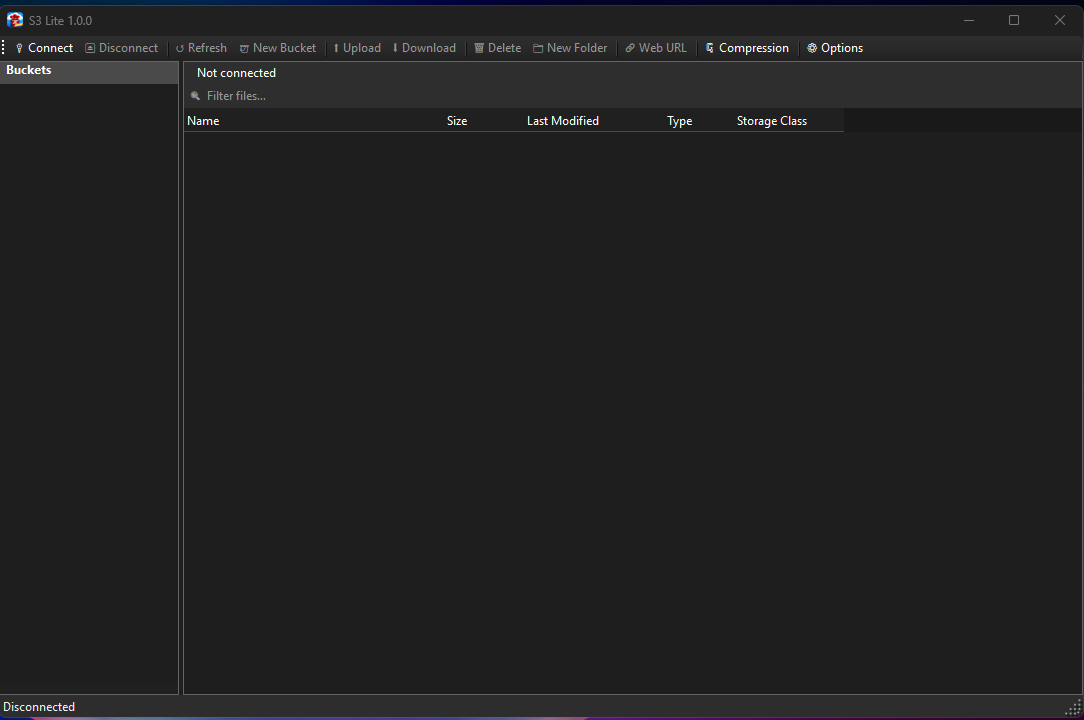
 A lightweight, fast S3 browser for Windows built with C# + WinForms + .NET 10. Single executable, ~4.5 MB.



- Windows 10 / 11
- .NET 10 Desktop Runtime
- Download
S3Lite.exefrom Releases - Run
S3Lite.exe - Click Connect, enter your credentials and click Save Profile
- Access Key / Secret Key authentication
- Environment variables (
AWS_ACCESS_KEY_ID,AWS_SECRET_ACCESS_KEY) - AWS profile support (
~/.aws/credentials) - Save and manage multiple named connection profiles
- Auto-connect to last used profile on startup
- S3-compatible endpoints (MinIO, Backblaze B2, Cloudflare R2, Wasabi, etc.)
- Force path-style addressing, Dual-Stack (IPv4/IPv6), Transfer Acceleration options
- List, create, and delete buckets
- Add external buckets (buckets you don't own) with auto region detection
- Bucket Properties dialog — owner, creation date, region, object/folder counts, total size, versioning, logging, replication, encryption, Object Lock, requester pays, storage class breakdown, uncompleted multipart uploads
- Change storage class for all objects in a bucket (STANDARD, STANDARD_IA, ONEZONE_IA, GLACIER, GLACIER_IR, DEEP_ARCHIVE, INTELLIGENT_TIERING)
- Create bucket options — Block Public Access, Disable ACLs, Object Lock (Governance / Compliance mode, days or years retention)
- Browse buckets and folders with back/forward navigation history
- Upload — toolbar button, or drag and drop files/folders from Windows Explorer
- Download — single file, multi-select, folders (recursive, preserves directory structure), or entire bucket
- Delete files and folders (recursive)
- Rename files and folders (server-side copy + delete)
- New folder creation
- Copy / Move all files to another bucket (server-side, no bandwidth used)
- Restore from Glacier — for GLACIER, DEEP_ARCHIVE, GLACIER_IR objects
- Parallel upload and download queue with configurable concurrency limits
- Multipart uploads — automatic for files above configurable threshold (default 16 MB)
- Up to 128 parallel parts per multipart upload
- Pause / Resume transfers (resumes from where it left off using saved upload ID)
- Cancel with automatic multipart cleanup on S3
- Progress bar showing percentage, part count, file size, and transfer speed
- Rule-based automatic GZip compression before upload
- Wildcard bucket mask (e.g.
*,my-bucket) - Wildcard file mask (e.g.
*.html,*.css,assets/*) - Compression level 1–9 (1 = fastest, 9 = best compression, default 6)
- Sets
Content-Encoding: gzipautomatically — browsers decompress transparently - Stores original file size as metadata — compression ratio shown in File Properties
- Double-click or right-click → Preview (non-modal window)
- Images — PNG, JPG, JPEG, GIF, BMP, WEBP, TIFF, ICO (zoom fit)
- Text / Code — TXT, LOG, MD, JSON, XML, YAML, CSV, HTML, CSS, JS, TS, PY, CS, Java, C/C++, SQL, ENV and more
- Configurable max preview size (default 10 MB)
- Handles
Content-Encoding: gziptransparently
- Right-click → Properties — Name, S3 URI, ETag, Size, Storage class, Last modified, Content type
- Server-side encryption status (SSE-S3, SSE-KMS, DSSE-KMS)
- Client-side compression status with compression ratio and original file size
- Owner (from ACL), Version ID, Cache-Control, custom
x-amz-meta-*metadata - Right-click any row to copy value or property + value to clipboard
- Right-click file(s) → Generate Web URL
- HTTPS toggle
- Expiration: no expiry / expires in N minutes / expires on exact date
- Hostname: default AWS dualstack / custom / bucket-as-host
- Live URL preview, copy to clipboard, multi-file batch
- Right-click file → Edit Permissions — Owner / Authenticated Users / Everyone × Read / Write / Read ACL / Write ACL / Full Control
- Make Public and Make Private presets
- Columns: Name, Size, Last Modified, Type (Windows shell description), Storage Class
- Click any column header to sort (ascending / descending with ▲/▼ indicator)
- Folders sorted before files, type and storage class hidden for folders
- Shell icons per file extension (same as Windows Explorer)
- Real-time search/filter bar
| Shortcut | Action |
|---|---|
Enter |
Open folder / preview file |
Ctrl+A |
Select all files |
Ctrl+U |
Upload files |
Delete |
Delete selected files / folder / bucket |
Backspace |
Navigate up one folder level |
A–Z |
Jump to next file or folder starting with that letter |
| Mouse Back Button | Navigate back in history |
| Mouse Forward Button | Navigate forward in history |
- Automatically checks for new releases on startup (GitHub API)
- A green "⬆ Update available" label appears in the status bar when a newer version is found
- Click it to open the releases page
Queueing tab
- Max concurrent uploads (1–128, default 3)
- Max concurrent downloads (1–128, default 3)
- Parallel parts per multipart upload (1–128, default 4)
- Multipart upload threshold (5–5120 MB, default 16 MB)
Interface tab
- Dark / Light theme (requires restart)
- Show icon in system tray
- Minimize to system tray
- Bucket pagination page size (100–1000)
- Max file size for preview (1–500 MB)
Requires .NET 10 SDK.
git clone https://github.com/sibercat/S3Lite.git
cd S3Lite
dotnet publish -c Release -o publish_lite
Output: publish_lite\S3Lite.exe (~4.5 MB, framework-dependent single file)
- C# / WinForms / .NET 10 — native Windows UI
- AWS SDK for .NET v4 — S3 operations
- Single-file publish — no installer needed