
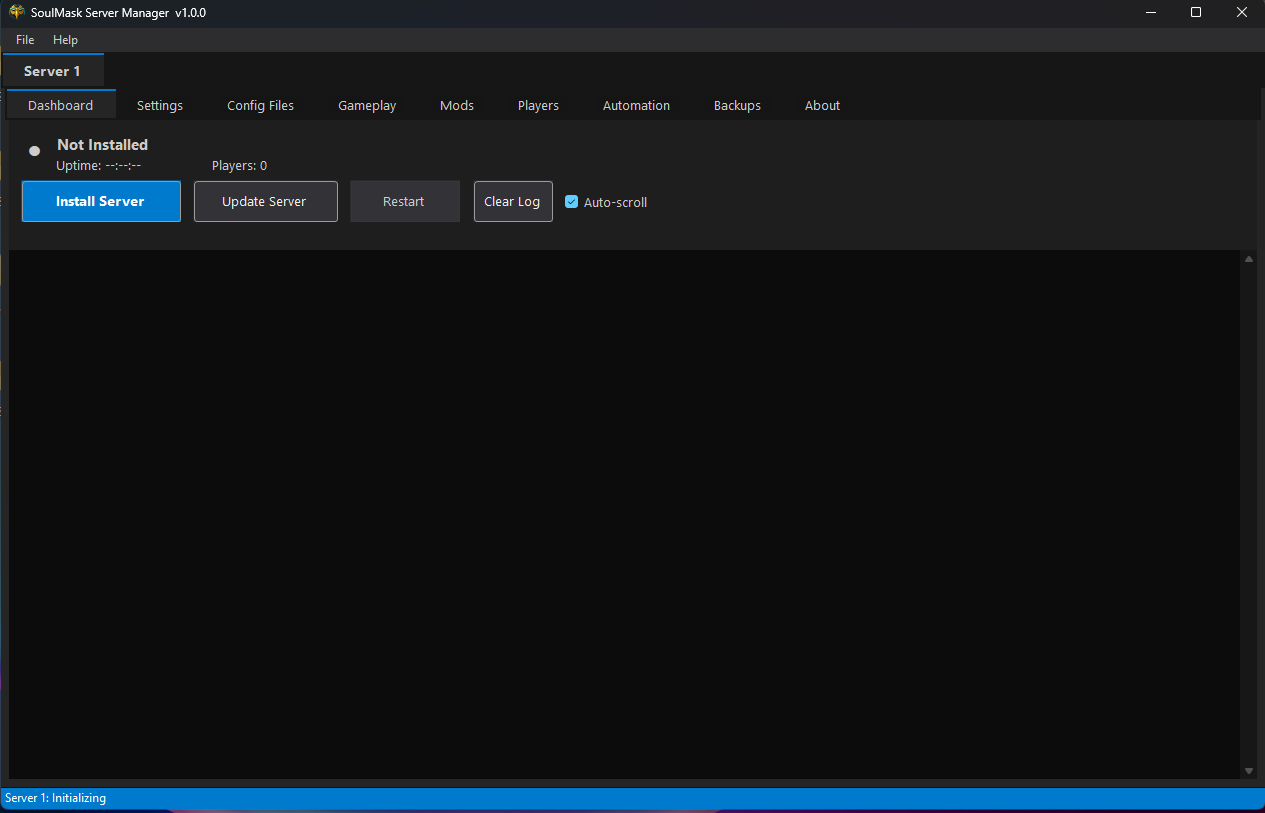
 A Windows GUI application for installing, managing, and monitoring SoulMask dedicated servers — including full cluster support, mod management, gameplay settings, automated backups, and Discord webhooks.
Built with .NET 10 WinForms by sibercat.
Get the latest release from the Releases page.
Requirements:
- Windows 10 or 11 (64-bit)
- .NET 10 Desktop Runtime
No installation needed — just extract and run SoulMaskServerManager.exe.
- Run multiple server instances side by side, each in its own tab
- Drag tabs to reorder; order is saved and restored on restart
- Add, rename, and remove instances from the File menu
- Smart install: copy files from an existing instance instead of re-downloading 5+ GB
- Configure Main Server and Client Servers for cross-server player travel
- Auto-configures ports, server IDs, and connect addresses when adding a client instance
- Step-by-step Cluster Guide built into the About tab (with video tutorial)
- Add mods by Steam Workshop ID
- Automatic mod name lookup via the Steam API
- Drag-and-drop reorder for load order control
- Check for updates: compares local install against Steam timestamps
- One-click update: downloads and installs all mods via SteamCMD
- Browse and edit all 272+ gameplay settings (translated with descriptions)
- Save and load named presets
- Apply settings live to a running server without restart
- Start / Stop / Restart with configurable grace period
- Live console with remote command input (via EchoPort)
- Real-time player list with kick, ban, and fly controls
- Scheduled restarts with optional broadcast warnings
- Manual and automatic backups on a configurable interval
- Restore from any saved backup
- Post server start/stop events and scheduled restart warnings to a Discord channel
- Download and extract the latest release
- Run
SoulMaskServerManager.exe - Go to Settings and configure your server name, ports, and passwords
- Click Install / Update Server — SteamCMD will download the server files automatically
- Click Start Server
For cluster setup, see the Cluster Guide tab inside the app or watch the video tutorial.
MIT