Examples:
https://www.wanderprofi.info/
https://www.strahlend-gesund.de/stopp5g-petitionen
https://stadtfeuerwehrverband-karlsruhe.de/cms/verband/unsere-mitglieder.html
Openstreetmap Modul
Attention, this extension is not compatible with plg_fields_agosmmapwithmarker. The two extensions can be installed together. They may not be displayed on one page at the same time.
- Install this package via Joomla! installer.
Please check after the installation if the module is correcly installed.
Open the menu
Extension | Modulesand click the toolbar buttonnew. In the appearing list should be the entryAGOSM Module.

- Create the module
Click the entry
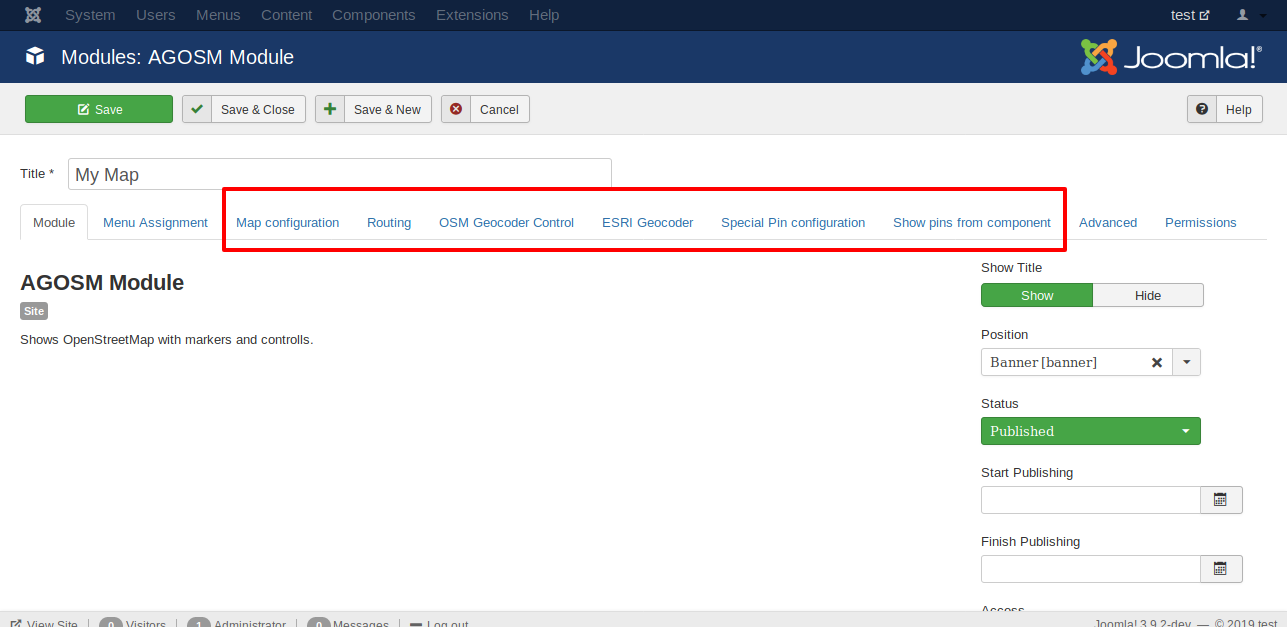
AGOSM Module. In the appearing form you have to enter at least the title and the position. And you have to select in the tabmenu assignmenton which menu items the map should be displayed.
- Check your map in the front end
If you set one standard pin in the tab
special pin configurationyour map will look like in the next image.

Voila!
A popular feature of this extension is 'Routing to address'.
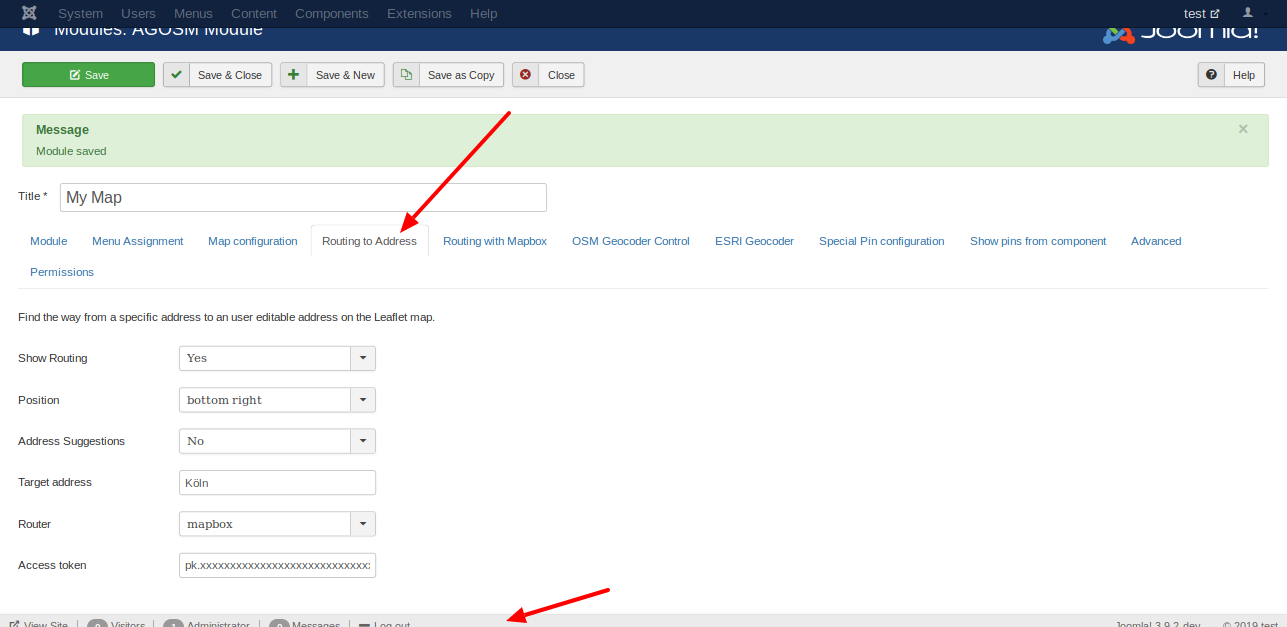
- Fill the information in the tabulator 'Routing to address'.
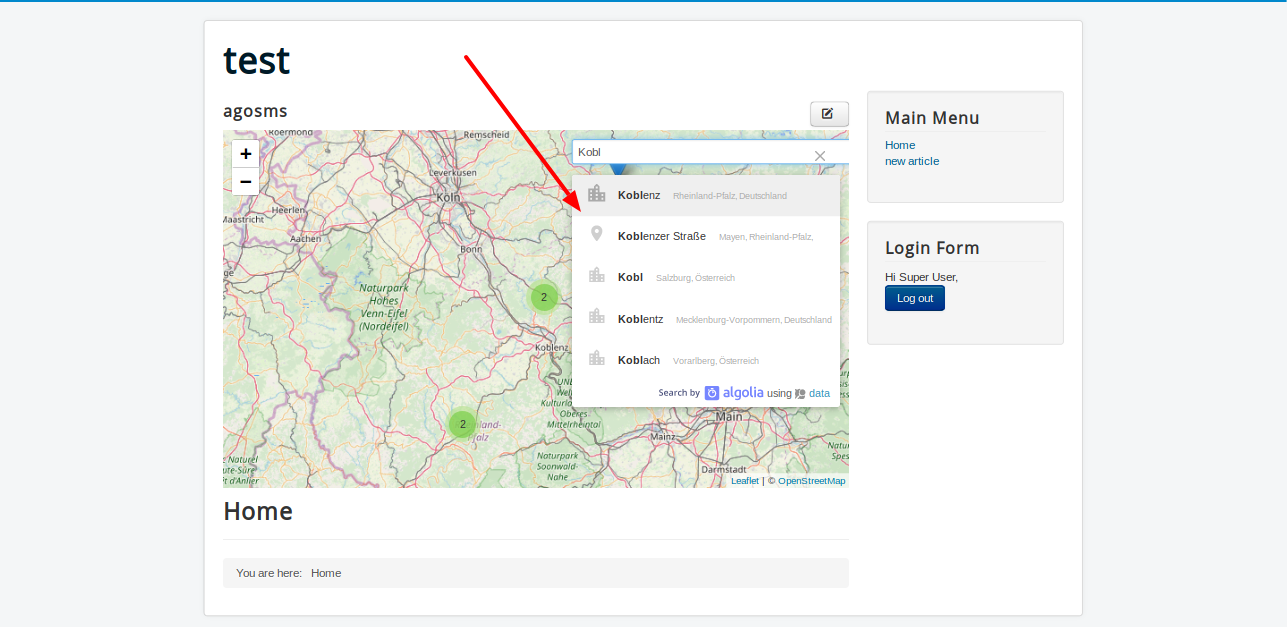
- If you like to use address suggestions you should use a positon on the top.
- Per default OSRM is used as router. OSRM is sometimes busy. If you like to use mapbox you have to get an access token: https://docs.mapbox.com/help/how-mapbox-works/access-tokens/
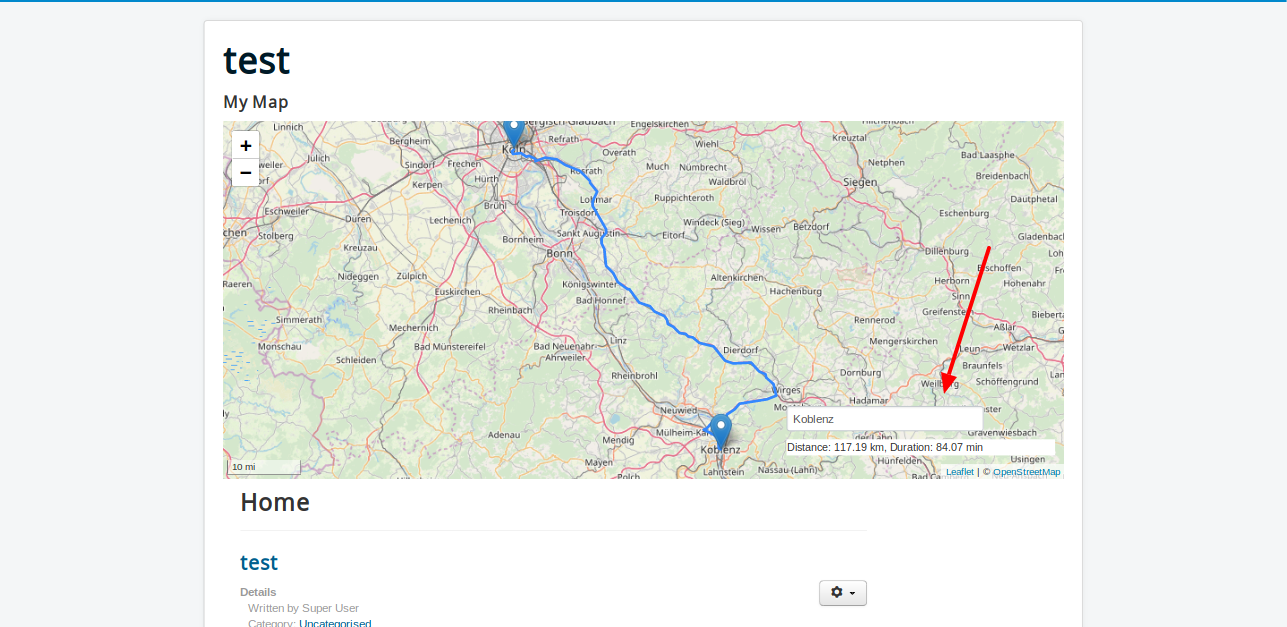
- In front end you see a text field
If you enter a address in the text field in the front end and click enter you see a route to the address you entered in the back end.
- If you activate the option suggestions, you will see a Algolia Places autocompletion menu.
You will find the option to enable MapBox Routing in the backend. For this you need a key.

If you activate the option you will see a collapsed control. When you roll your mouse over the controller, it opens.
To select starting point and destination point you have several options. See following picture. Thank you for the hint with the buttons to jojo

The result after clicking on Return should look something like this.

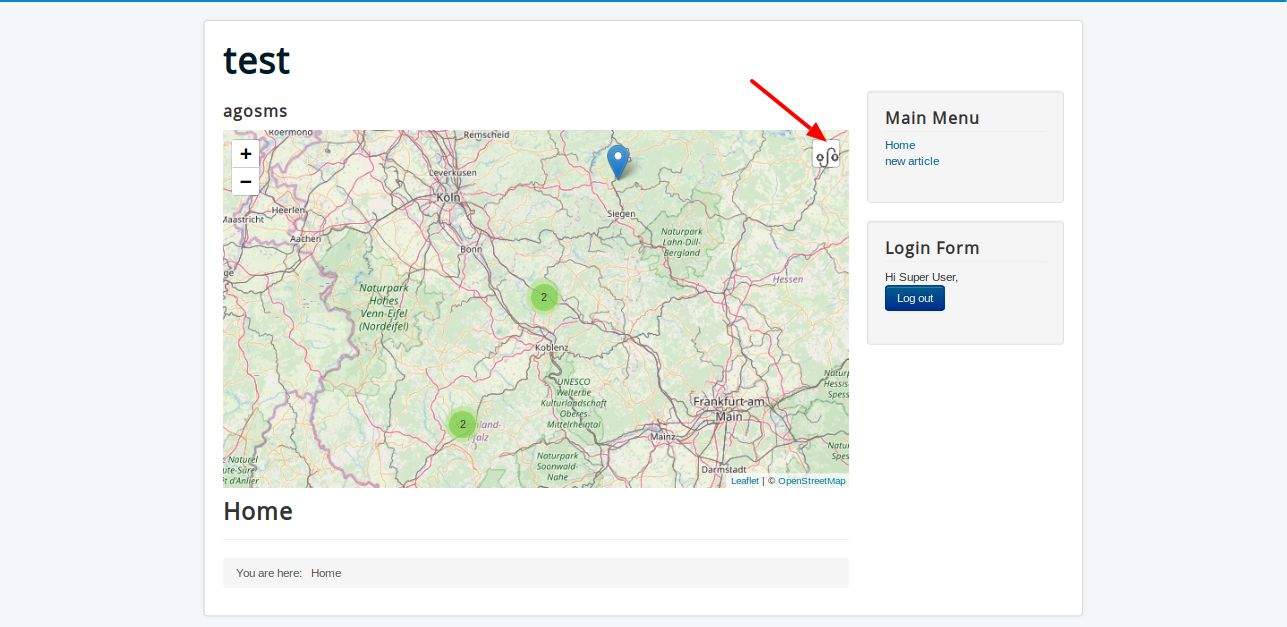
The next picture shows what the map might look like. If the markers are too close together, they will be clustered. If the resolution of the card fits, the marker will be displayed. A click on the marker opens a popup. In this popup there is a link to the post - link text is the title of the article.

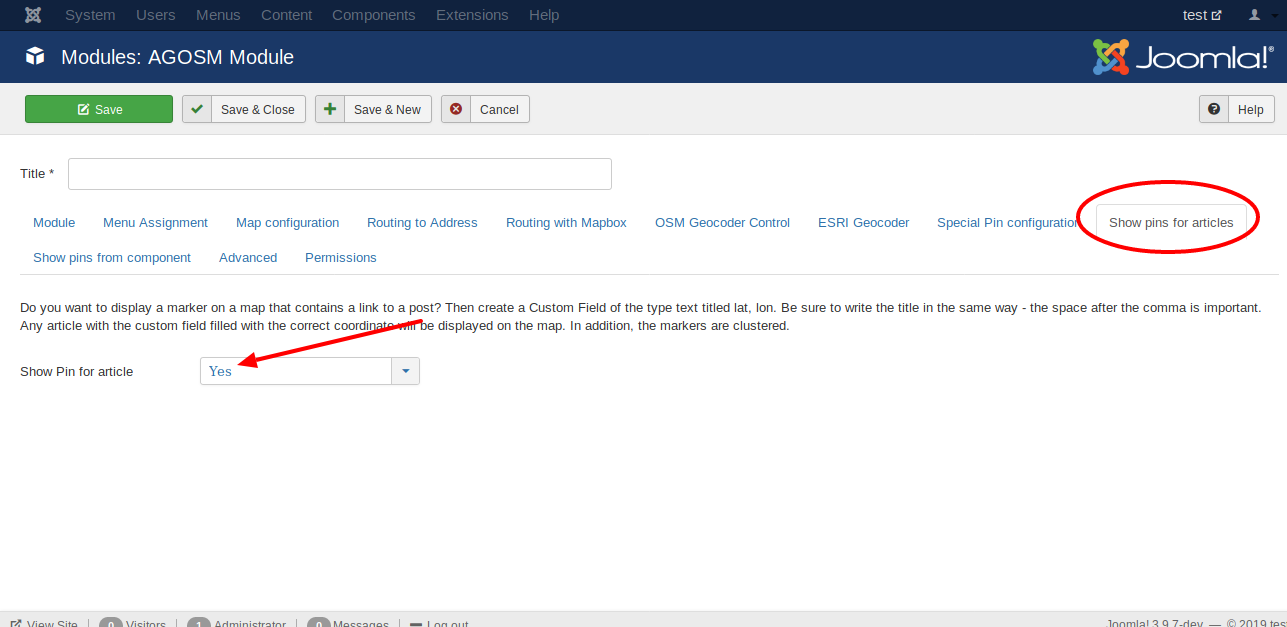
Do you want to display a marker on a map that contains a link to an article?
Then create a Custom Field of the type text titled lat, lon.
Be sure to write the title in the same way - the space after the comma is important.
Any article with the custom field filled with a correct coordinate will be displayed on the map.
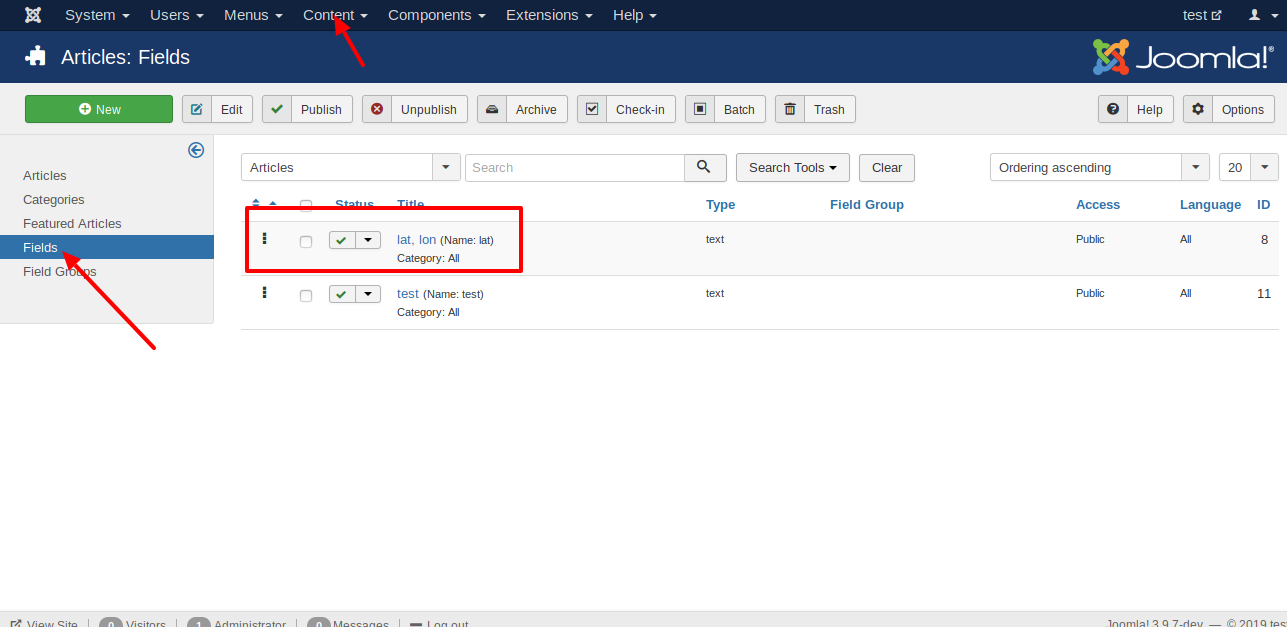
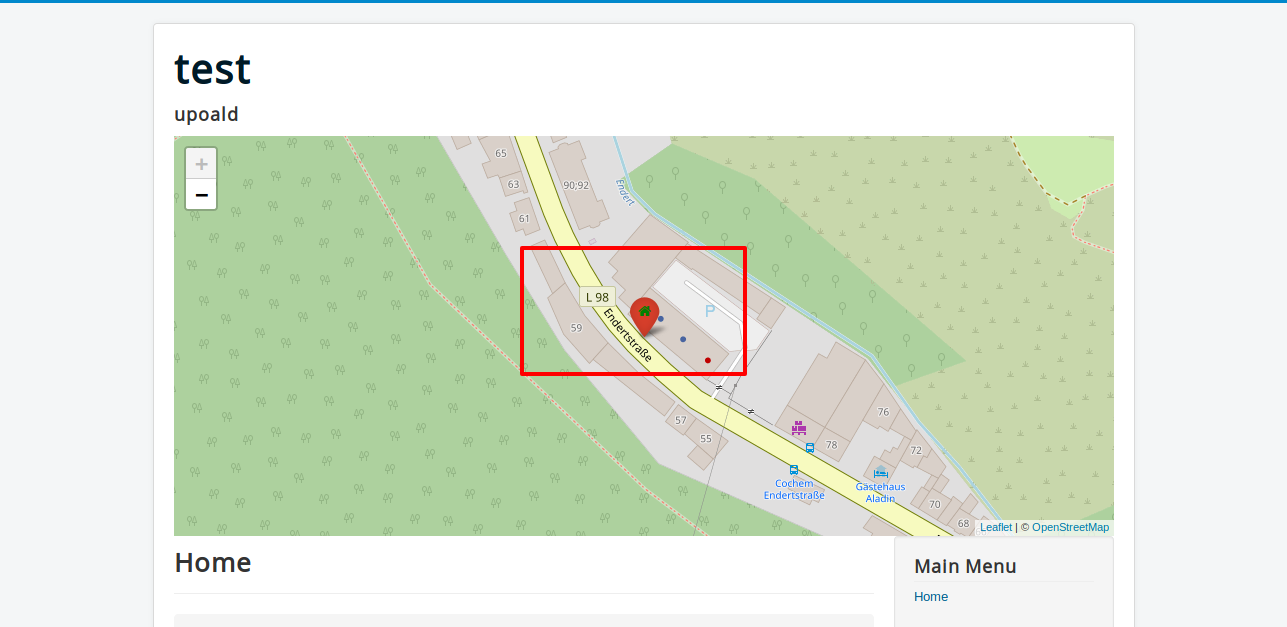
If you want to use different colors or icons, you can fill the custom field with the title lat, lon as
follows: lat,lon,markercolor,iconcolor,icon.
As color, you can choose red, darkred, orange, green, darkgreen, blue, purple, darkpurple and cardetblue.
For the icon you can choose the name of the Font Awesome Icon.
For more informations see https://fontawesome.com/icons?d=gallery.
When you enter 50.150, 7.158, red, green, home you will see an icon as shown in the next picture.
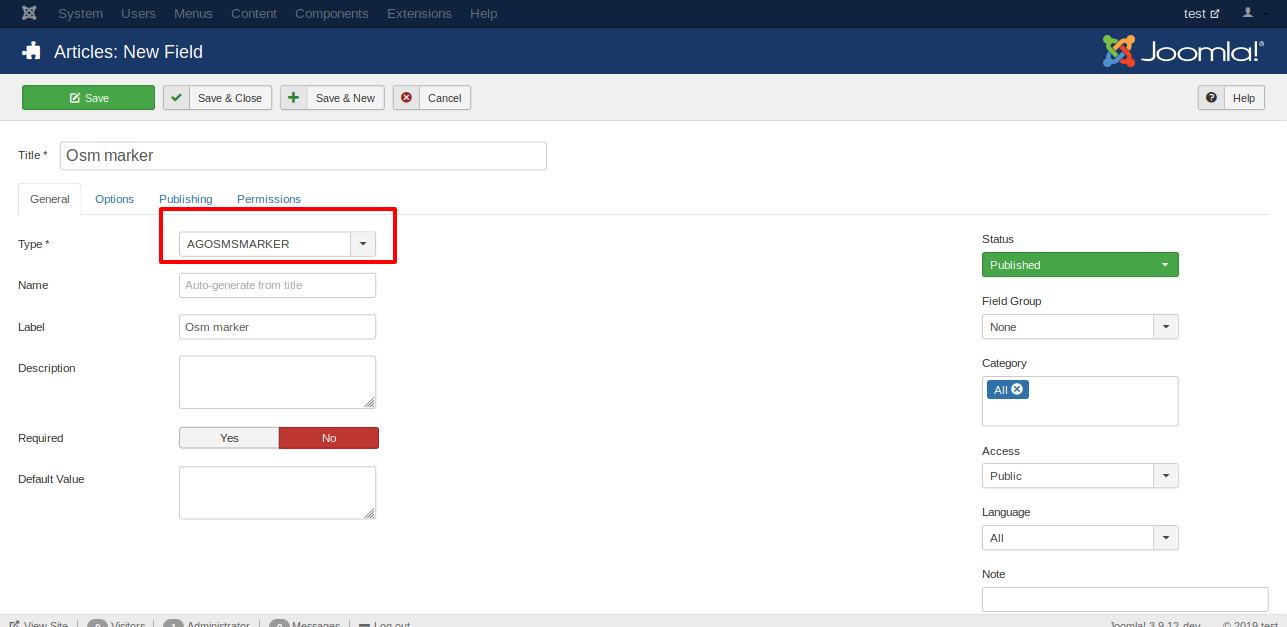
Instead of the text fields, there are now two special custom fields where you can choose all options more user friendly.
Create the Custom field agosmmarker
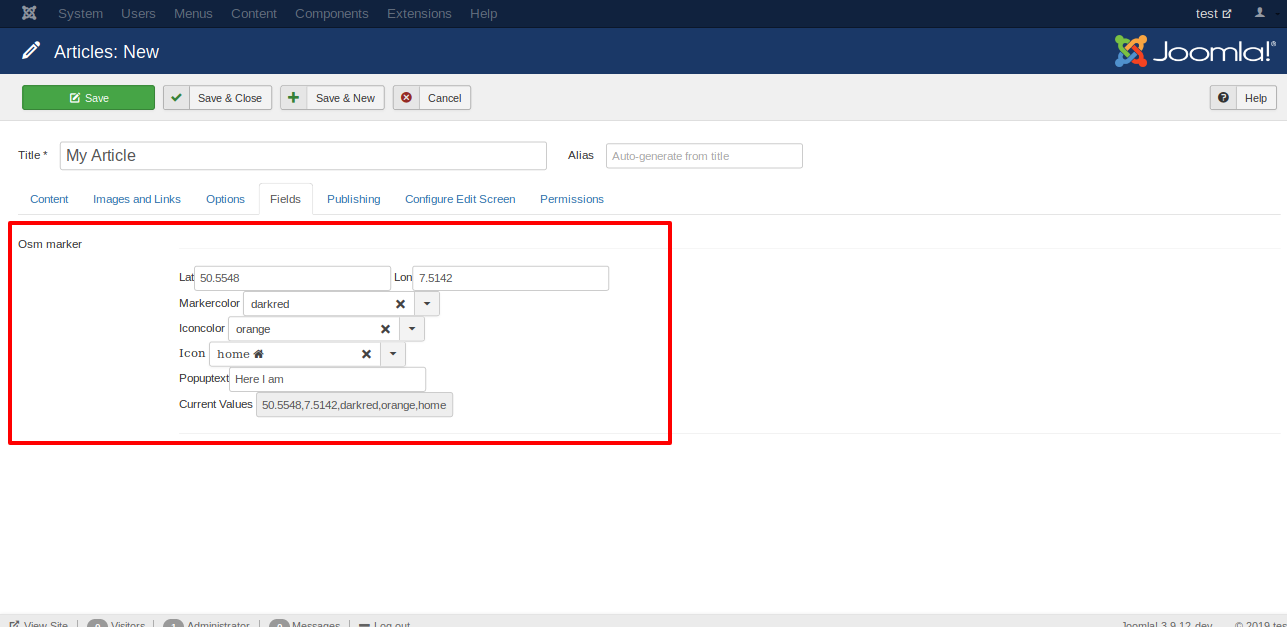
Fill the Custom Field agosmsmarker while editing an article. You can choose many options, but you need to know the correct coordinates.
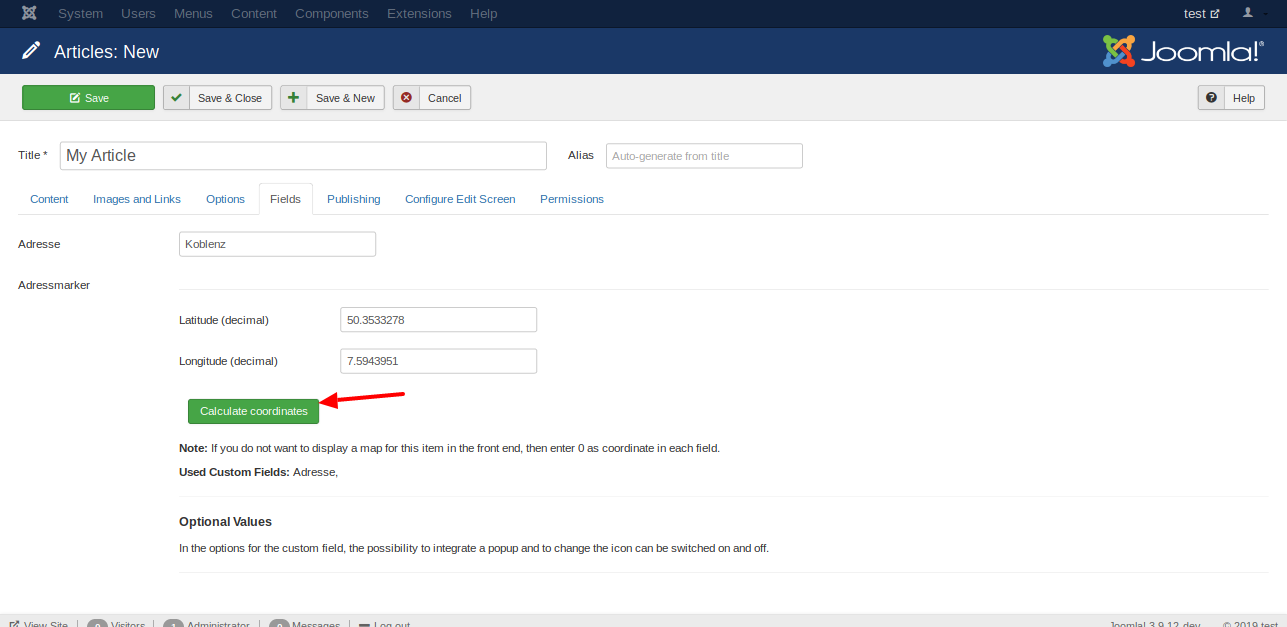
The Custom Field agosmsaddressmarker calculates the coordinates for a given address. For this you need another Custom Field whitch contains the address.

Fill the Custom Field agosmsaddressmarker while editing an article. You do not need the full address. You can enter only the name of the city if you want a marker in the center of a city.
The next picture shows where you can activate the option in the module.
Maybe you do not want to show the field lat lon in the frontend.
Just select the option Do not automatically display in the Custom Field options.

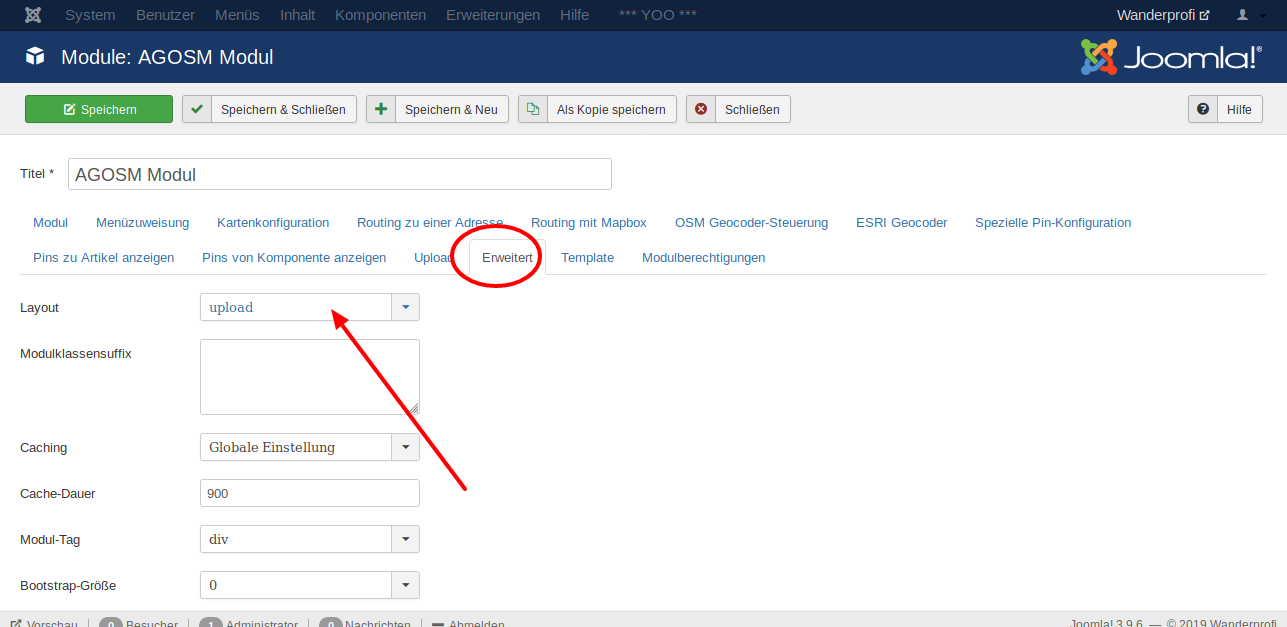
Please choose the layout upload
if you want to allow a user to upload a GPX file to the server and view it on the map.
- Open the component via
Components | Agosmsand click the toolbar buttonnew.
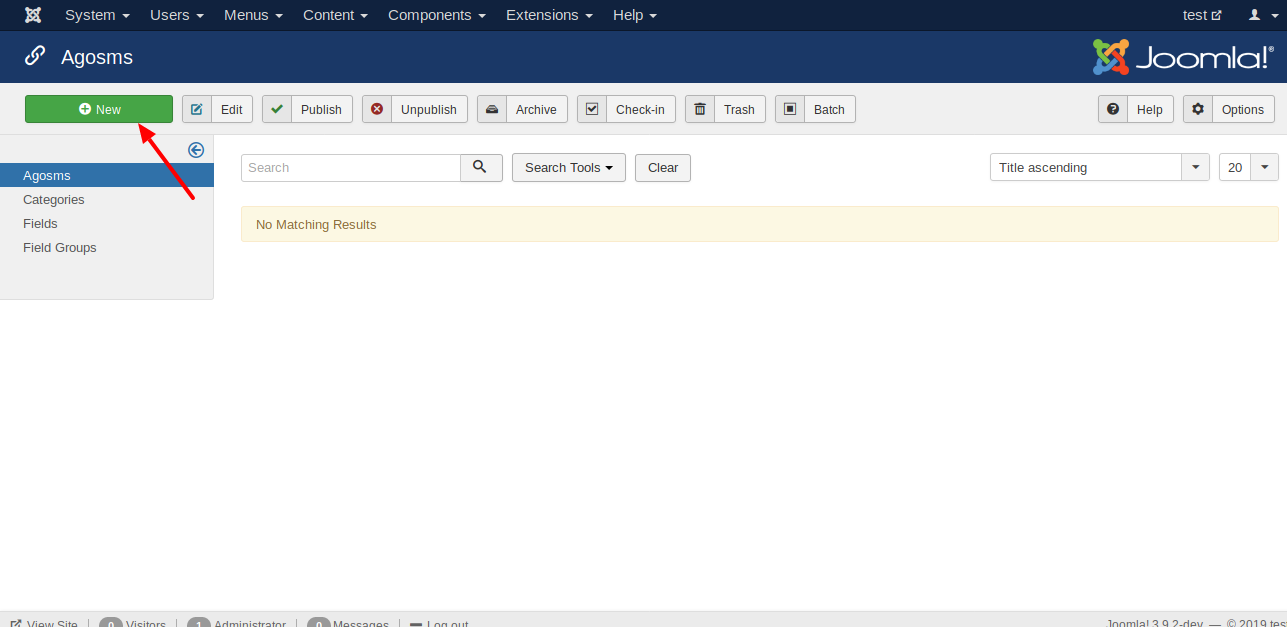
- Create one entry. At least you have to fill the title and the coordinates
in the tab
Module Agosms - Marker Options

- Go back to the module and set the option
show pins from componenttoyes.
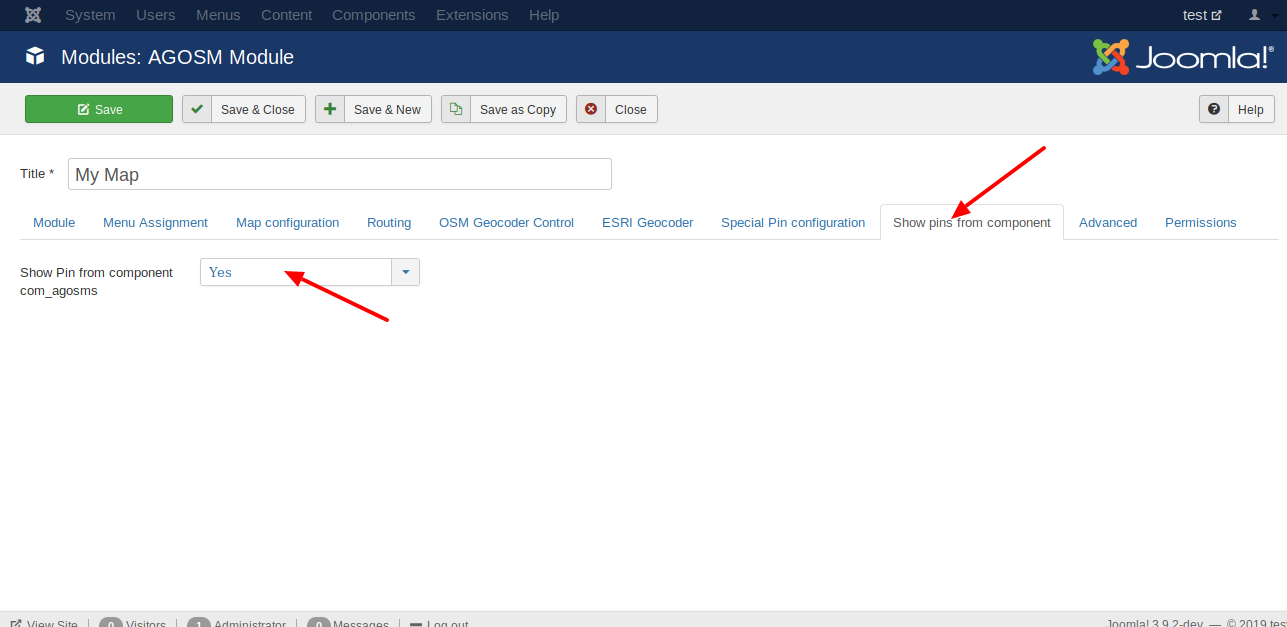
- Adjust the map
In the tab
Map configurationyou can set the zoom and the coordinates that should be shown.

It is the main part of this extension.
The Component is used for showing a view for selecting the coordinates.
What is OpenStreetMap?
OpenStreetMap (OSM) is a collaborative project to create a free editable map of the world. Rather than the map itself, the data generated by the project and saved in a datase is considered its primary output.
Perhaps your key is not valid? In this case you see the Error "Google Maps JavaScript API error: InvalidKeyMapError" in the web console.
If the restrictions of your key to restricte, you see the message "Google Maps JavaScript API error: RefererNotAllowedMapError". You can change the restrictions here.
If the shift does not change in relation to the map scale; it is always the same pixel value. Please check if the problem also exists with the standard template Protostar or Cassiopeia.
Google Maps JavaScript API error: RefererNotAllowedMapError
GNU General Public License v3.0
Enjoying Gatsby Starter bonsai.css and want to help? You can:
- Create an issue with some constructive criticism
- Submit a pull request with some improvements to the project
This project follows the all-contributors specification. Contributions of any kind welcome!
This Joomla! Extension is a simple feature. But it is most likely, that your requirements are already covered or require very little adaptation.
If you have more complex requirements, need new features or just need some support, I am open to doing paid custom work and support around this Joomla! Extension.
Contact me and we'll sort this out!
