Mod Creation
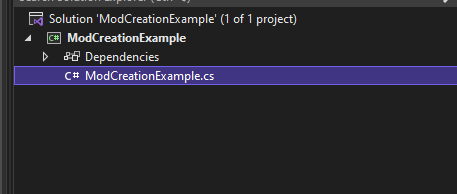
Next step is to create your mod Class Rename the default class created by Visual studio
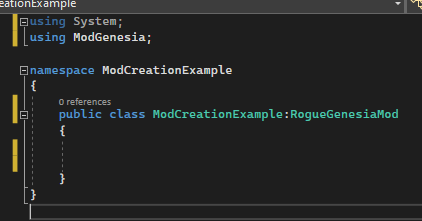
make it inherit RogueGenesiaMod (you'll need to add using ModGenesia; as the class is from the ModGenesia namespace)
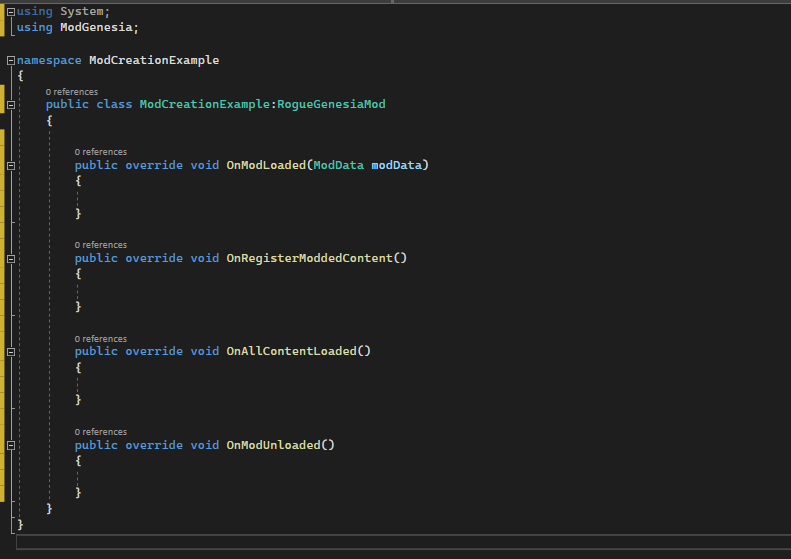
This is the base of your mod, you can add a few function that are called at different moment of the mod loading
public override void OnModLoaded(ModData modData)
This method is called first, when the game has loaded the mod. The ModData object passed to it contains your mod metadata like its dependencies or file location on the disk. Use it to create the initial state of the mod, e.g. to initialize instance properties. (also suggestion to rename to ModMetadata because it's not data of the mod, it's data about the mod)
public override void OnRegisterModdedContent()
This method is called after OnModLoaded has finished and returned. Use it to add new content to the game with ModGenesia API.
public override void OnAllContentLoaded()
This method is called after all the content from the game (both vanilla and modded) has been registered. Use it to freely interact with any content, e.g. to create mods based on other mods' changes.
public override void OnModUnloaded()
This is called when the mod is unloaded, make sure all your event hooking or reference to your mods are cleaned up to avoid memory leak
Next Step is to create the mods file that will be uploaded to Steam.
For that go to your game mods folder (game installation folder > Modded\Mods), create the Mods folder if it doesn't exist. Create a new folder named after your mod.
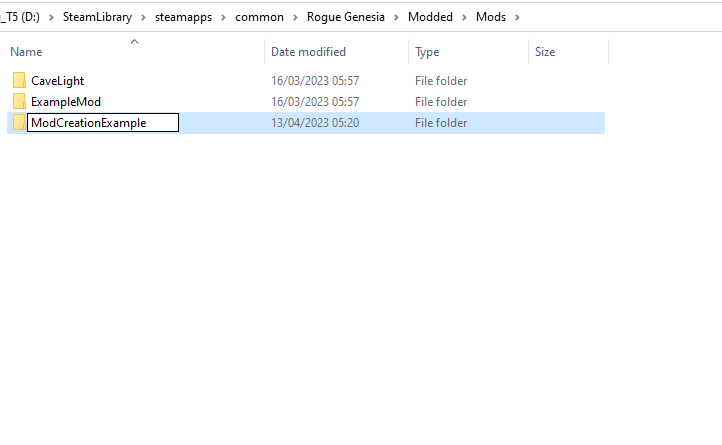
Inside, you'll create a new text file you'll name ModCreationExample.rgmod (make sure the extension is .rgmod otherwise the mod won't be loaded by the game) that will serve as a manifest for your mod.
inside you will copy/paste this :
{
   "DisplayedName":[
      {
         "Key":"en",
         "Value":"YOU ENTER HERE YOUR MOD NAME IN ENGLISH"
      }
   ],
   "DisplayedDescription":[
      {
         "Key":"en",
         "Value":"YOU ENTER HERE YOUR MOD DESCRIPTION IN ENGLISH"
      }
   ],
   "Version":"0.1",
   "Name":"YOUR_MOD_NAME",
   "Author":"YOUR_NAME",
   "WorkshopID":"",
   "HardDependencies":[

   ],
   "SoftDependencies":[

   ],
   "Tags":[
      "THIS_IS_AN_EXAMPLE_TAG",
      "THIS_IS_ANOTHER_EXAMPLE_TAG"
   ],
}
Make sure you correctly fill the mod DisplayedName, DisplayedDescription, Name and Author.
At this points WorkshopID should be empty.
Game use this to know the state of the mod regarding Steam WorkShop an empty WorkshopID mean the mod only exist in local and will offer you the option to upload the mod to steam as the author Having the WorkshopID filled, will tell the game the mod already exist on the workshop, and the game will check if you are the creator to give you the uploading right.
This is optional but you can also add ModIcon.png and ModPreview.png images that will be display in game when selecting your mod.
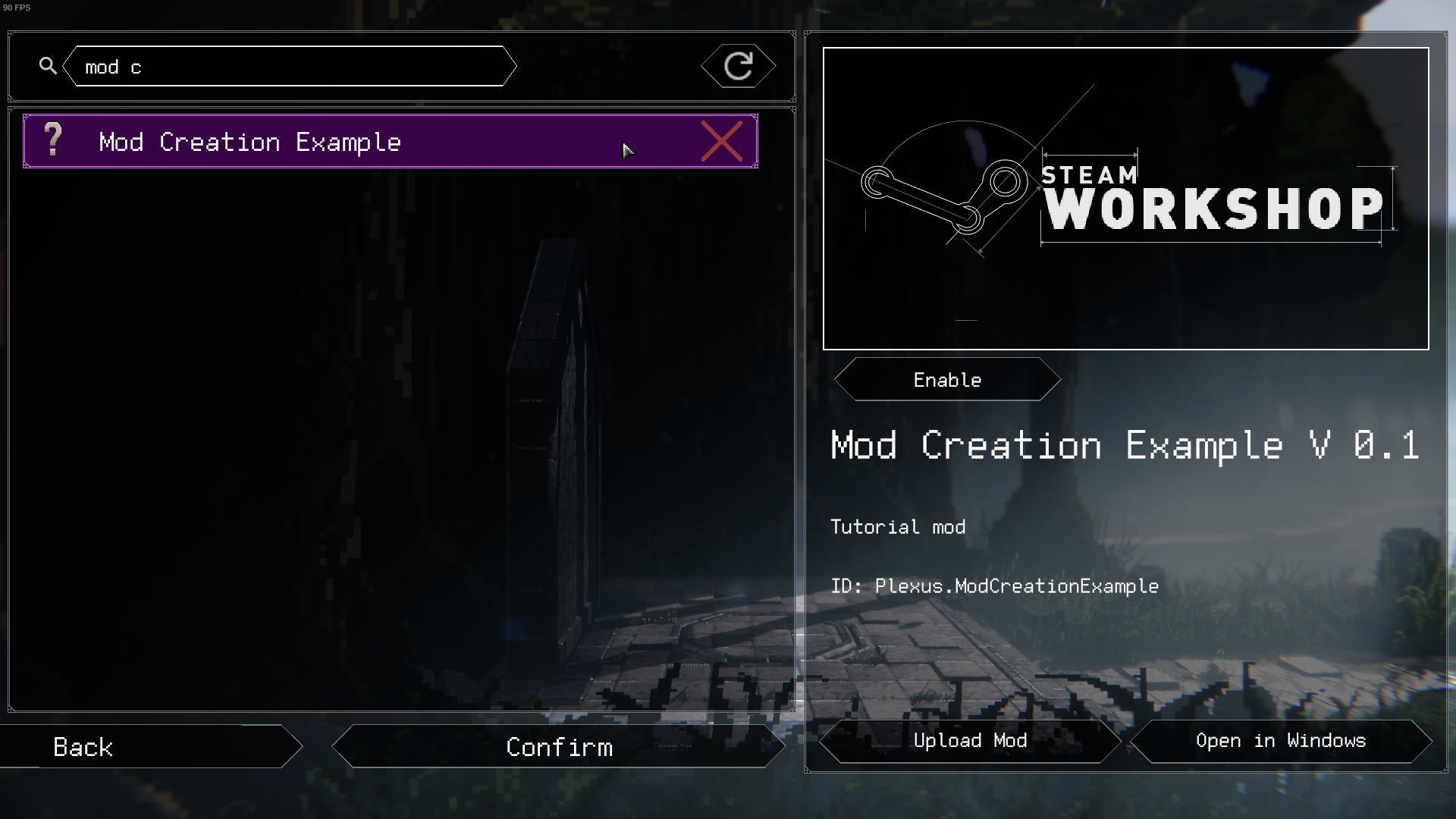
At this point you can launch the game and check in the Mod List if you can see your own mod