A.02 Using Rewards
(For information on how each different Reward type works, see the page on Reward Types)
There are 3 ways to enter a Reward:
- From the Rewards Screen
- From a Class Time (Schedule)
- From an existing Student's page
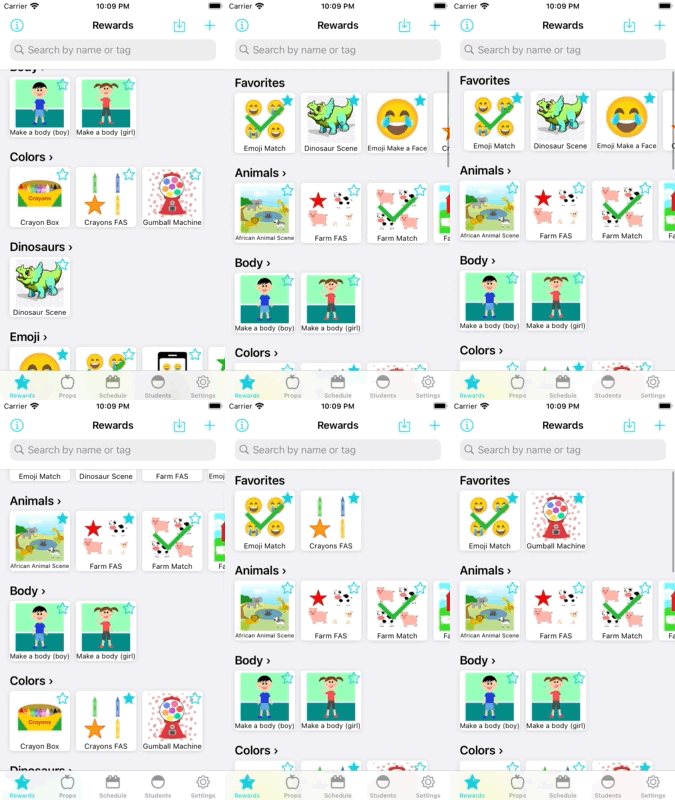
To jump into any Reward, first navigate to the Rewards screen (the leftmost tab along the bottom of the screen). Once there, you'll see many Rewards laid out in a collection, sorted by Category.
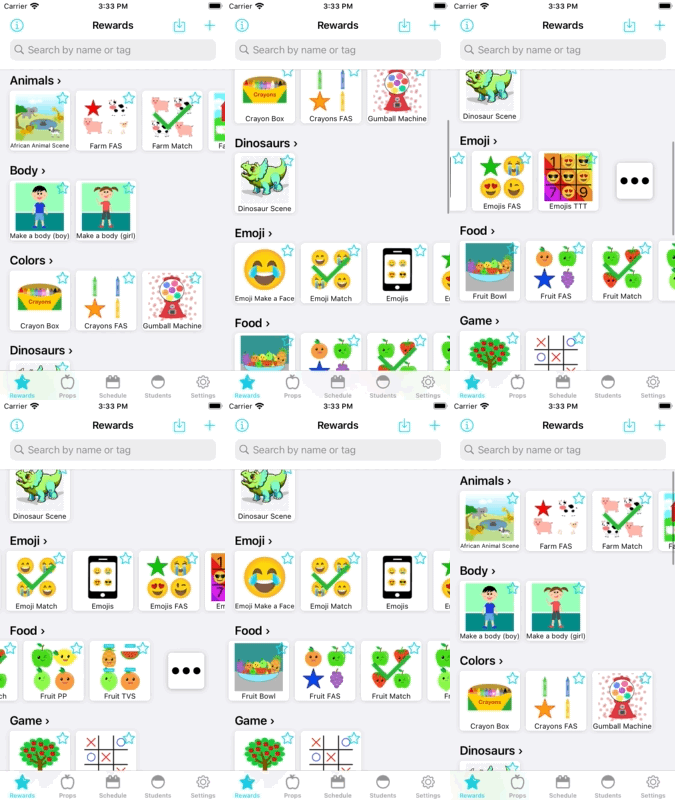
Rewards are organized by Categories. Categories group Rewards together.
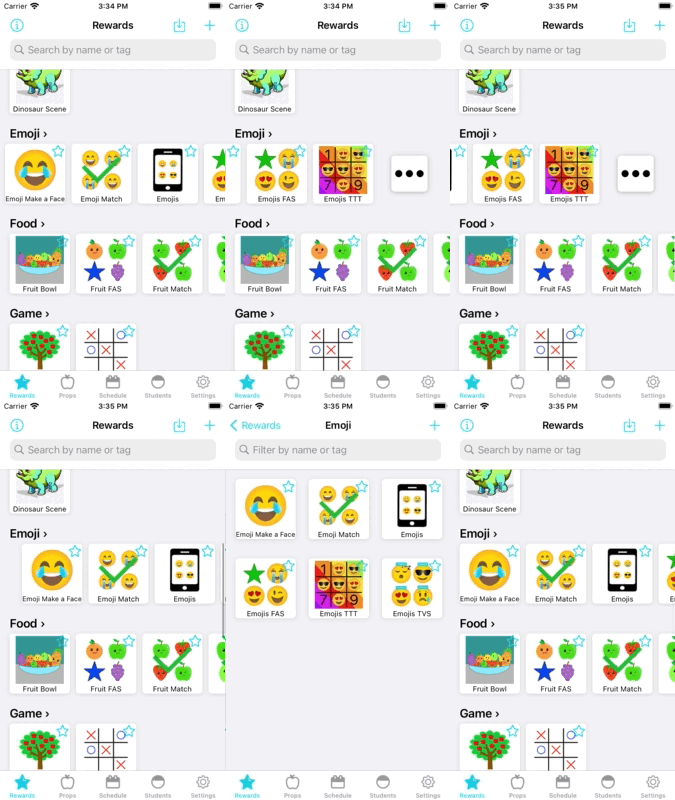
If there too many Rewards in a single category for the Rewards screen to display, you can open the entire Category in one of two ways:
- Scrolling all the way to the end of the category and tapping on the "..." icon
- Tapping on the Category name
If you have a schedule prepared, and you have selected a Reward to be a part of the Class, you can enter the Reward by selecting the Class on the Schedule Screen.
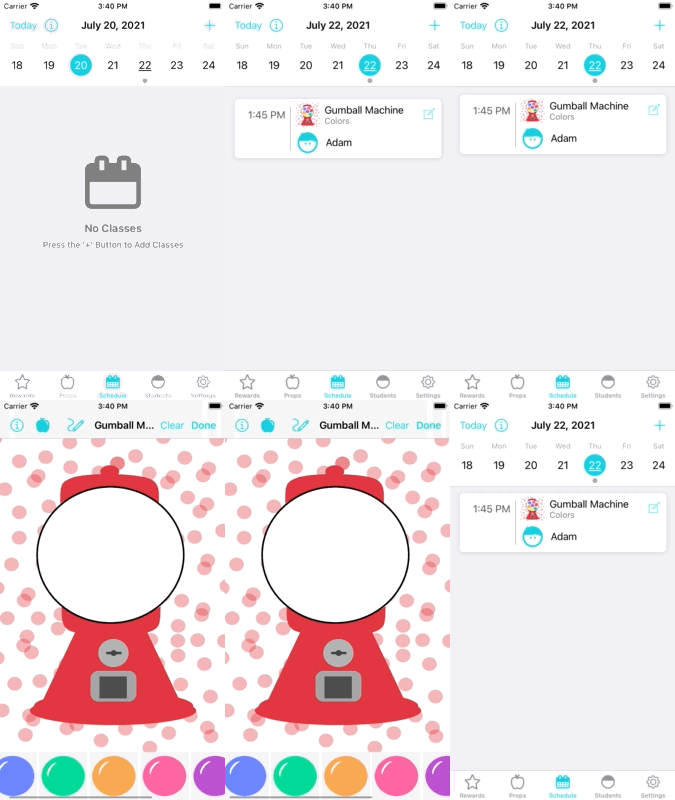
For more information on Schedules, see the Schedules Page.
When you have students entered in the app, and you use the Scheduling feature, the student's page will display a list of Rewards you have used with them in previous classes. If you choose, you may open the reward from this page as well.
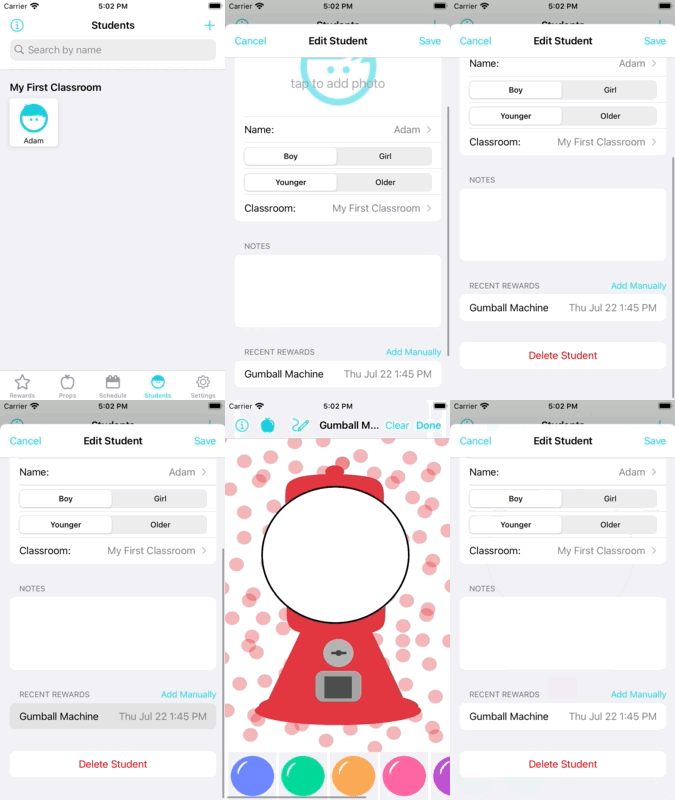
For more information on Students, see the Students Page.
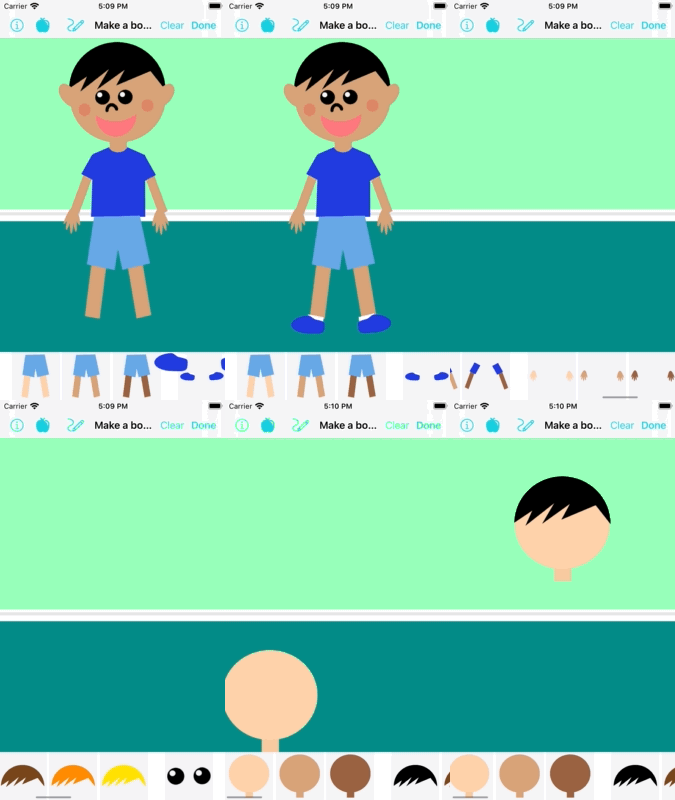
Once you display the reward, it's time to engage the student. This is where the fun is! Each reward is different, but from searching for stars in an FAS, or creating a scene with MAS, or playing a game like Tic Tac Toe, this is where the real magic of Stars 2 Apples happens.
Whenever you're finished using the Reward, simply press the "Done" button in the top-right corner of the screen to return to where you were before you selected the Reward.
Other than using with the Reward, Stars 2 Apples gives some extra niceties within this view:
All rewards have a "Clear/Reset" button next to the "Done" button. Press this button to return to the state the Reward was in when you first entered the Reward.
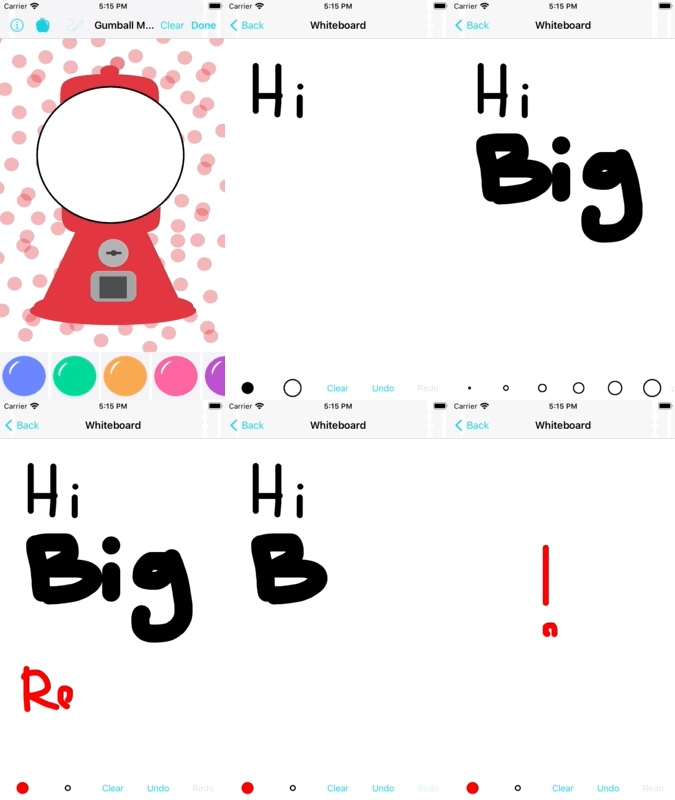
From any Reward, you can enter a "Whiteboard" view that you can to use to whiteboard or draw anything, whatever makes sense for you and helps you!
Enter the whiteboard by pressing the draw icon at the top of the screen, next to the name of the Reward:
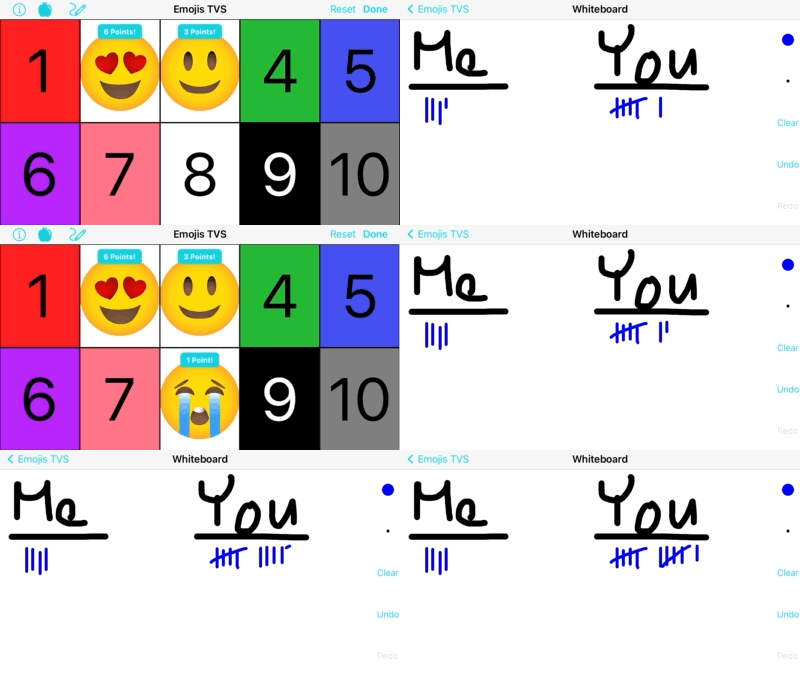
And as long as you stay inside of the reward, the whiteboard doesn't clear! One common usage of this is keeping track of the score during a TvS Reward:
If you want to open a Prop mid-lesson but don't want to lose progress in the Reward, then you can press the Props icon (near the top-left corner of the screen) to access all of your props without losing context.

As a bonus, if you use the scheduling feature, then it allows you to bundle Props together with the lesson, so that you can access those Props more quickly from the Rewards screen at any time:
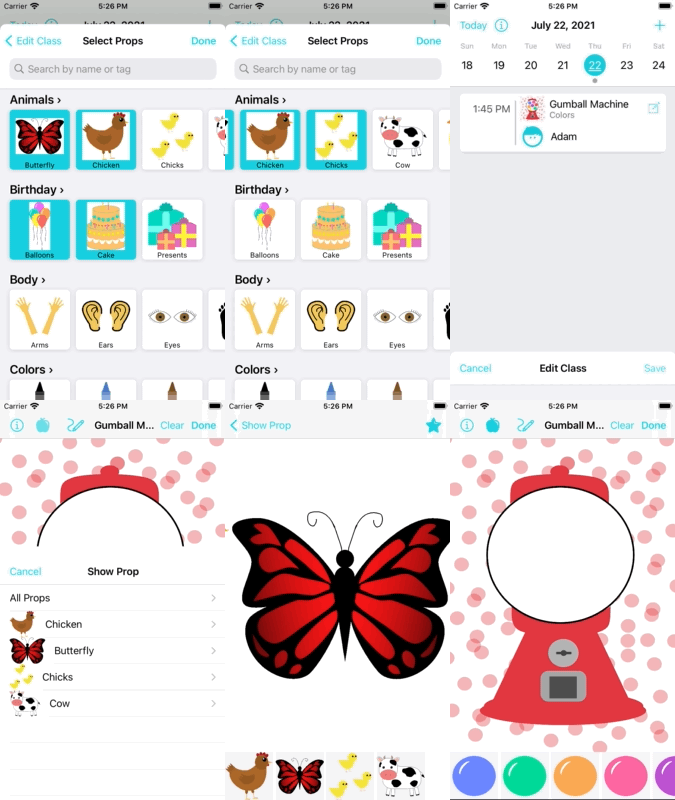
For more information on Schedules, see the Schedules Page.
You can favorite certain Rewards to bring them to the top of the Reward list in a special "Favorites" Category. Favoriting a Reward is as easy as selecting the Star on the top-right corner of the Reward thumbnail.