D.02 Using Students
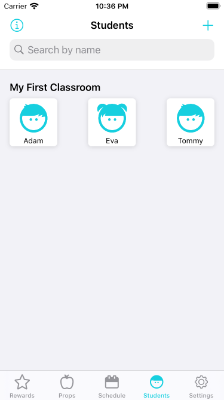
You can find your Students in the second to rightmost tab along the bottom of the screen. All students are available within this single view, organized into a single "Classroom", titled "My First Classroom".
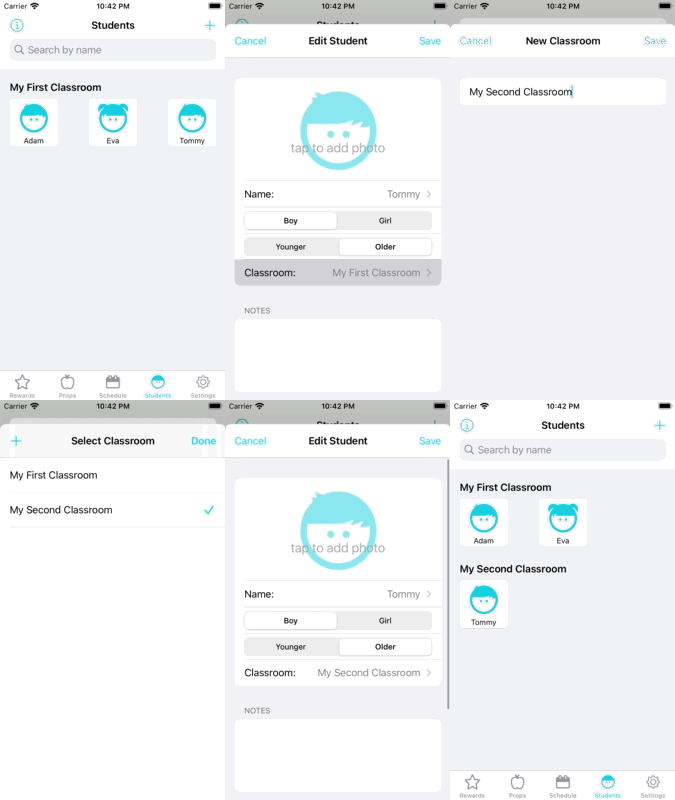
"Classrooms" in Stars 2 Apples are simply groupings of students. Though a single Classroom will fit most teachers' needs, you are fully enabled to create other "Classrooms" if you want to group students together differently.
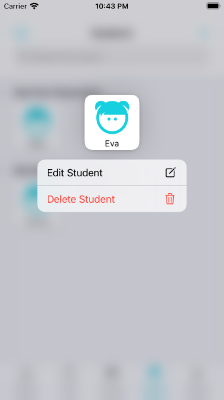
To view/edit information about the Student, simply tab on the Student. You can also press and hold on the Student thumbnail to bring up a context menu that provides the option to Edit or Delete, similar to the Rewards/Props context menus.
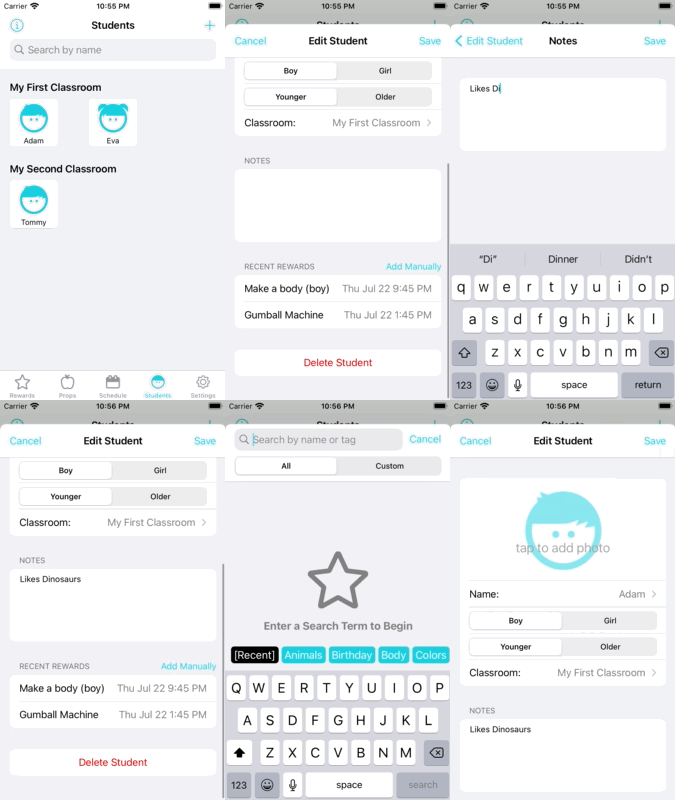
Once a student is created, you can enter the student's page to add Notes about the student, or view their previously linked rewards from the Scheduling feature. You can also manually enter a Reward into this list if you wish.