B.02 Using Props
There are 2 ways to access a Prop:
- From the Props Screen
- From a Reward
To jump into any Prop, first navigate to the Props screen (the second to leftmost tab along the bottom of the screen). Once there, you'll see many Props laid out in a collection, sorted by Category.
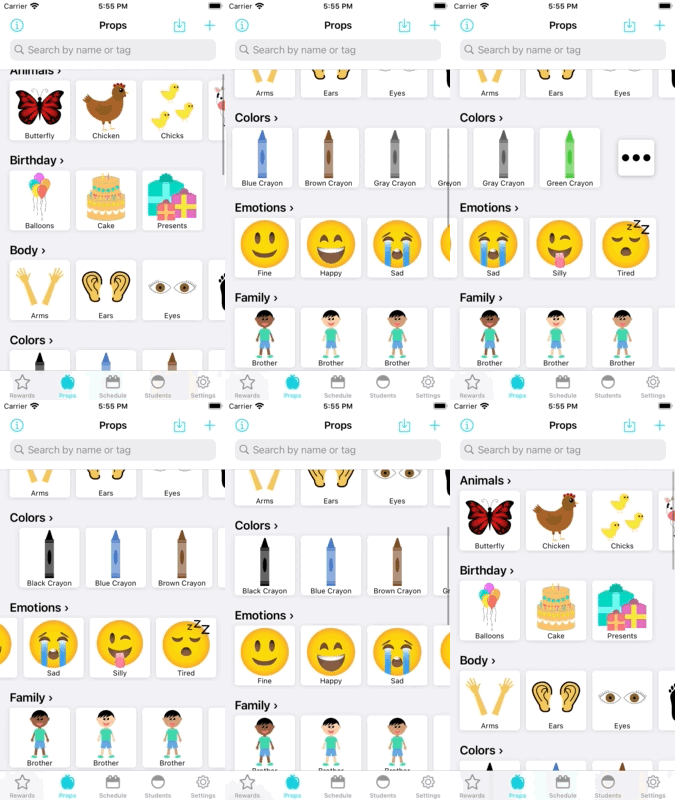
Props, like Rewards, are organized by Categories. Categories group Props together.
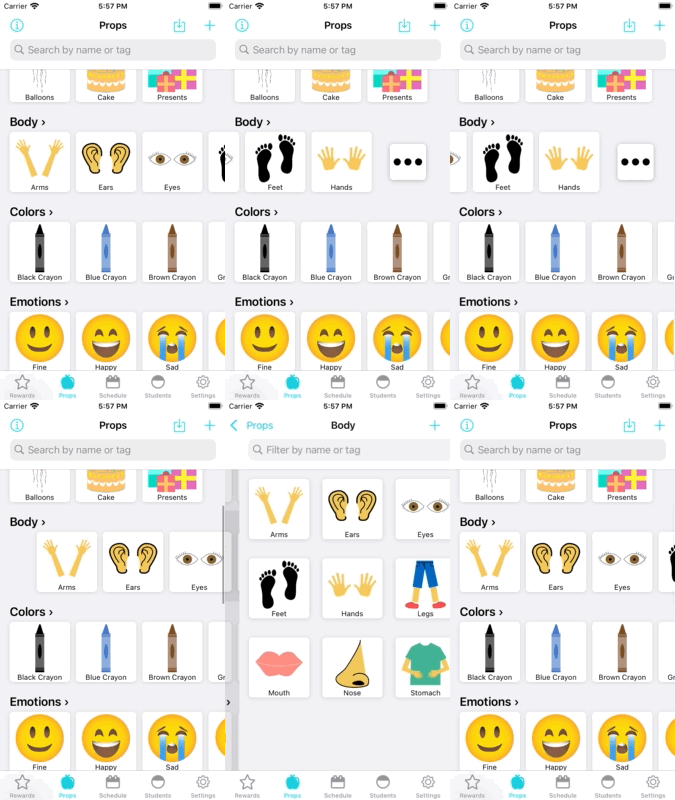
If there too many Props in a single category for the Props screen to display, you can open the entire Category in one of two ways:
- Scrolling all the way to the end of the category and tapping on the "..." icon
- Tapping on the Category name
From a Reward (also seen in Using Rewards)
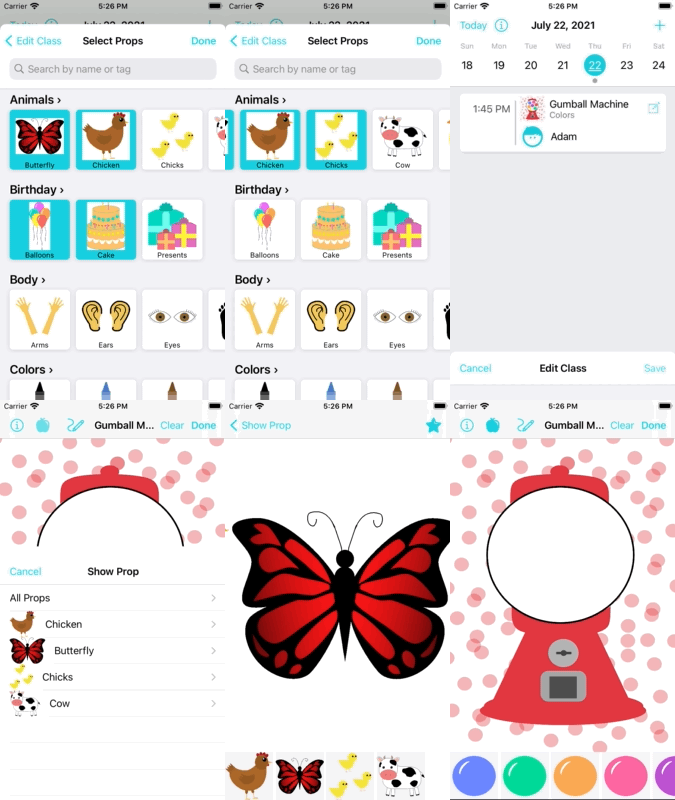
If you want to open a Prop mid-lesson but don't want to lose progress in the Reward, then you can press the Props icon (near the top-left corner of the screen) to access all of your props without losing context.

As a bonus, if you use the scheduling feature, then it allows you to bundle Props together with the lesson, so that you can access those Props more quickly from the Rewards screen at any time:
For more information on Schedules, see the Schedules Page.